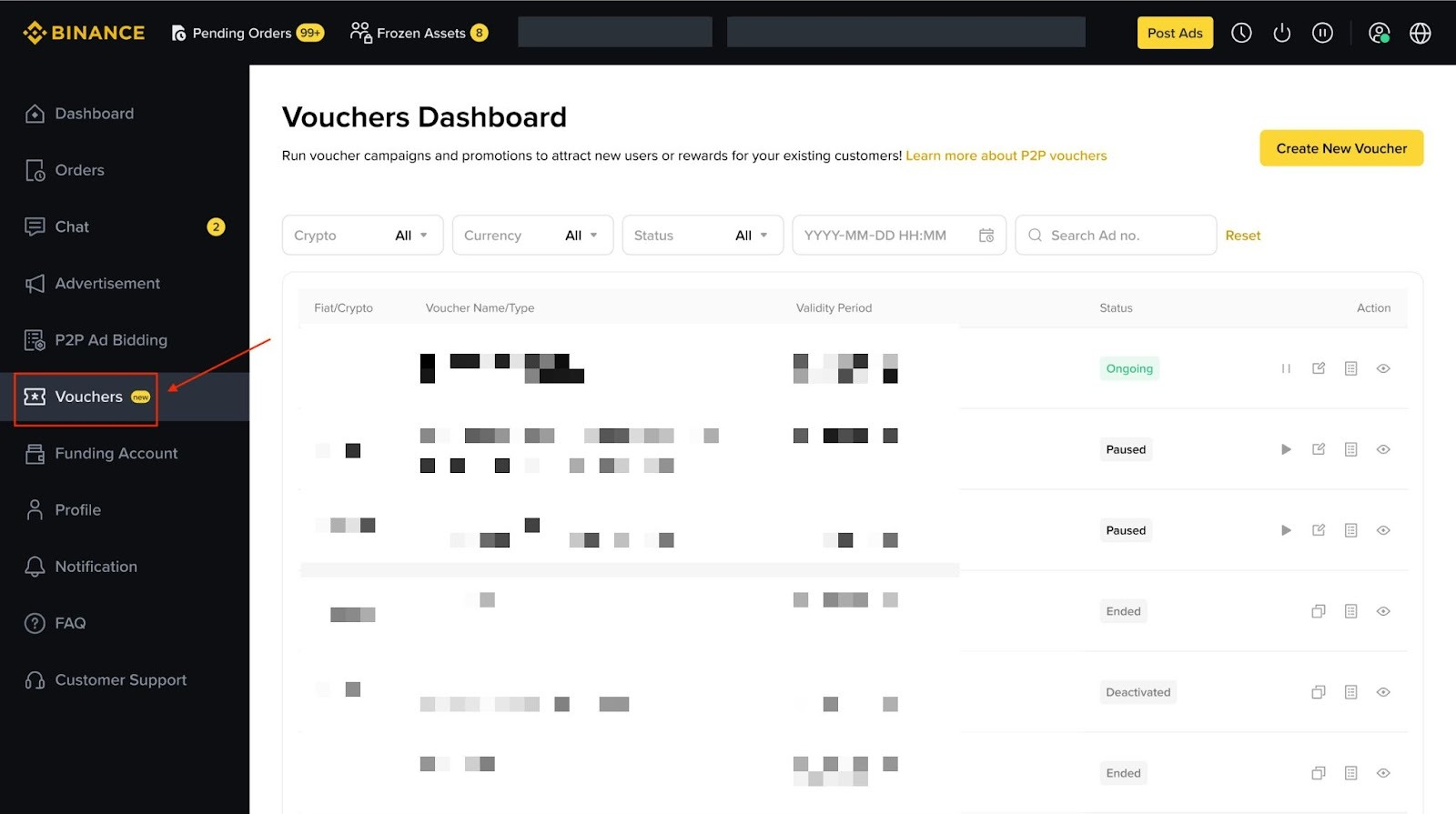
1. Access the Voucher Dashboard page available within the Merchant Portal.
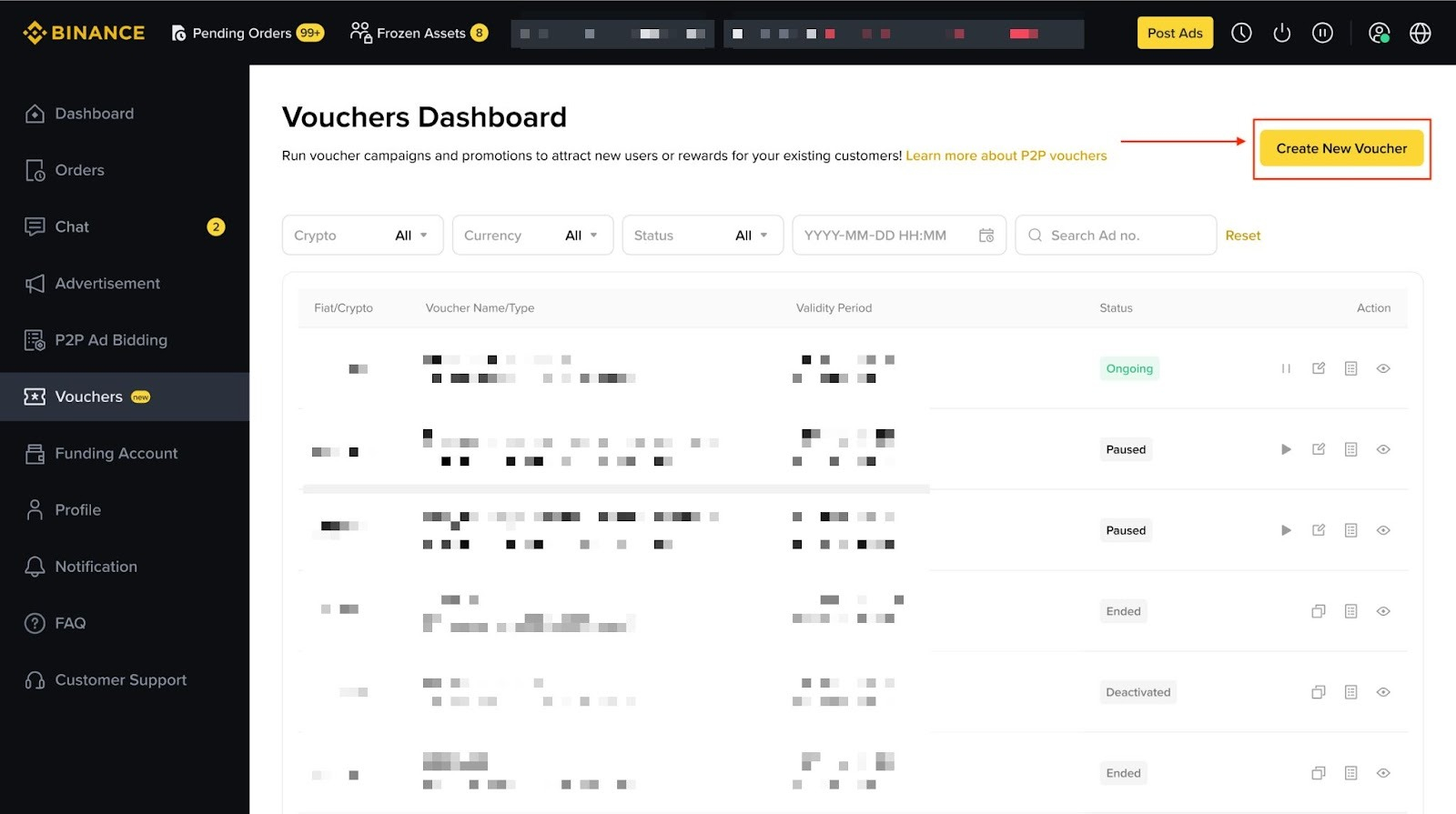
2. Click on [Create New Voucher] to begin the voucher creation process.
3. Fill in all required fields with the necessary information to create your voucher.
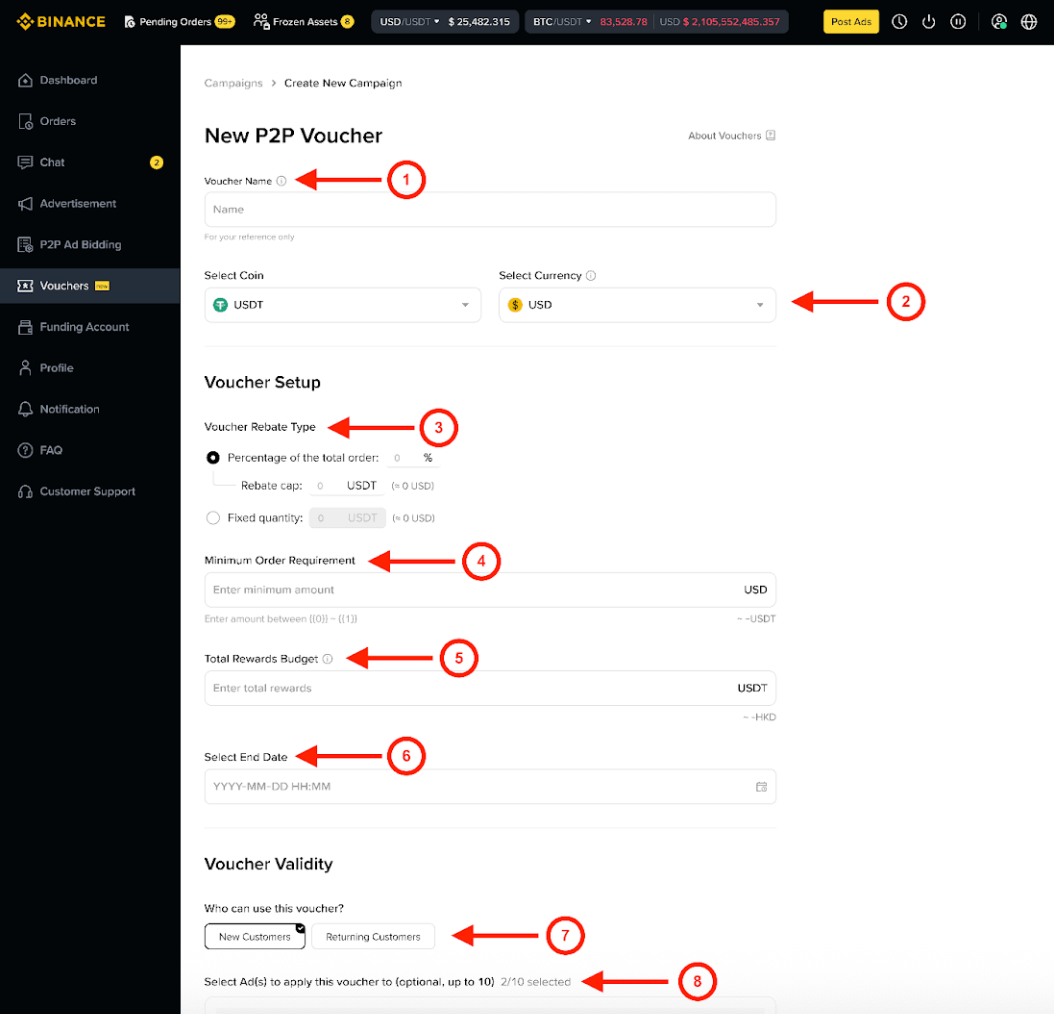
4. After completing all required fields, you can directly submit to launch your voucher campaign.
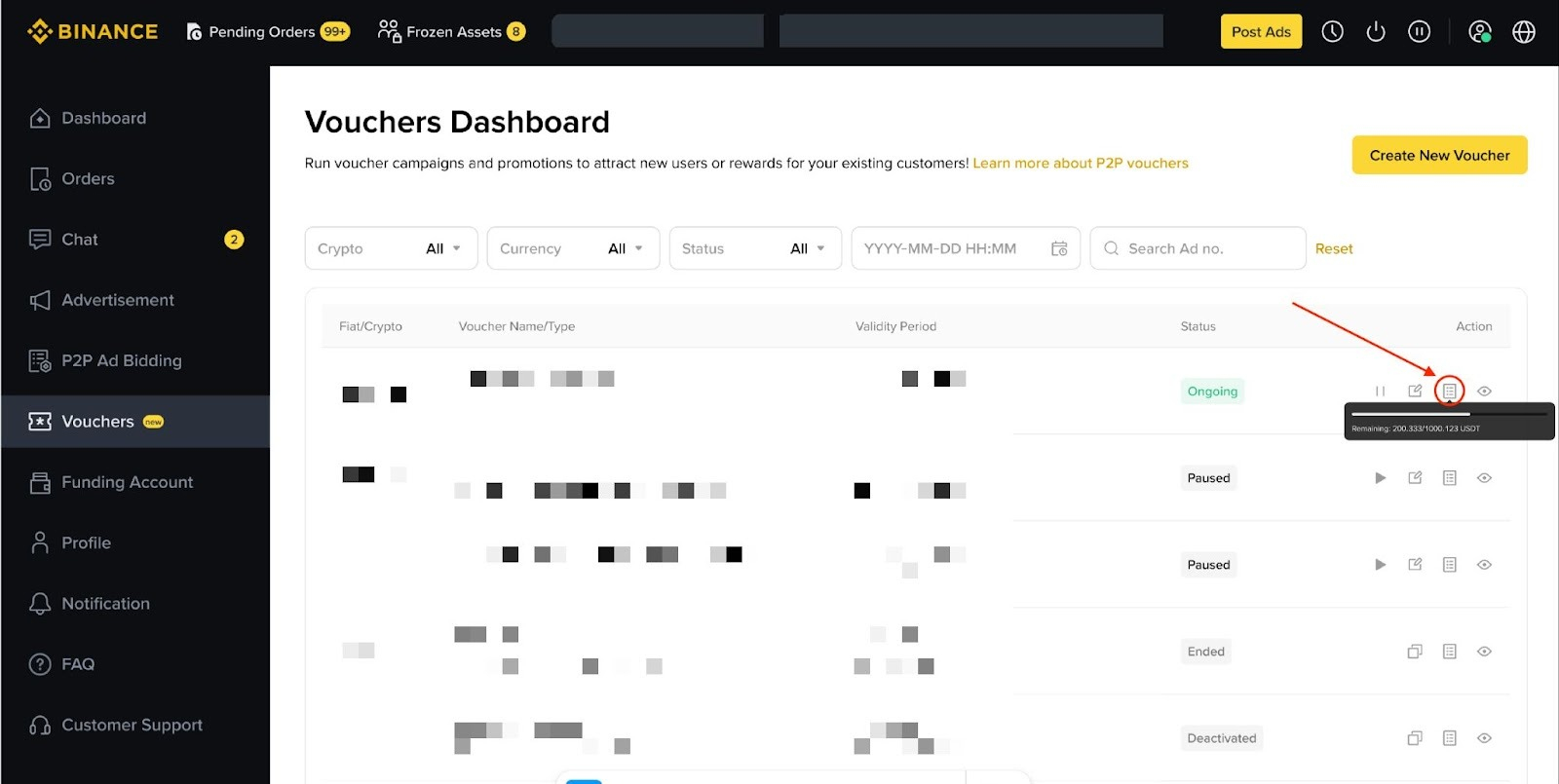
1. Browse or use filters (Crypto, Currency, Status, Date) to find the voucher campaign you want to check.
2. Click the Redemption Details icon (represented by a clipboard or document symbol).
Option 1: Access to Voucher Dashboard, select the voucher you wish to pause, and click the [Pause] button.
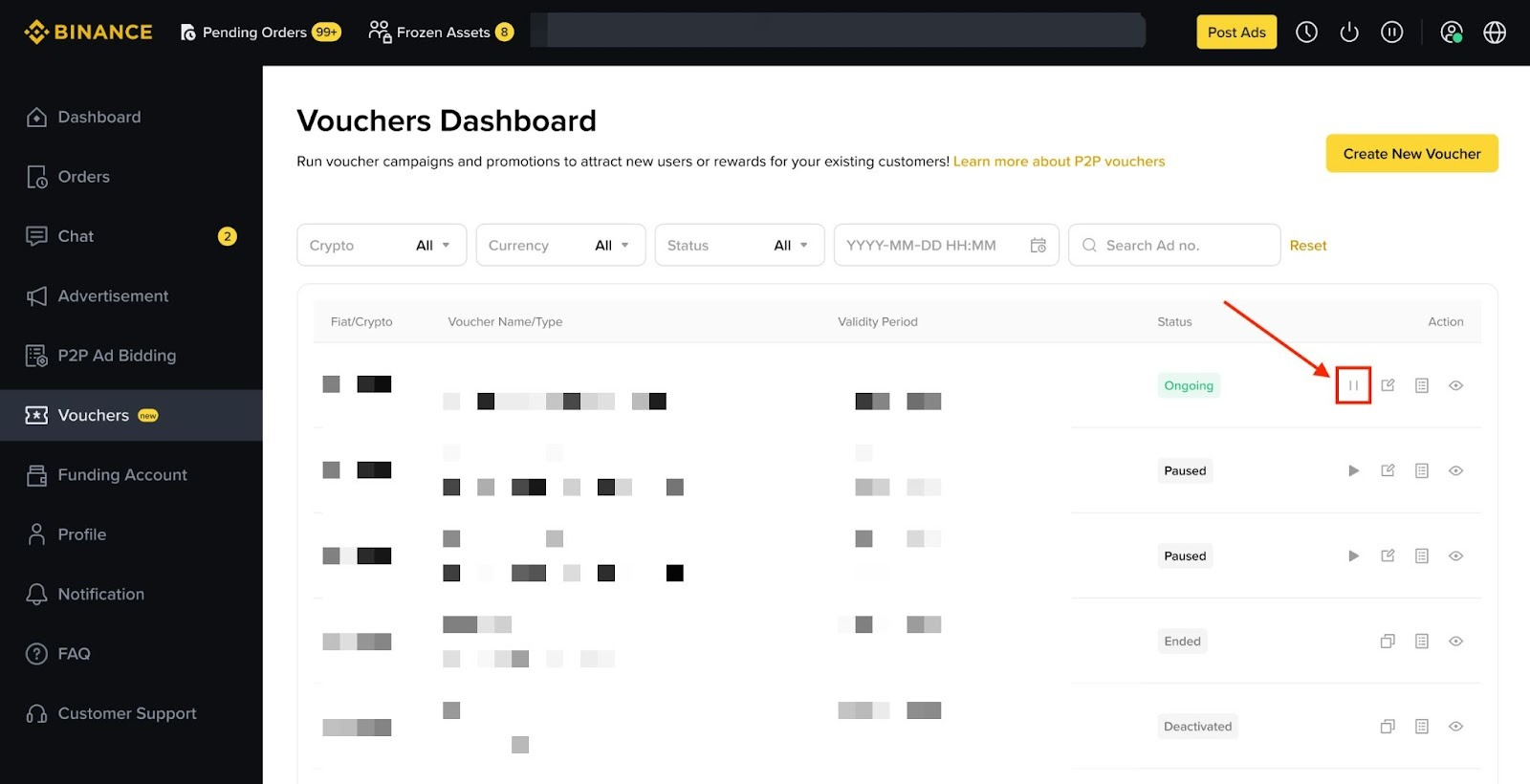
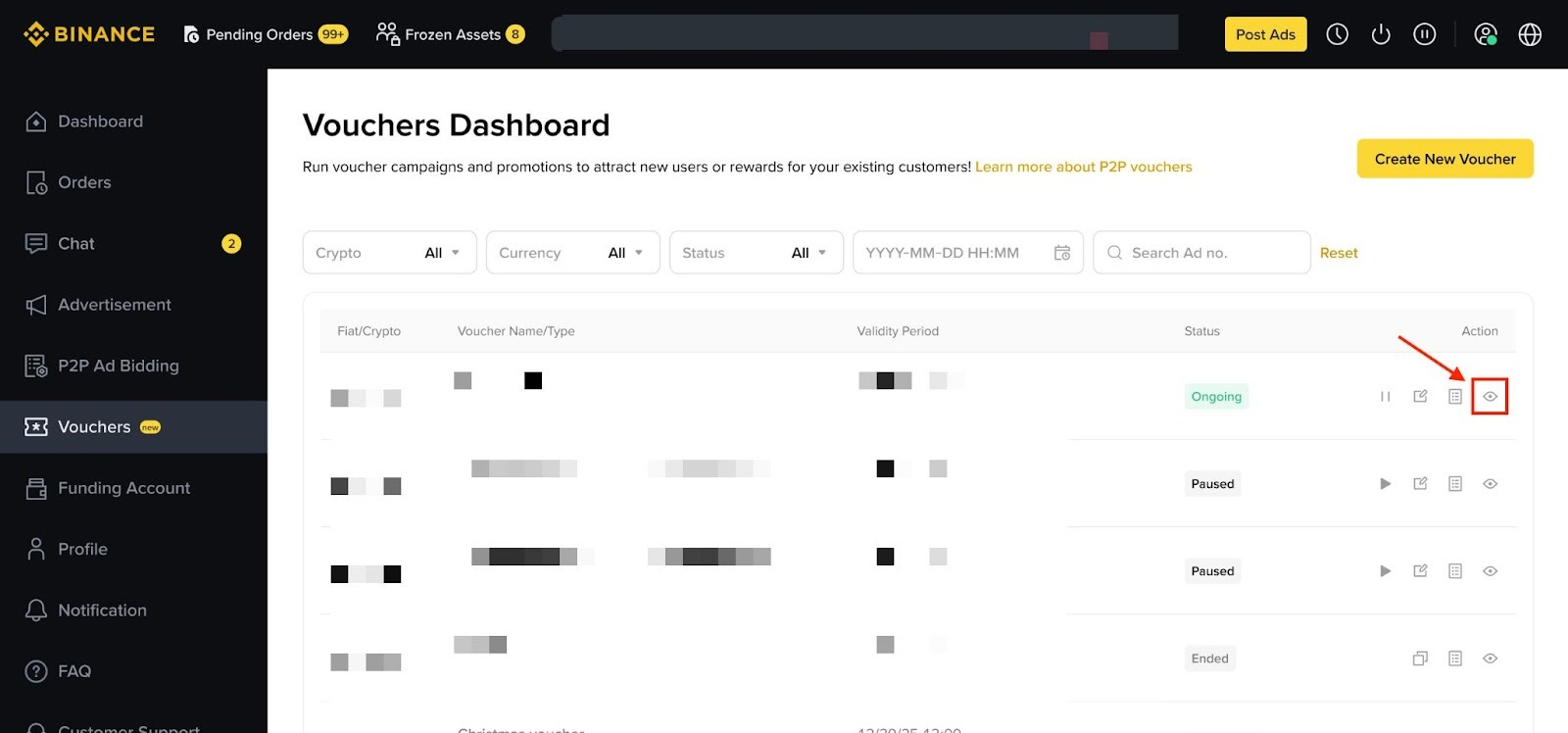
Option 2: Access the Voucher Dashboard, select the voucher you wish to pause, click the [Eye] button to view its details, and then click the [Pause] button on the details page.
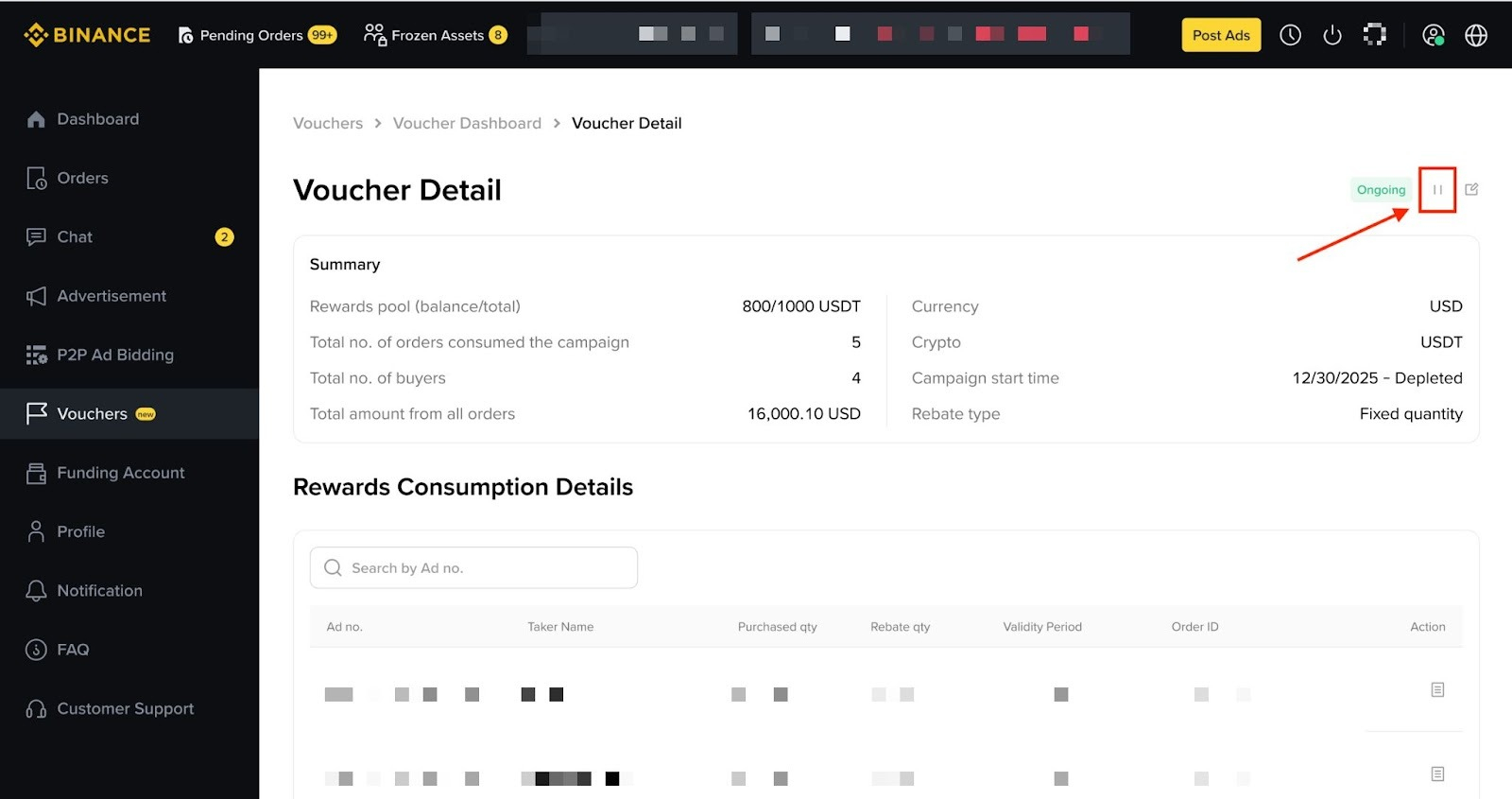
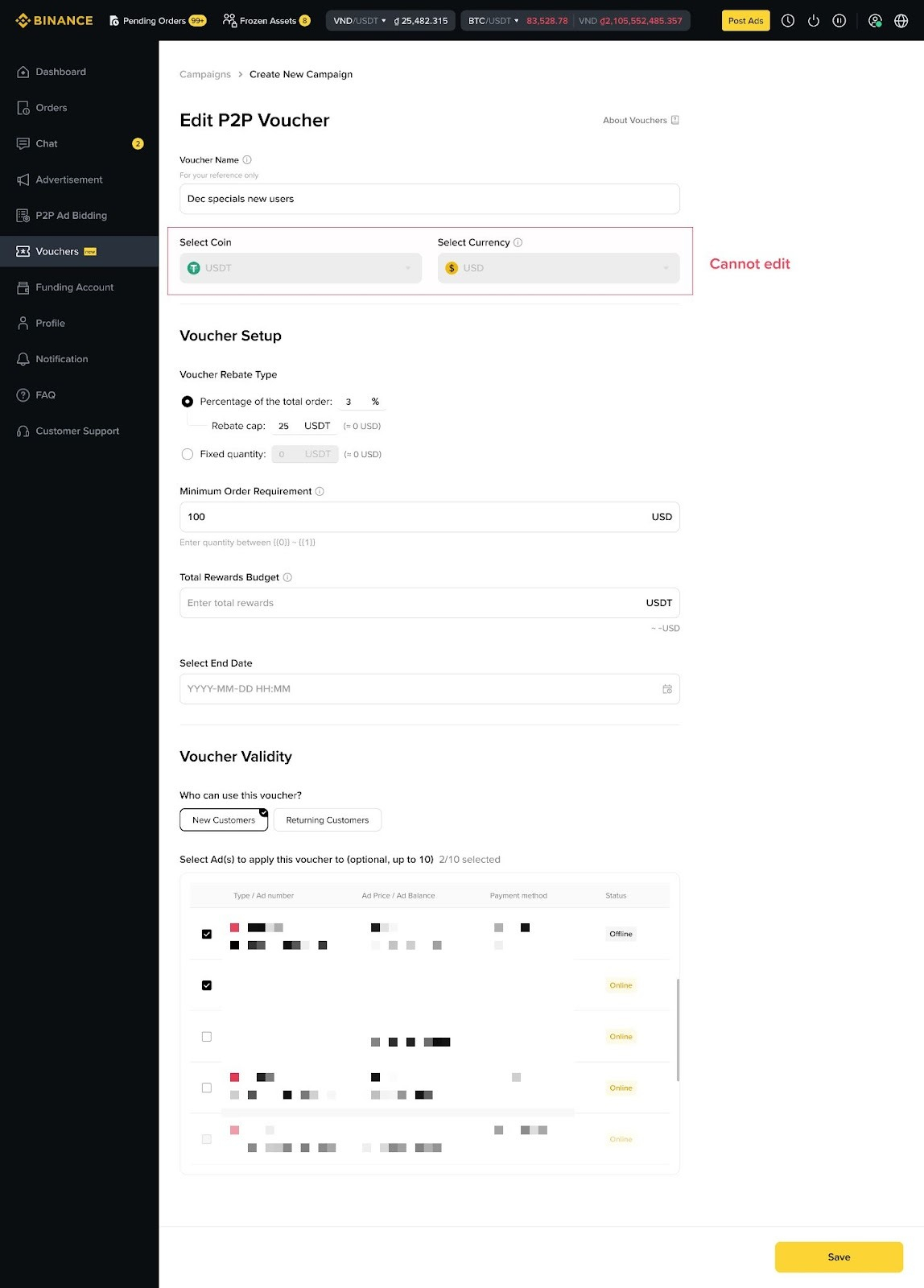
Important Note: You cannot edit an active voucher unless you pause the voucher campaign first.
1. Click on the edit button to view the voucher details.
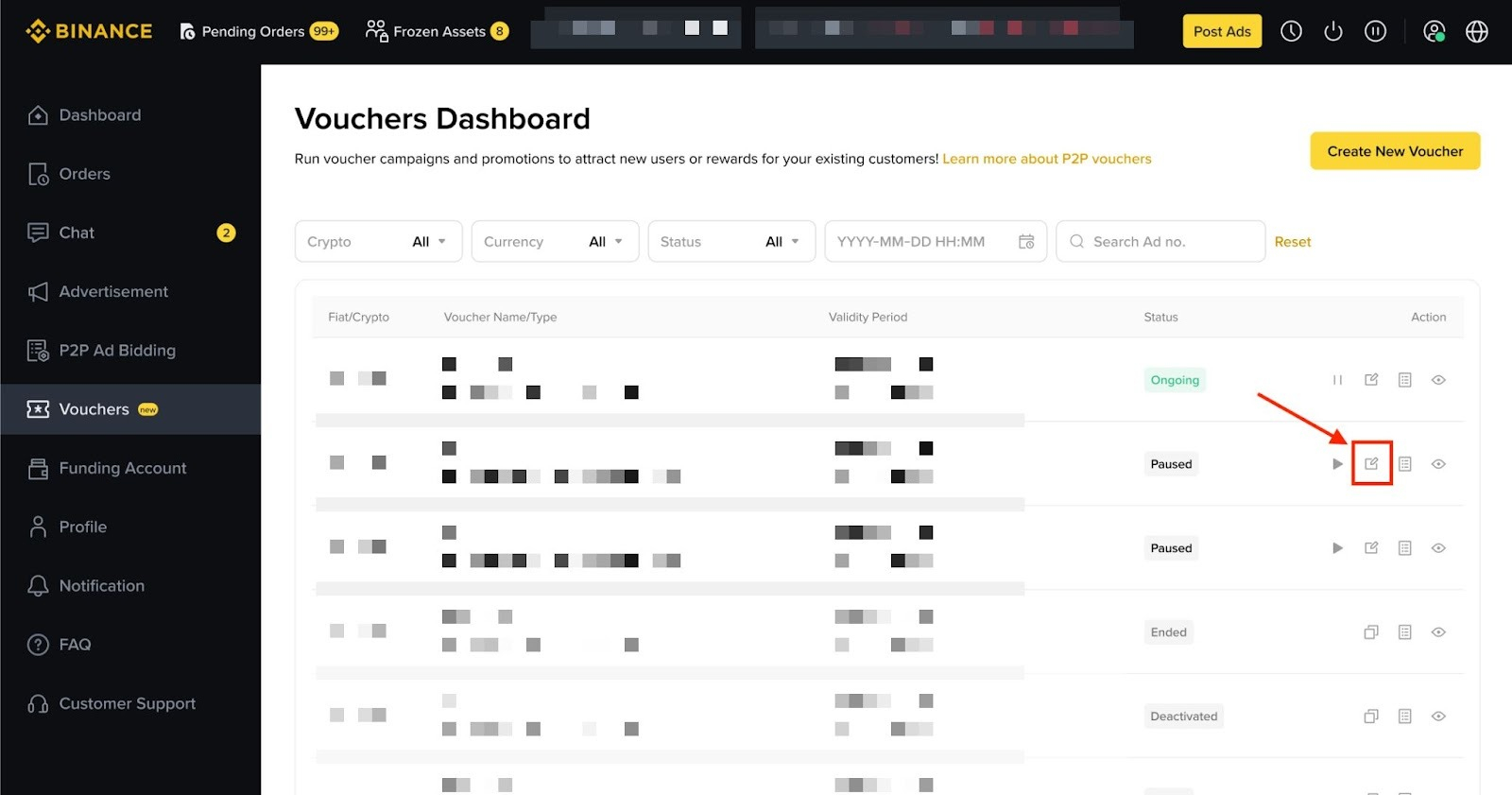
2. Edit the voucher details (excluding coin and currency) and save your changes.
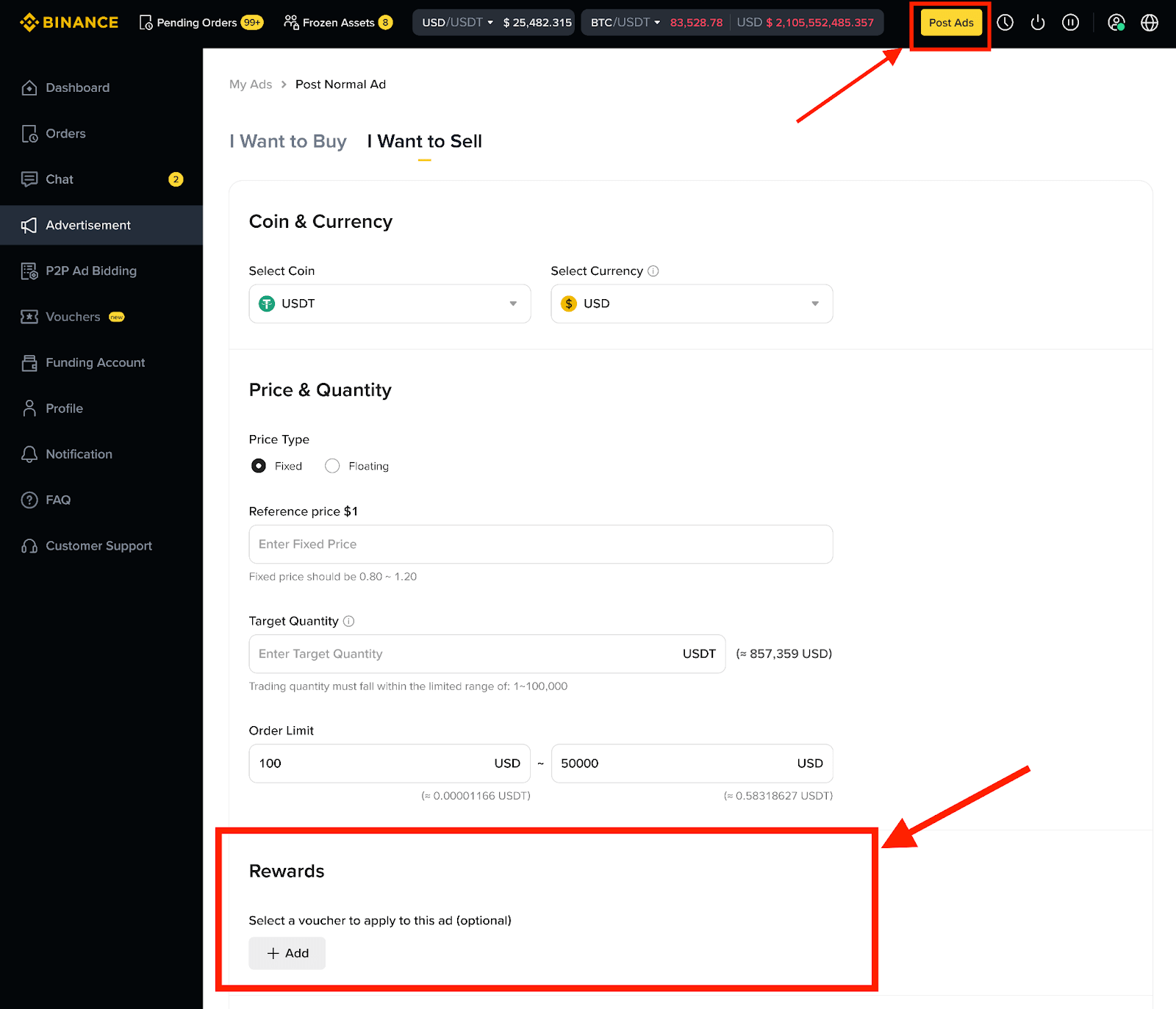
1. Click on [Post Ad] and fill in all the required ad details.
2. Scroll down to the Rewards section and click the [+ Add] button.
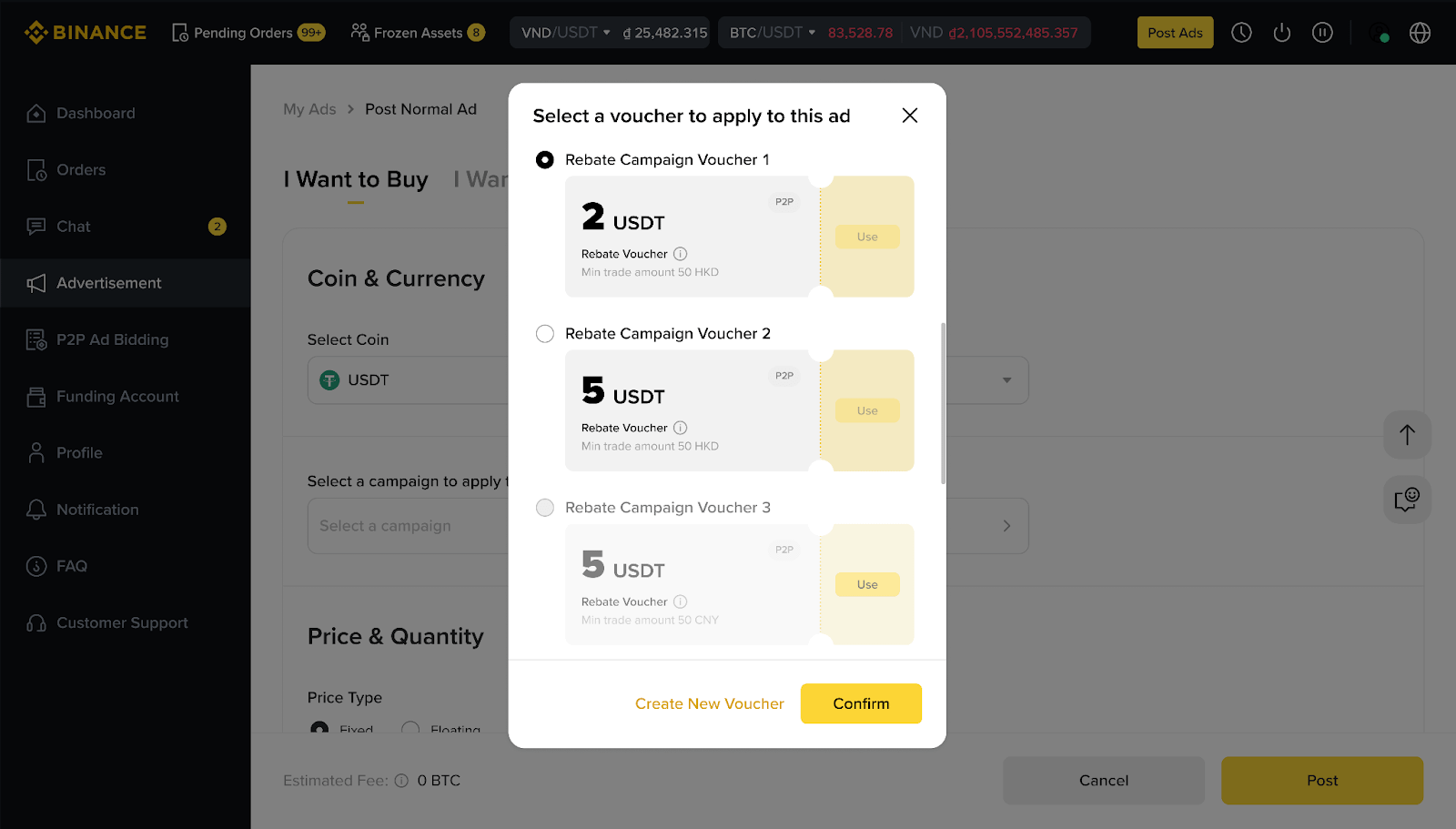
3. Choose a voucher from the list of available vouchers to apply to this ad.
4. Complete any remaining ad settings, then submit your ad for posting.
Notes: The total order quantity for a maker sell order does not include the voucher reward quantity.
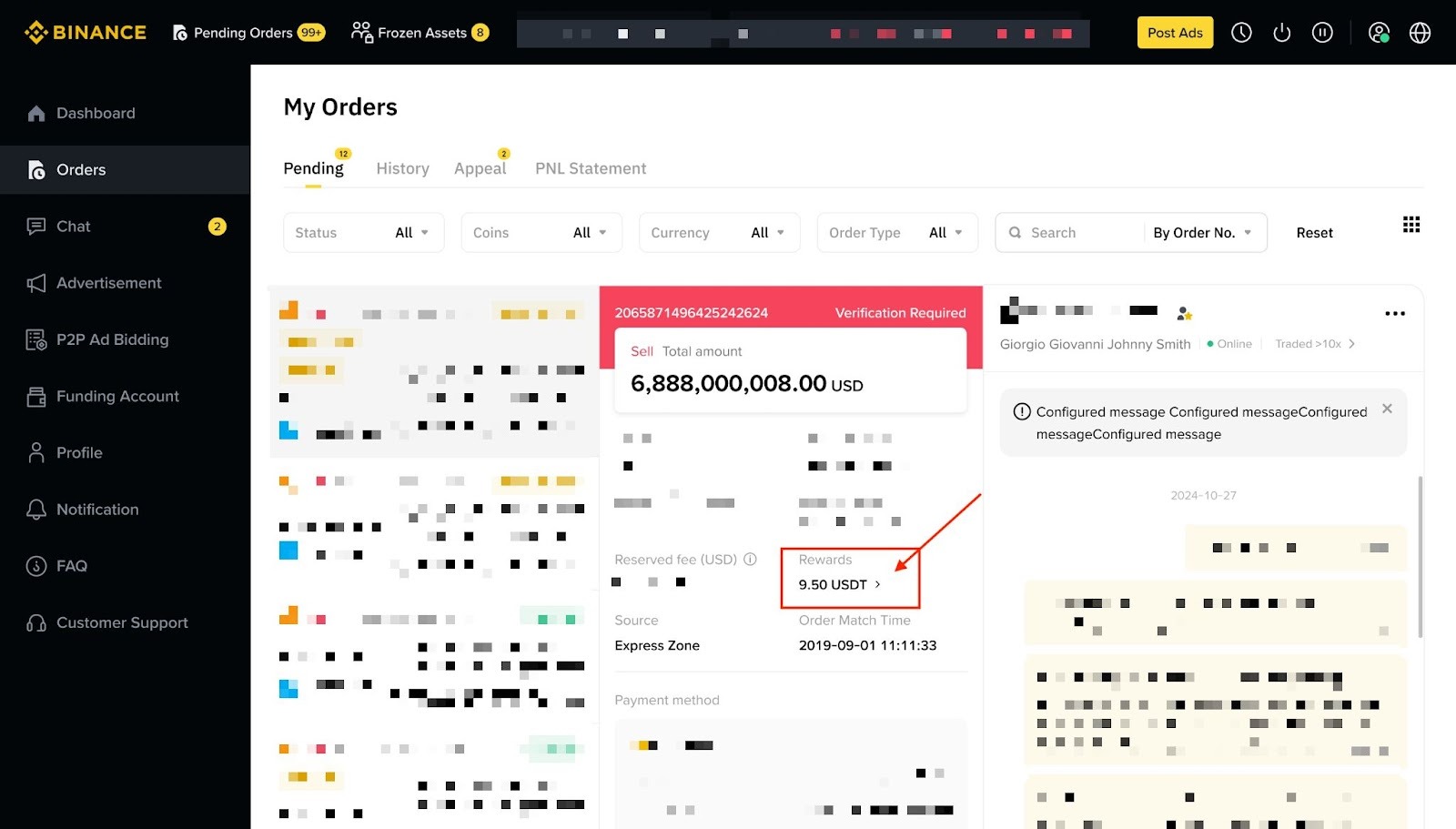
You can check the total reward amount by opening the Order Detail page, where the reward quantity is shown under the Rewards section.
To learn more about P2P Merchant Vouchers, visit Guidelines for Use of P2P Merchant Voucher Management Tool.
