Binance Chat User Guide

Published on 2025-07-03 04:07
Updated on 2026-03-04 05:41

1. What is Binance Chat?

Binance Chat is an all-in-one social communication feature that creates a seamless closed-loop experience that integrates trading and social networking. It supports both one-to-one chats and group chats. You can connect with other Binance users, exchange thoughts, share trading strategies and real-time portfolios, and even transfer funds with just one tap. 

2. How to access Chat on the Binance App?

1. Download Binance App or update to the latest version.

2. Login to your Binance account and access Chat through any of the following ways:
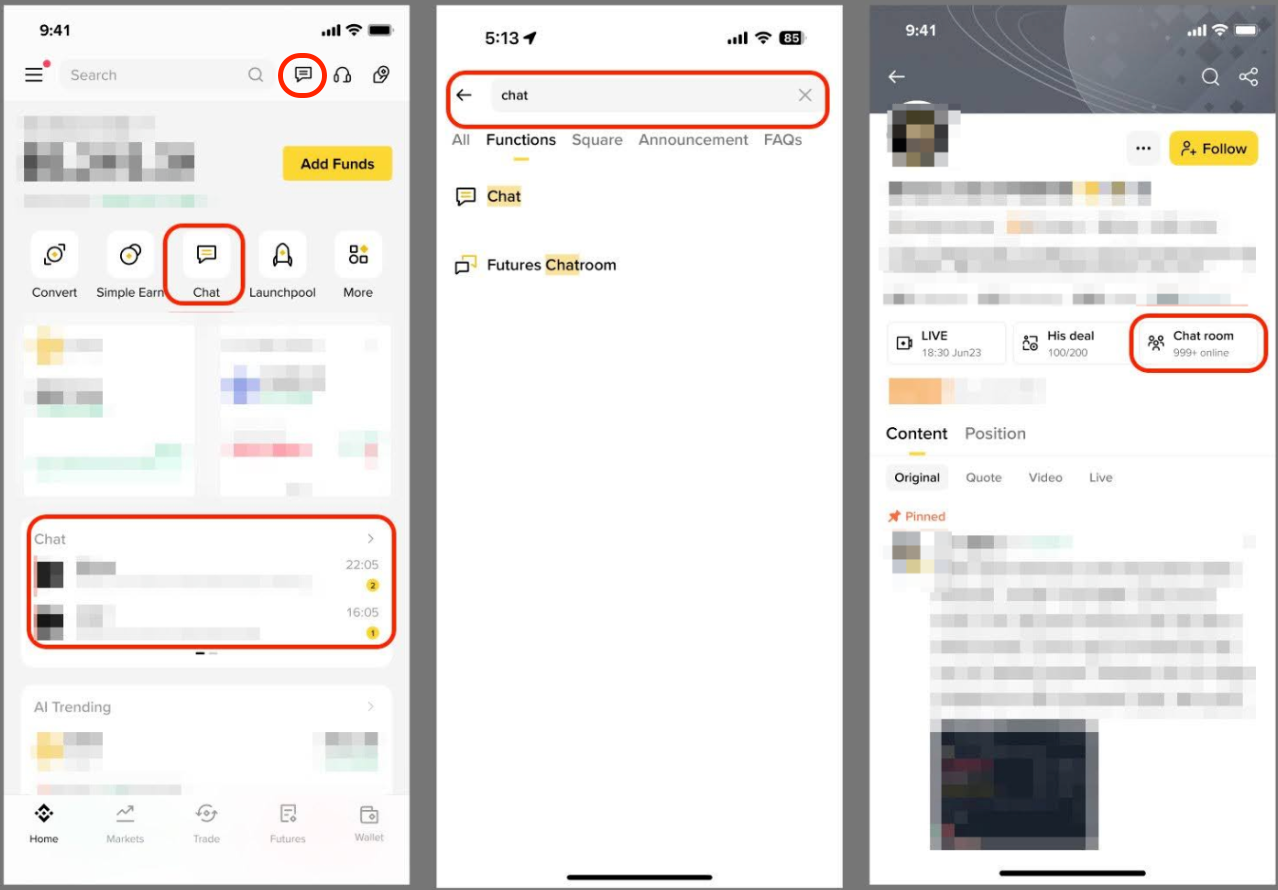
  • Tap the message icon in the top-left corner of the homepage.
  • If you’ve added the Chat mini app to your homepage, tap the shortcut to enter directly.
  • Tap the Chat widget in the middle of the homepage.
  • Type “Chat” in the homepage search bar.
  • If a creator you follow has enabled group chat, go to their profile from the Square page and tap [Chat room] to join.
image

3. How to add friends on Binance Chat?

1. Tap the [+] icon at the top right of the chat page and tap [Add Contact].

2. You can add friends by:
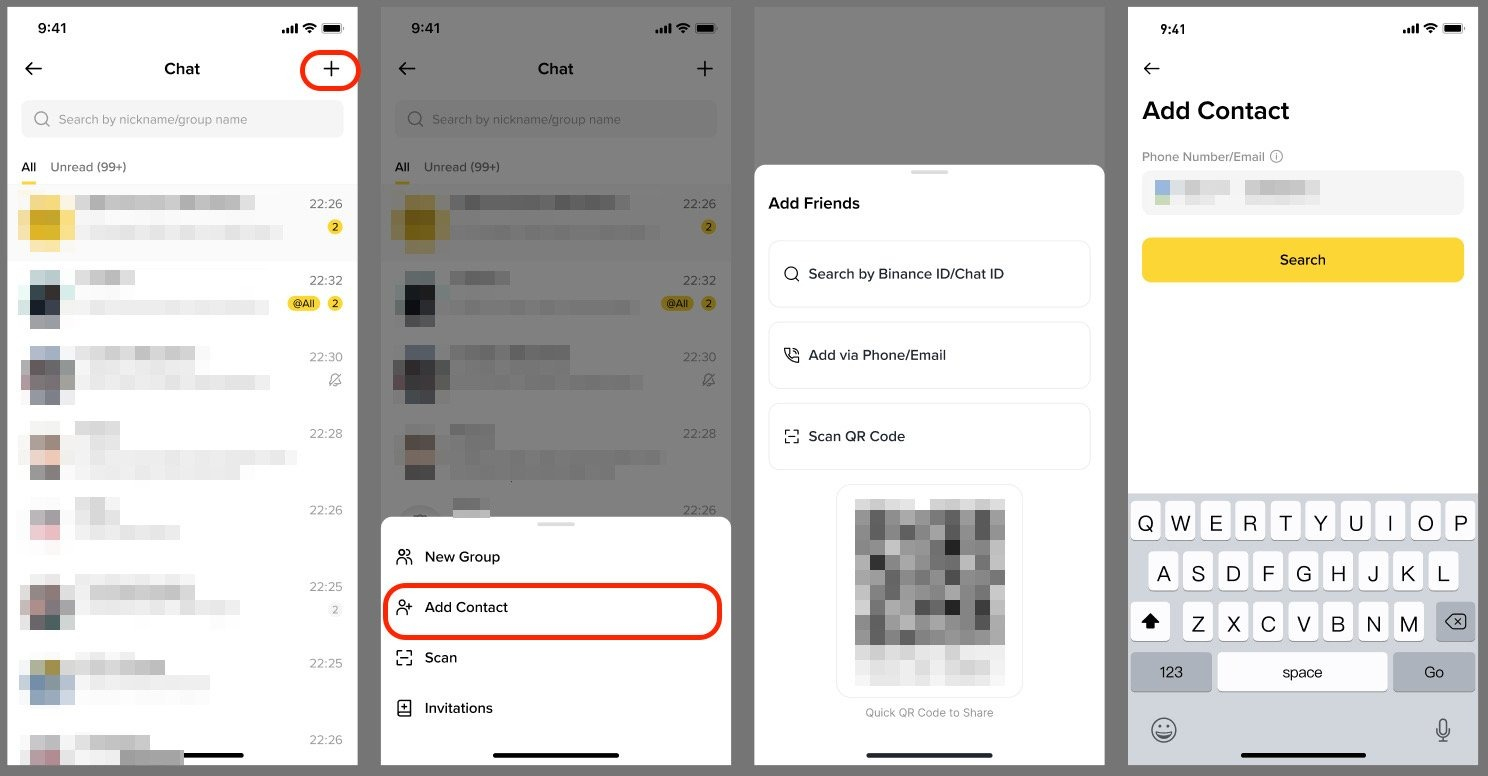
  • Entering their UID or Chat ID, or
  • Scanning their [Add Friends] QR code.
image

4. How to manage friend requests on Binance Chat?

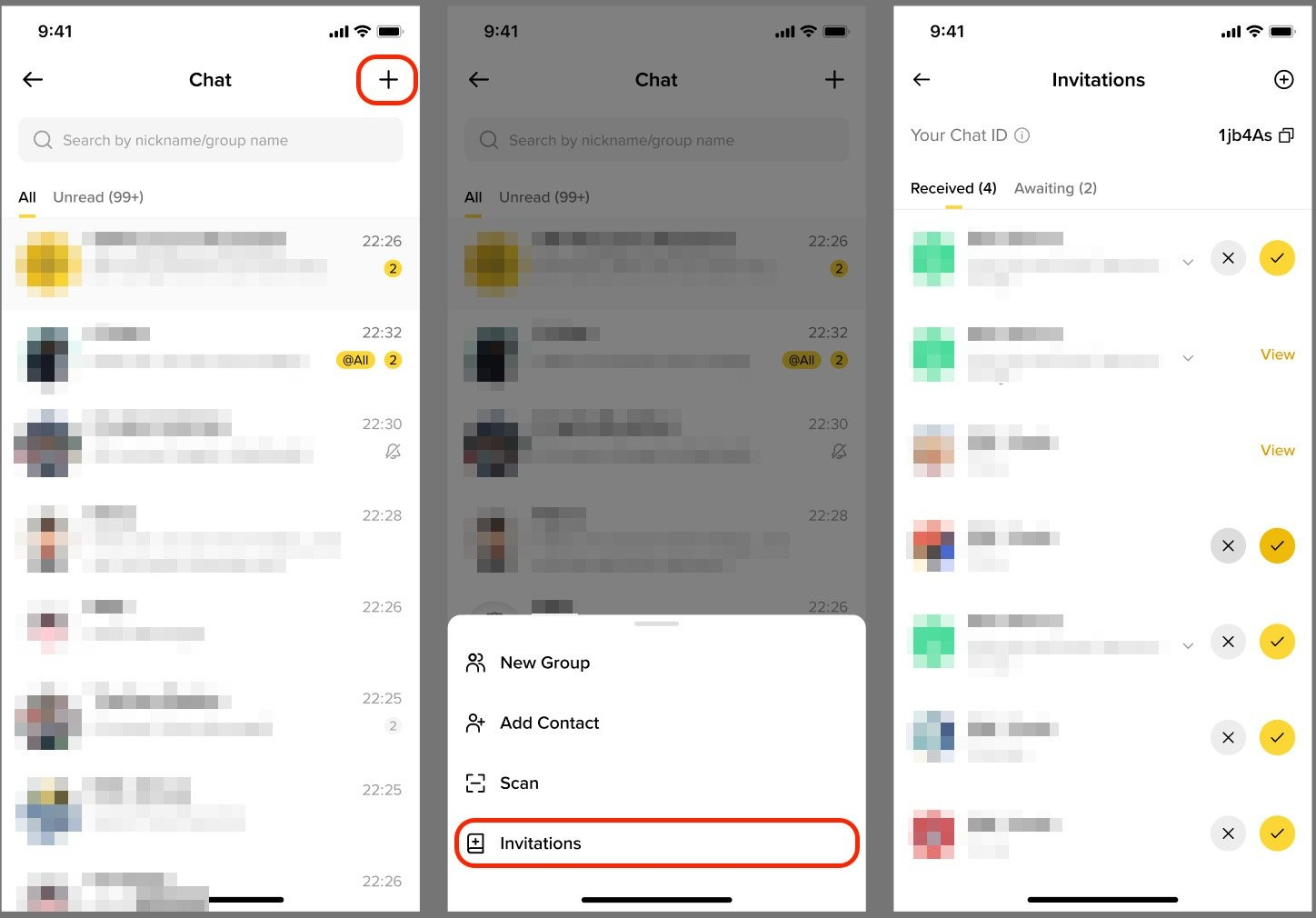
1. Tap the [+] icon at the top right of the chat page to view pending friend requests.

2. Accept or ignore the requests. Once accepted, you can start private chats or make transfers immediately.
image

5. What features are available in private chat?

  • You can send images, videos, and files with one tap.
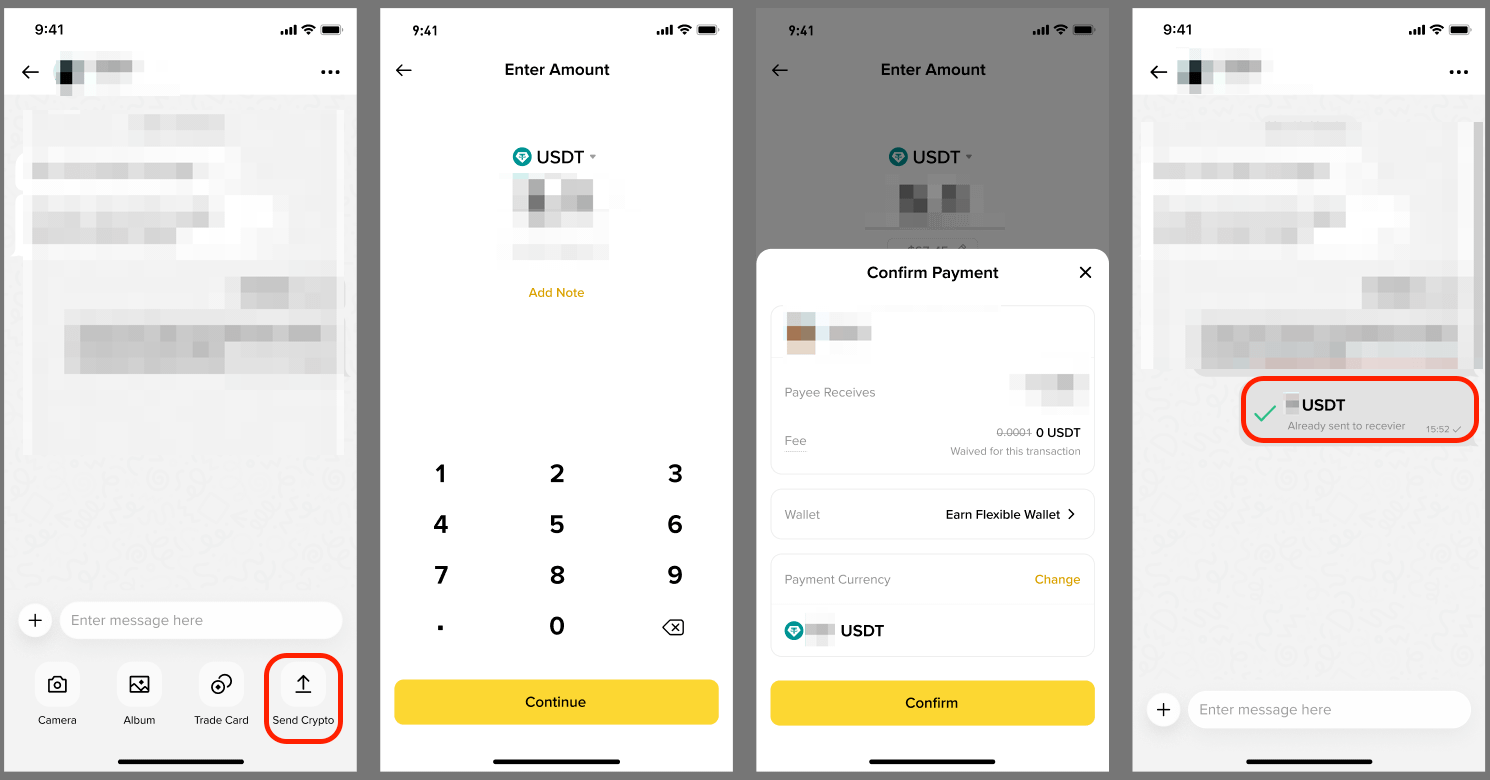
  • You can make zero-fee transfers in USDT, BNB, BTC, etc.:
    • Select [Transfer] - [Asset] - [Amount] - [Confirm].
    • Transfer history can be viewed directly within the chat window, making it easy to track.
image

6. Who can create group chats? What features are available?

Currently, the group chat creation feature in Binance Chat is available in closed beta to creators with 1,000 or more followers on Binance Square.

You can access Binance Chat by tapping the message icon in the top left corner of the homepage.

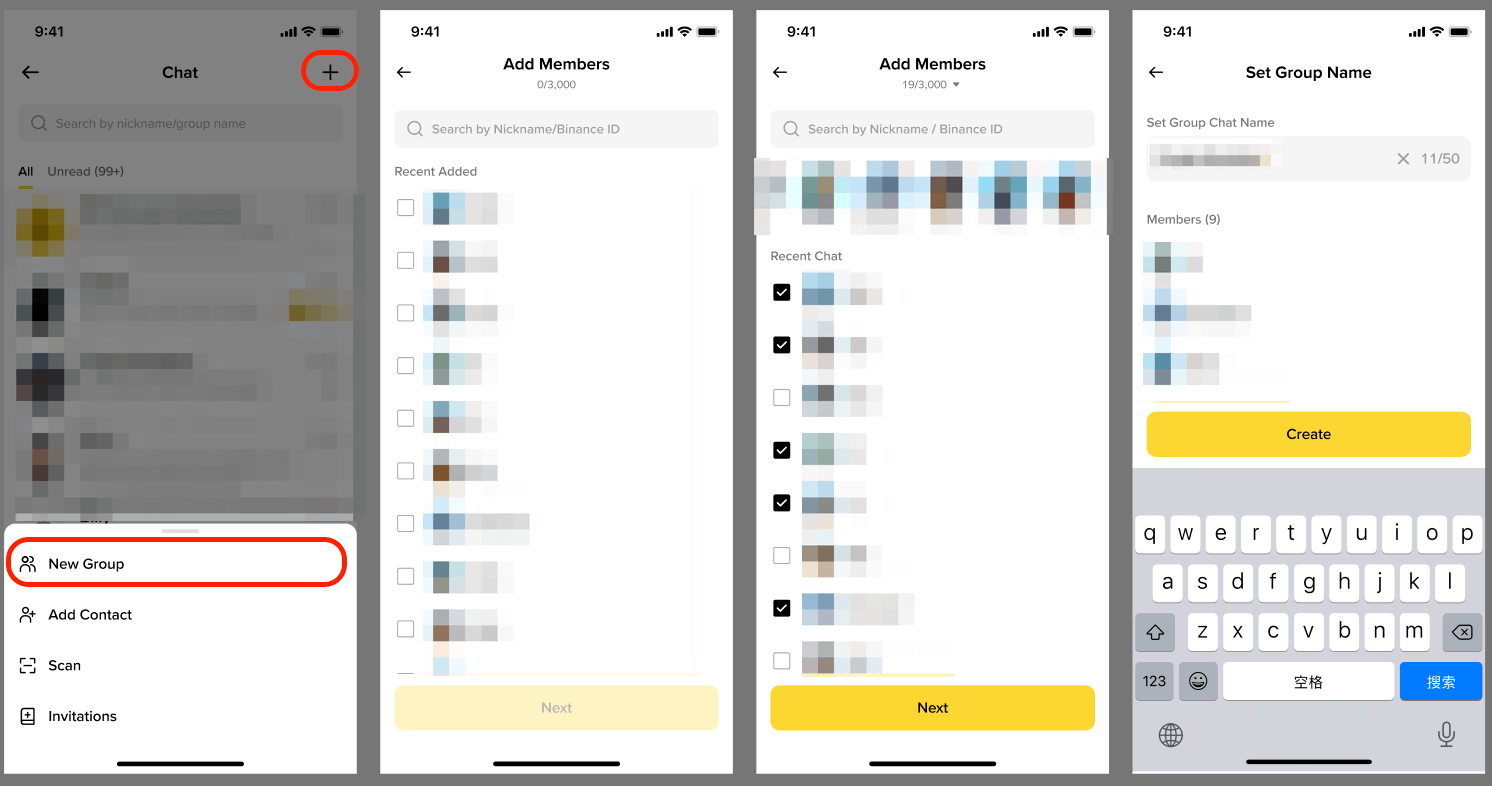
From the chat list, tap [+] at the top right corner to create a group chat to build your community, gather audiences, and drive engagement and trading activity.
image

Key features of group chats include:

  • Create groups, assign group admins, and manage members.
image
  • View group chats on your Binance Square profile and Binance Square Live pages to boost exposure and engage with followers.

Please note: Update your Binance App to the latest version to be able to view this feature. 
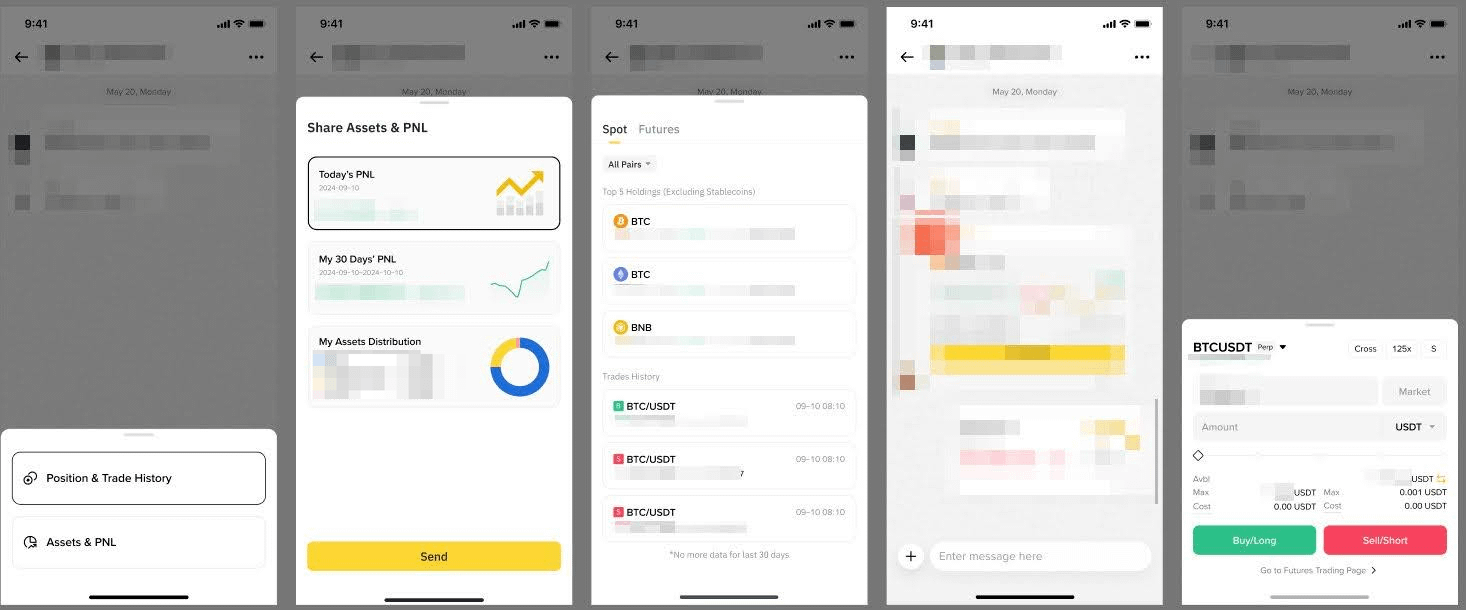
  • Share your trading portfolio, PnL, and market views in the group.
image
  • Send Red Packets to liven up the group and increase engagement.
image

7. Why can’t I see Chat on Binance Square?

Possible reasons you can’t see Chat on the Binance Square page:

  • Your Binance App is outdated: Please update the Binance App to the latest version first and reopen Binance Square.
  • Your group chat isn’t set to public: If you’re the group owner, go to [Group Settings] and enable [Public Group]. Private groups won’t be shown on Binance Square.
  • You have multiple public groups: If you have more than one public group chats, your Binance Square page will show one chat. You may tap on it to view a list of your public groups.

8. What are the requirements for using the chat and transfer features?

For security reasons, all users must complete identity verification before accessing chat and its transfer functions.

9. How to view chat history?

You may enter any chat (friend or group) and scroll up or down to view historical messages and transfer records.

10. How to enable new message notifications?

You can enable push notifications in the Binance App settings. The system will alert you when you receive new messages.

11. How to set notes for friends?

You can customize nicknames and labels to friends to manage your contacts at ease. Simply tap a friend’s profile picture in the chat window to go to their profile page. Then, go to [Notes] and enter a custom nickname or label.

Try Binance Chat now and build your own exclusive crypto community on Binance!