Disclaimer: In compliance with MiCA requirements, unauthorized stablecoins are subject to certain restrictions for EEA users. For more information, please click here.
You can now buy cryptocurrencies with fiat currencies using Apple Pay / Google Pay or Card via Paymonade.
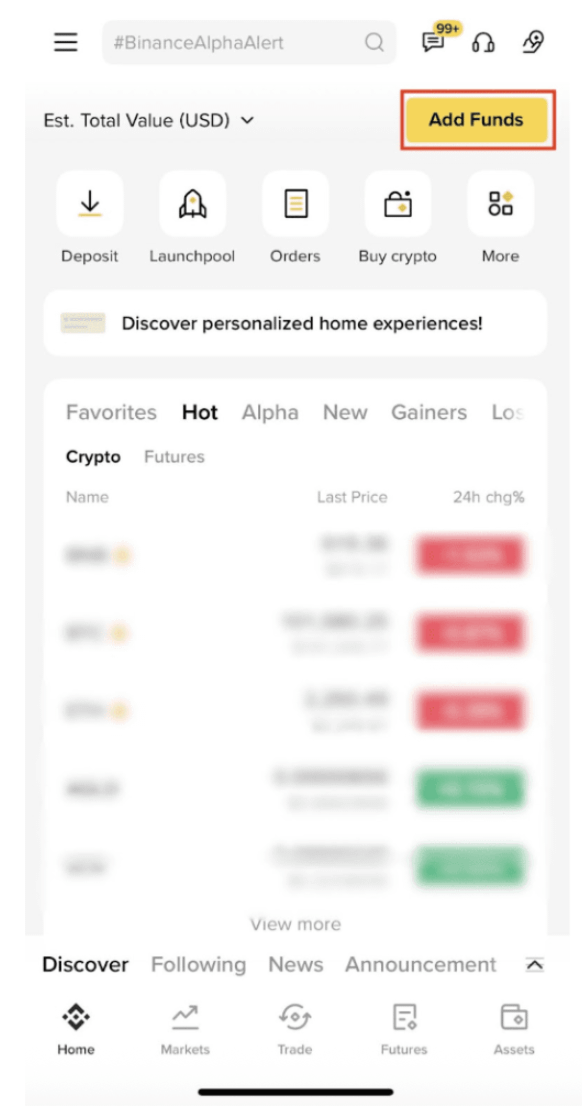
1. Log in to your Binance app and tap [Add Funds - Buy with EUR].
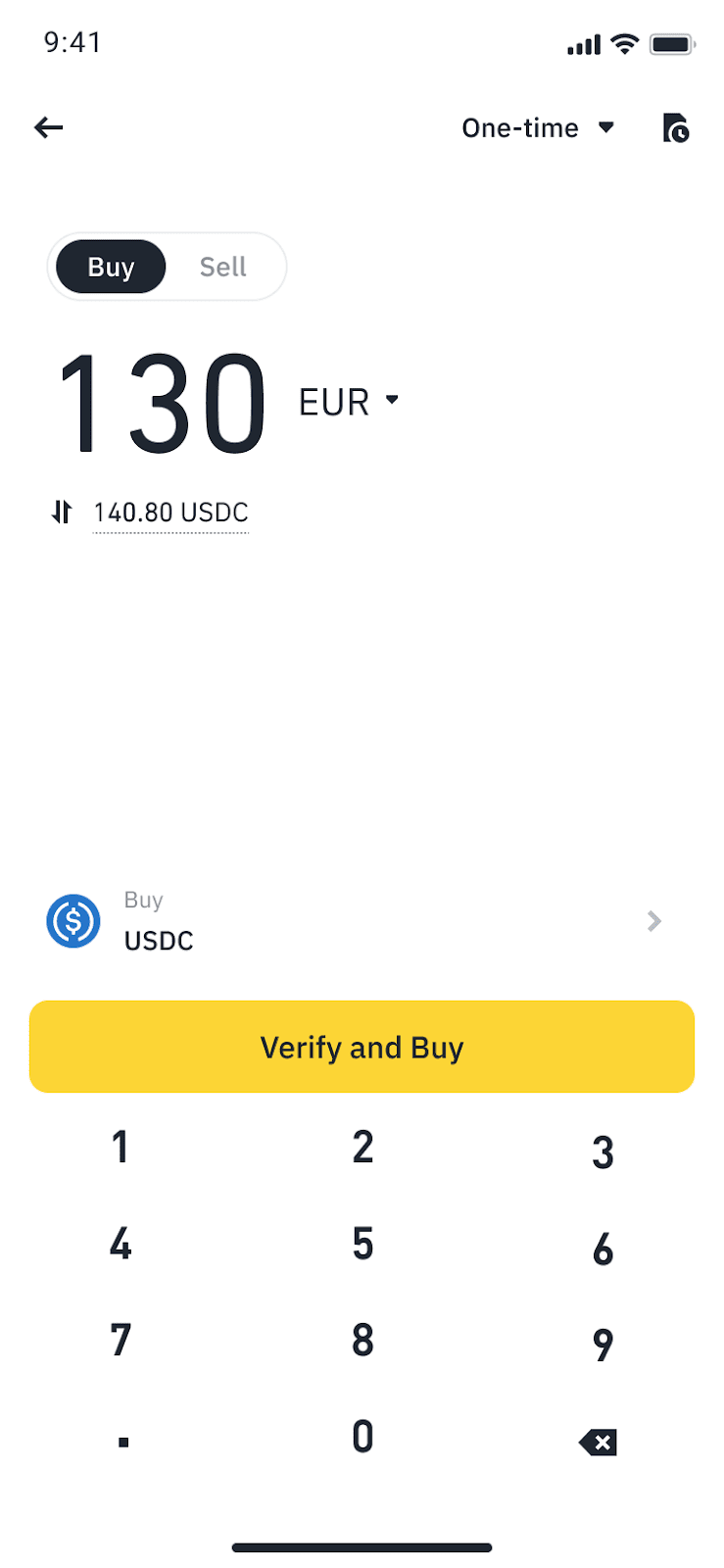
2. If you haven’t completed Identity Verification for your Binance account, you’ll be prompted to do so at this step. Tap [Verify and Buy] to continue.
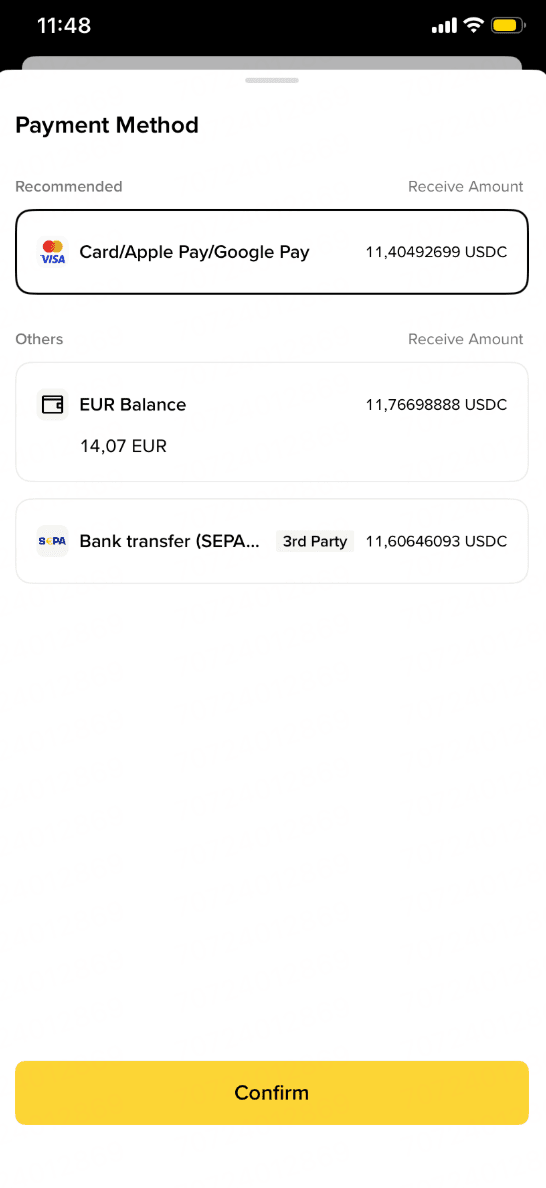
3. Choose the cryptocurrency you want and enter the amount. Under [Payment Method], select [Card/Apple Pay/Google Pay], tap [Confirm] to continue.
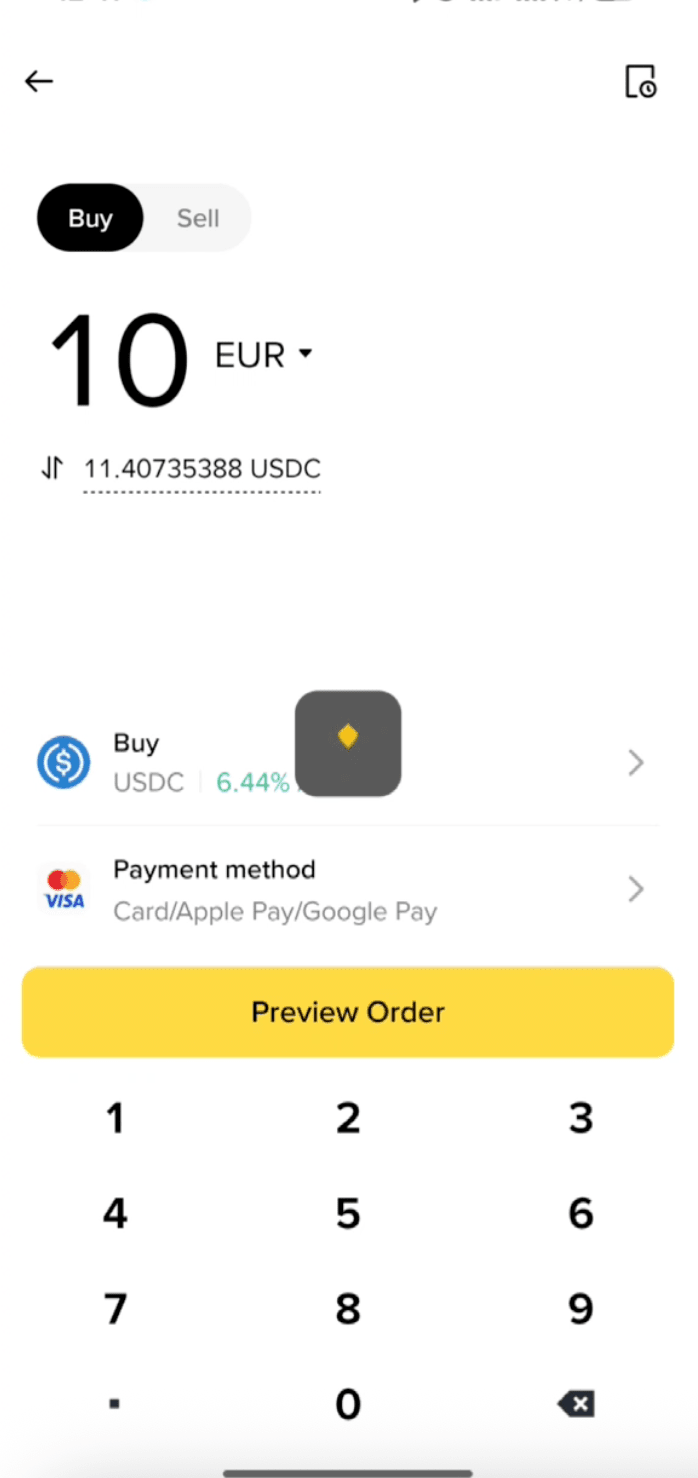
4. Check the amount of crypto you can get and the amount you’ll pay, and tap [Preview Order] to proceed.
5. Select Apple Pay to proceed.
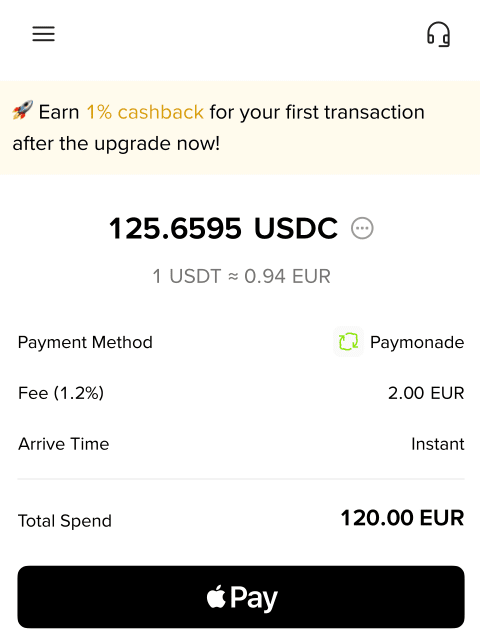
6. Please wait patiently while the order is being created.
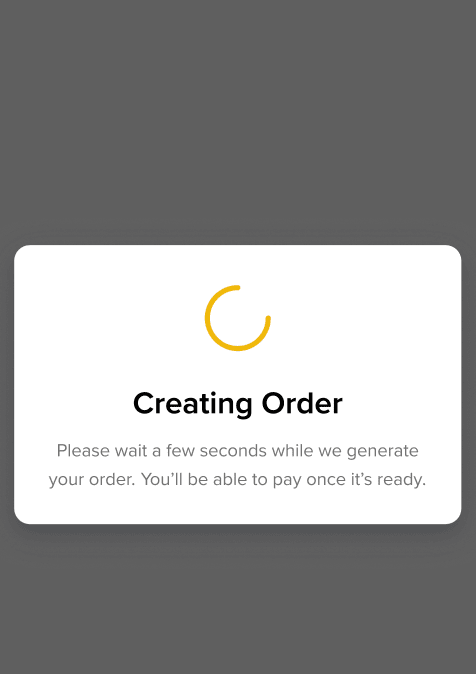
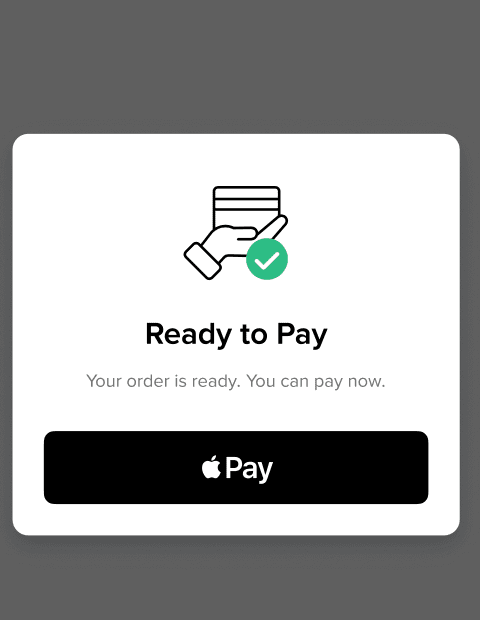
7. Your order is ready for payment, authenticated with Face ID or Touch ID on the Apple Pay to complete the transaction.
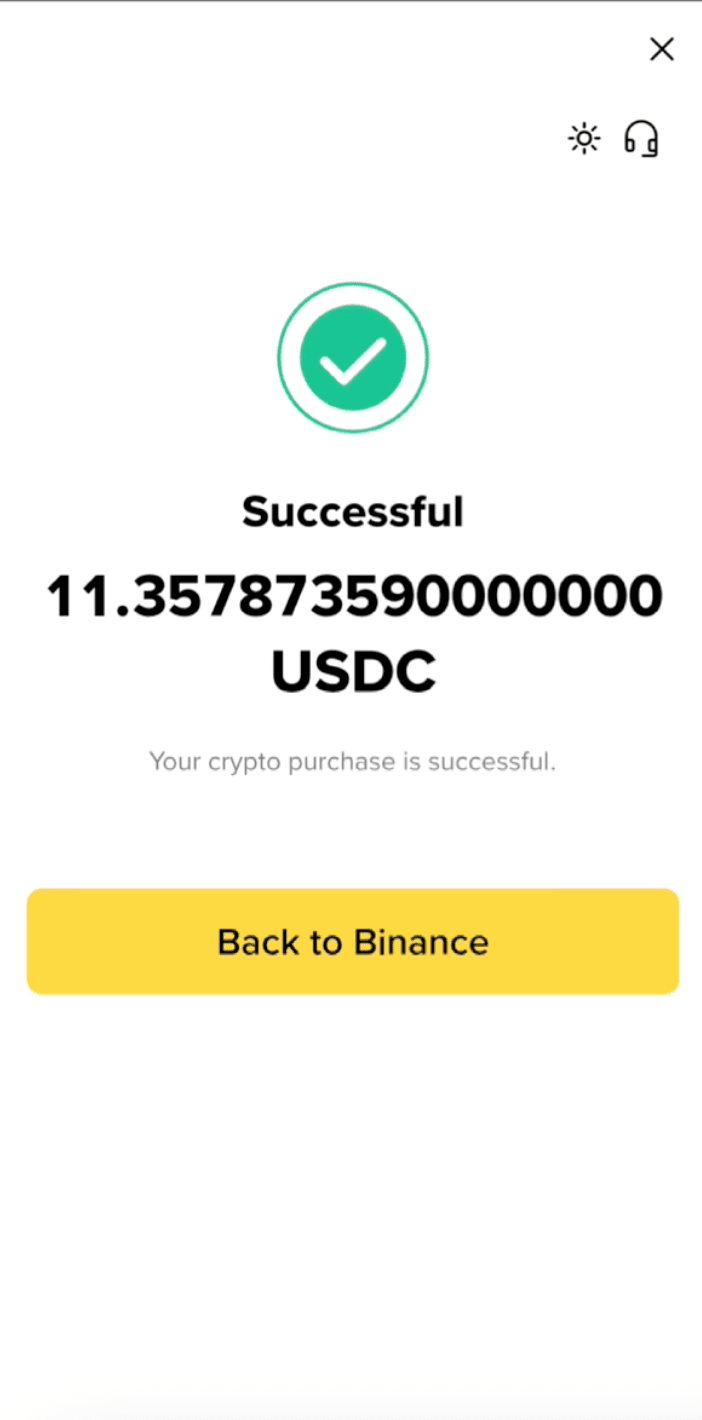
8. Your order has been completed successfully. You can return to Binance to view your order details. This transaction will appear in your bank account statement under Paymonade name.
1. Log in to your Binance app and tap [Add Funds - Buy with EUR].
2. If you haven’t completed Identity Verification for your Binance account, you’ll be prompted to do so at this step. Tap [Verify and Buy] to continue.
3. Choose the cryptocurrency you want and enter the amount. Under [Payment Method], select [Card/Apple Pay/Google Pay], tap [Confirm] to continue.
4. Check the amount of crypto you can get and the amount you’ll pay, and tap [Preview Order] to proceed.
5. Select Google Pay to proceed.
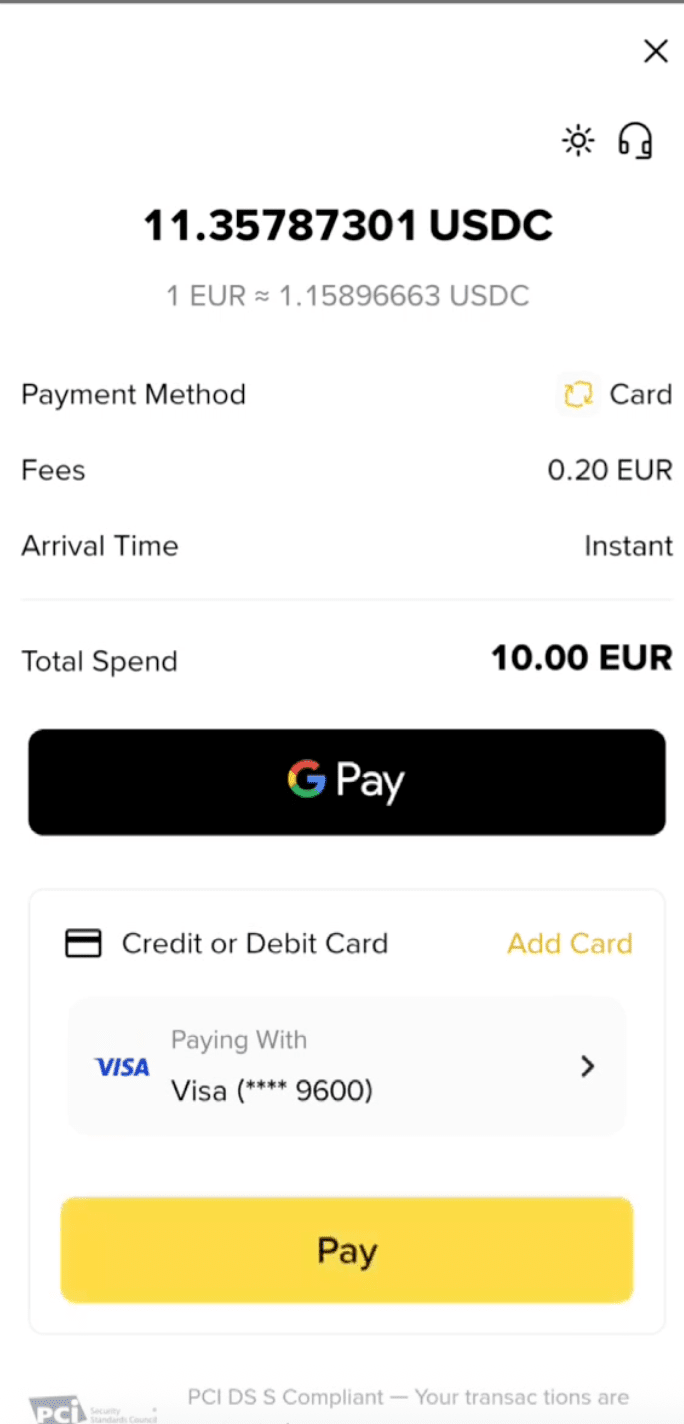
6. Please wait patiently while the order is being created.
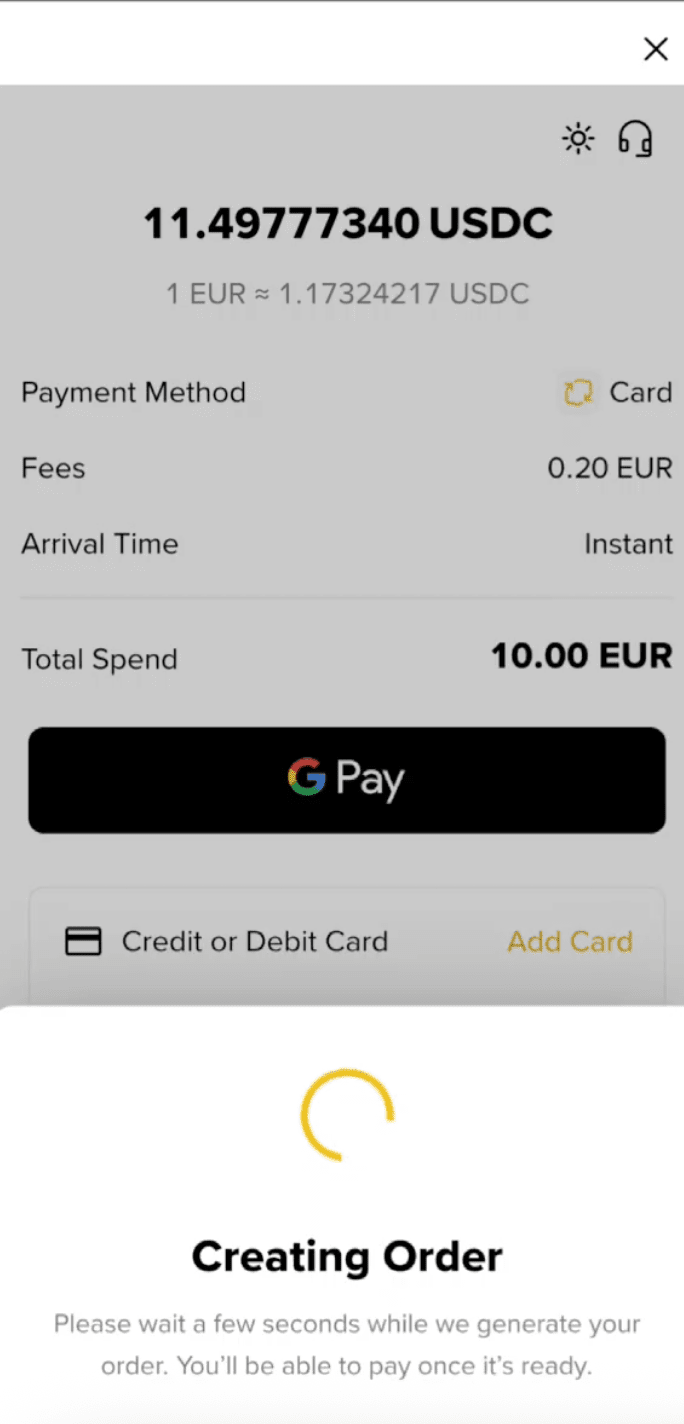
7. Your order is ready for payment, authenticated with Face ID or Touch ID on the GPay to complete the transaction.
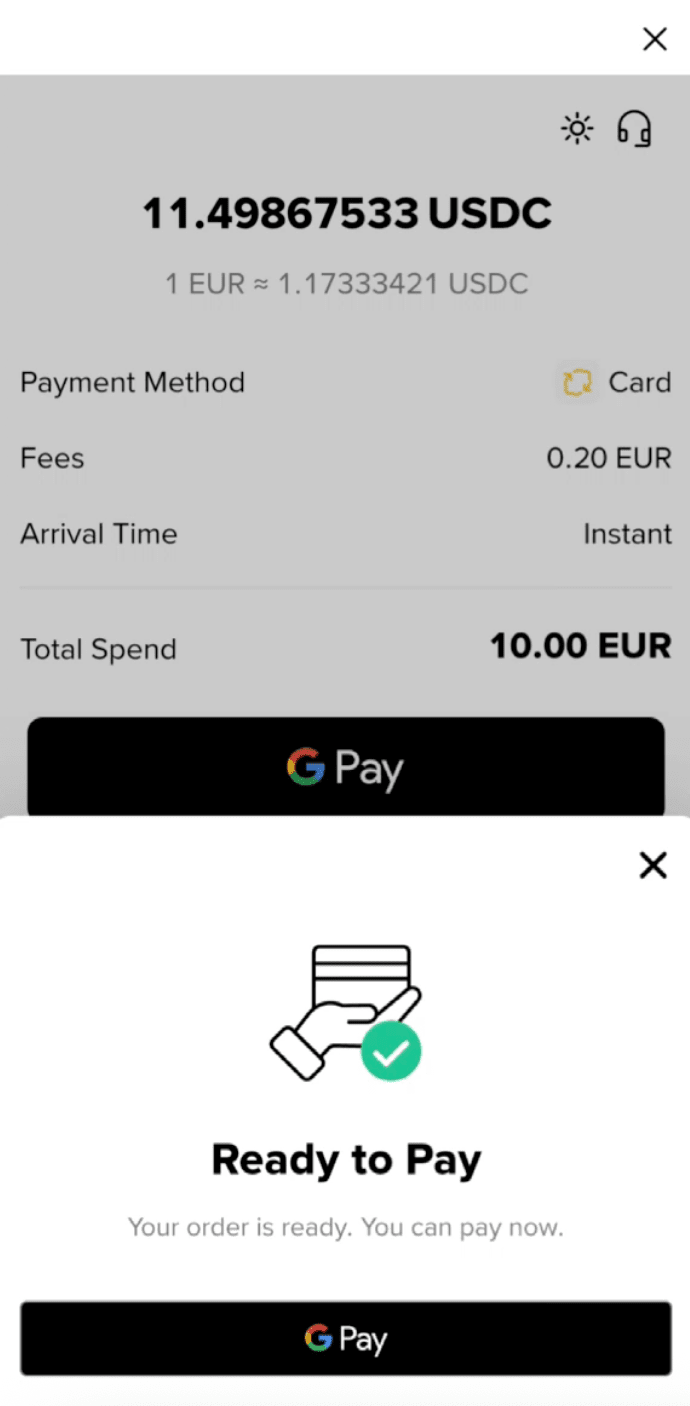
8. Your order has been completed successfully. You can return to Binance to view your order details.
1. Log in to your account on the Binance app and go to [Buy Crypto]. Select a currency and the crypto to purchase. Enter the amount you wish to spend or receive.
If you haven’t completed identity verification for your Binance account, tap [Verify and Buy] - [Verify Now] to continue.
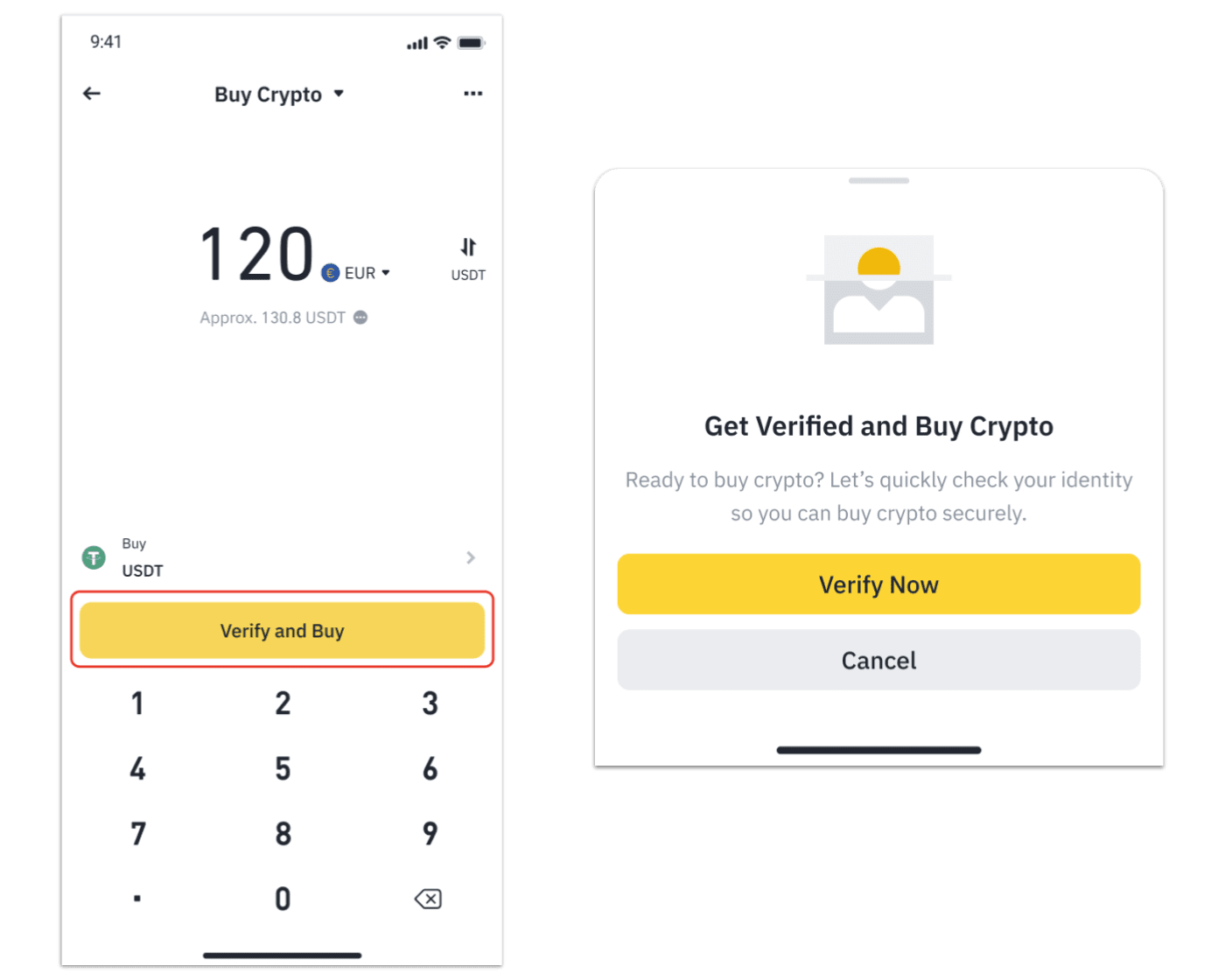
2. After completing identity verification, select [Card] - [Paymonade (Visa/Mastercard)] under ‘Pay With’. Tap [Confirm].
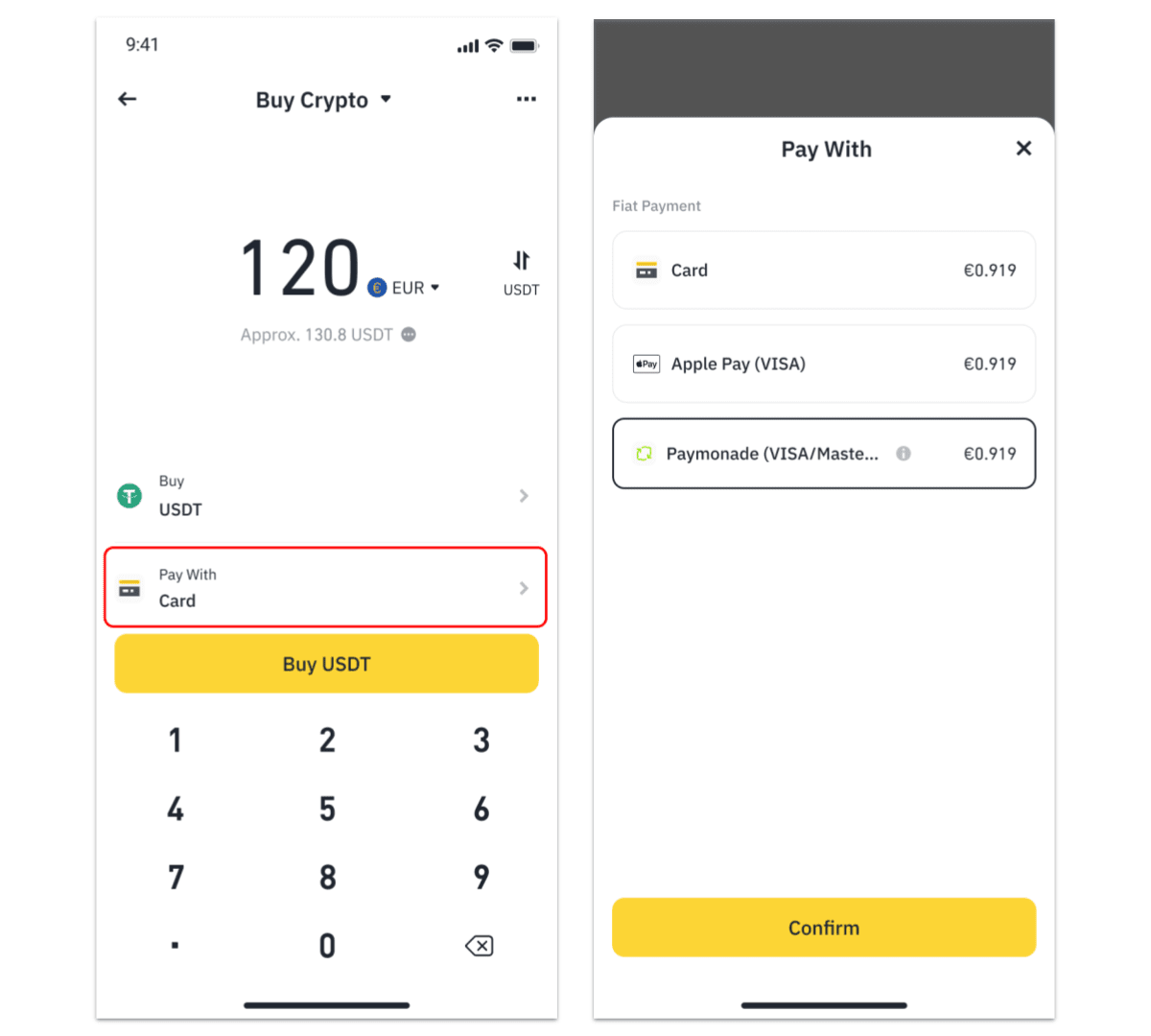
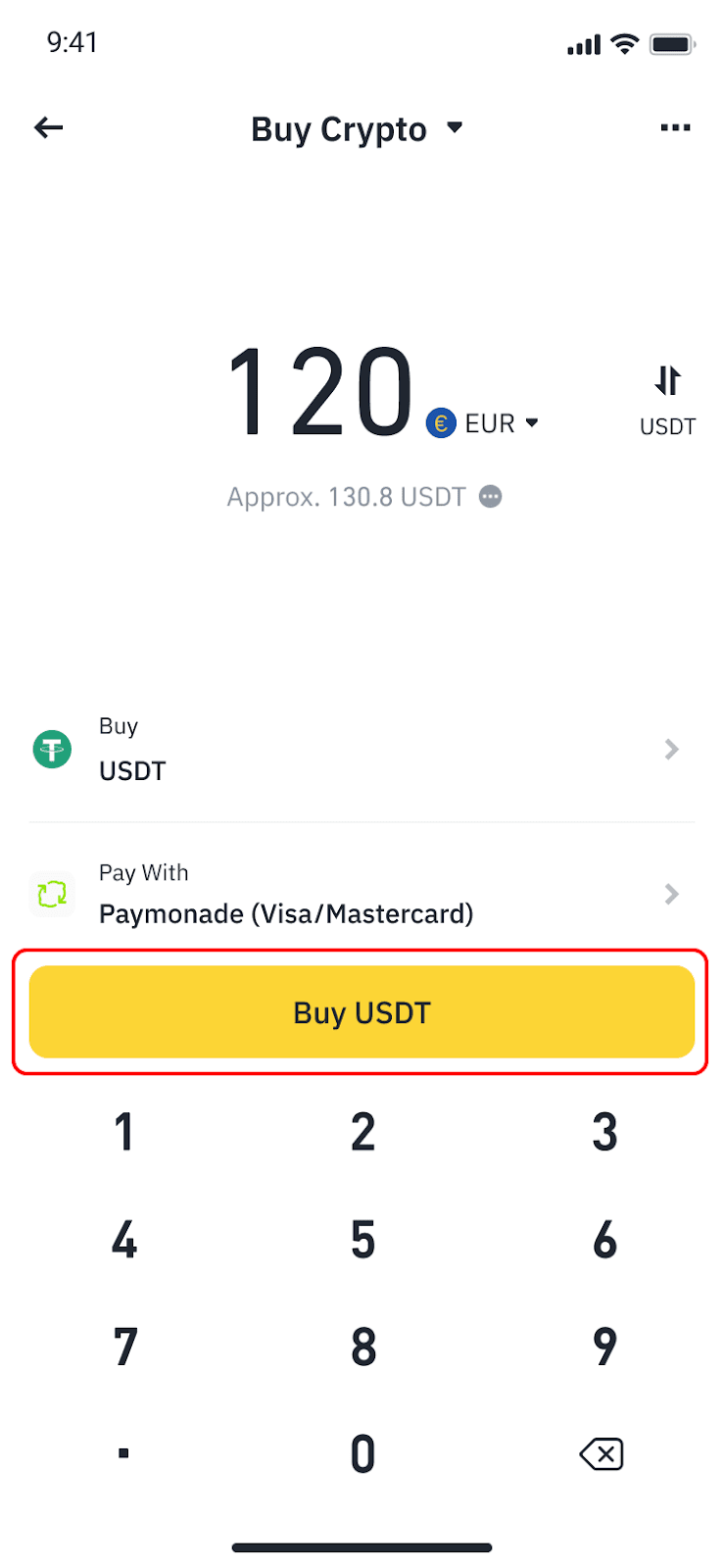
3. Tap [Buy …] to continue. The amount of crypto you will receive will be displayed at this point.
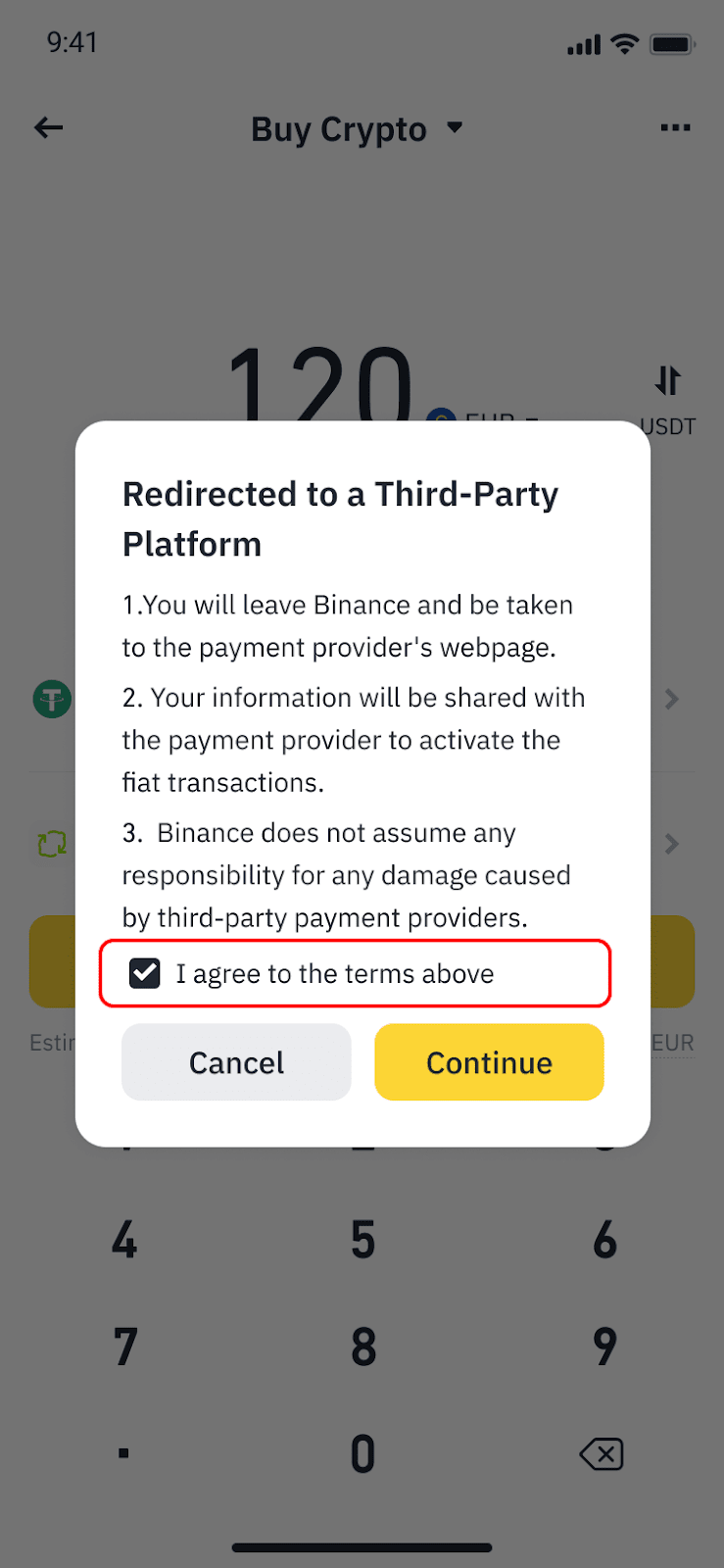
4. If this is your first time using Paymonade, you’ll need to agree to share your information. Read and agree to the terms and tap [Continue].
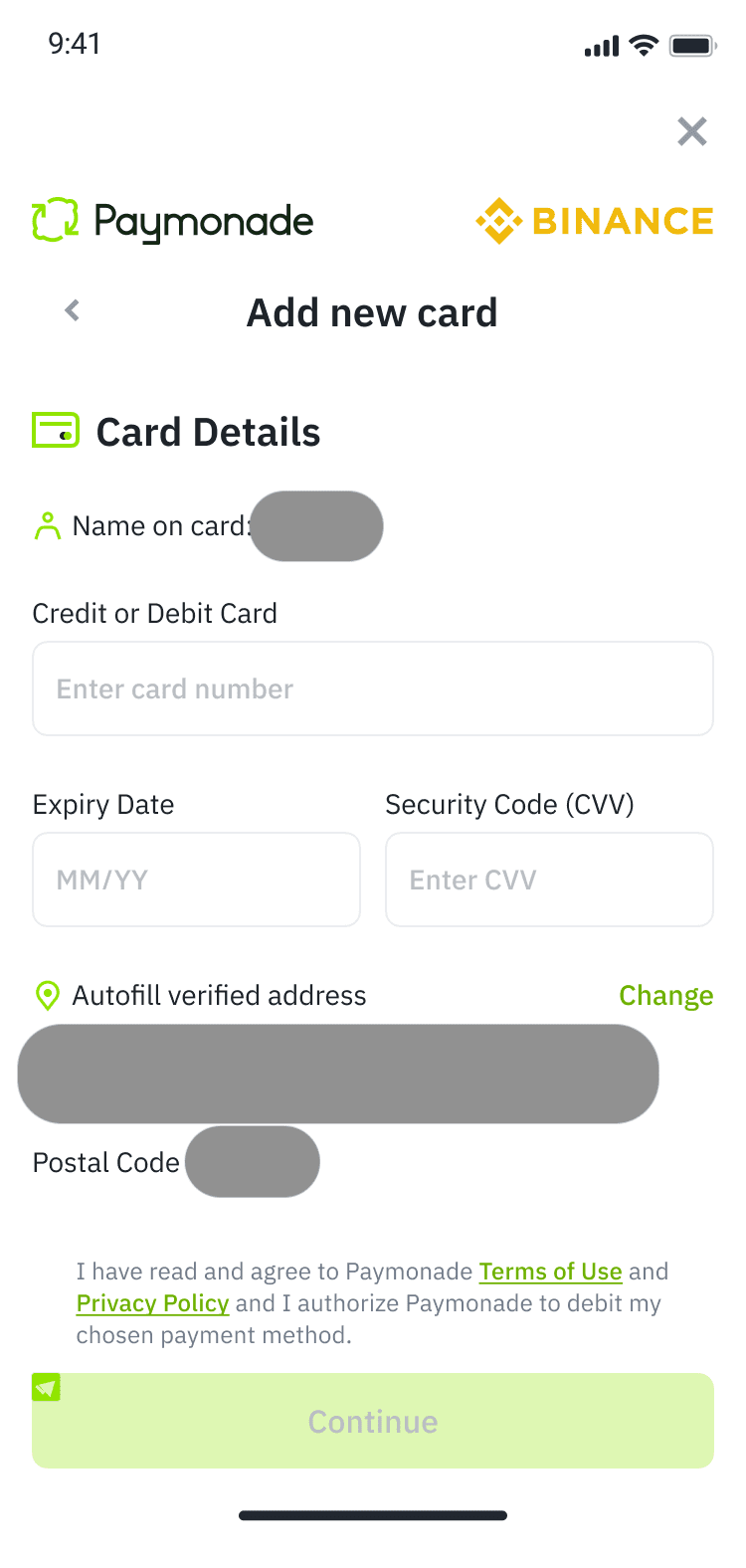
5. You’ll be directed to Paymonade’s website to link a card. Enter the card details to continue.
6. Check the order details carefully. You’ll also see the transaction fee here (if any). Tap [Confirm] to place the order.
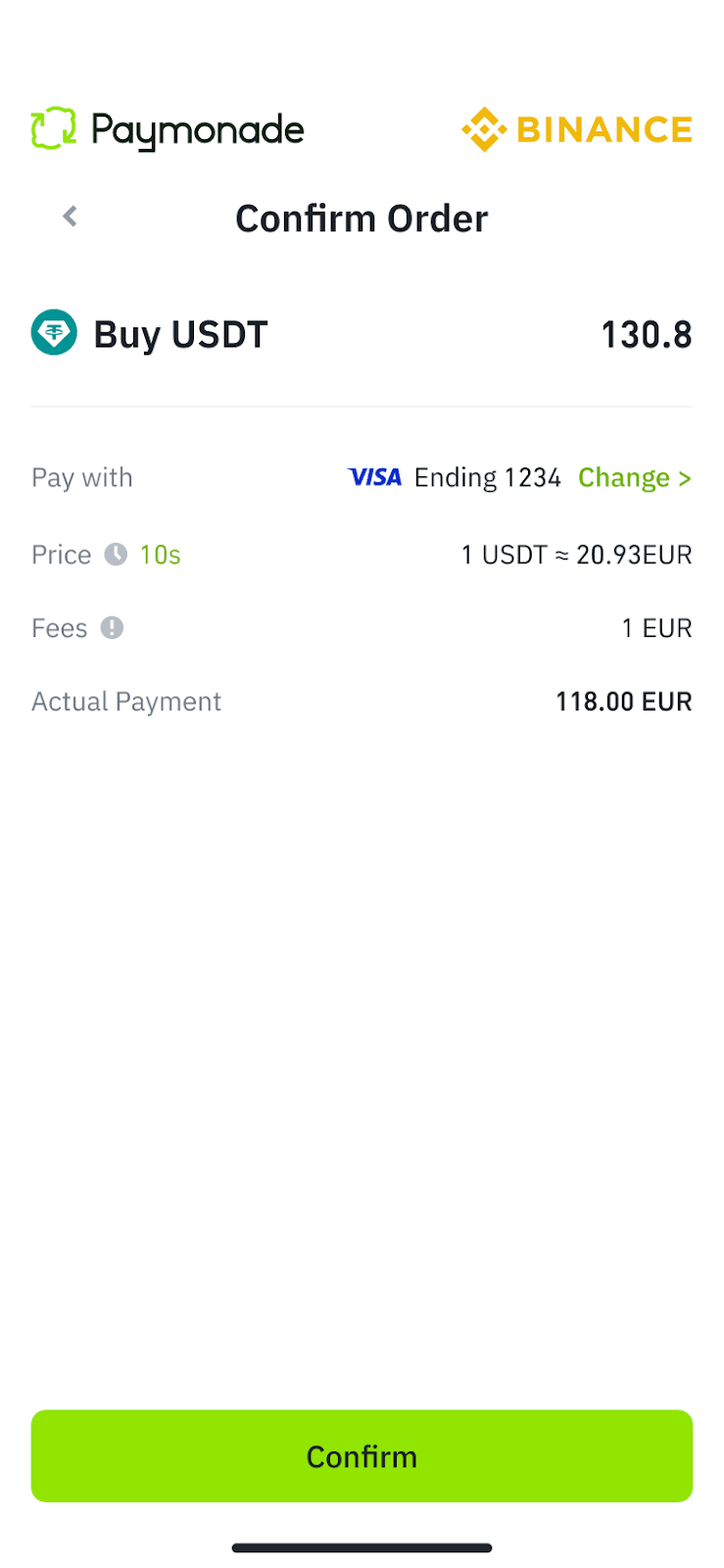
7. You’ll be redirected to your bank’s payment verification page. Verify the transaction within the specified time.
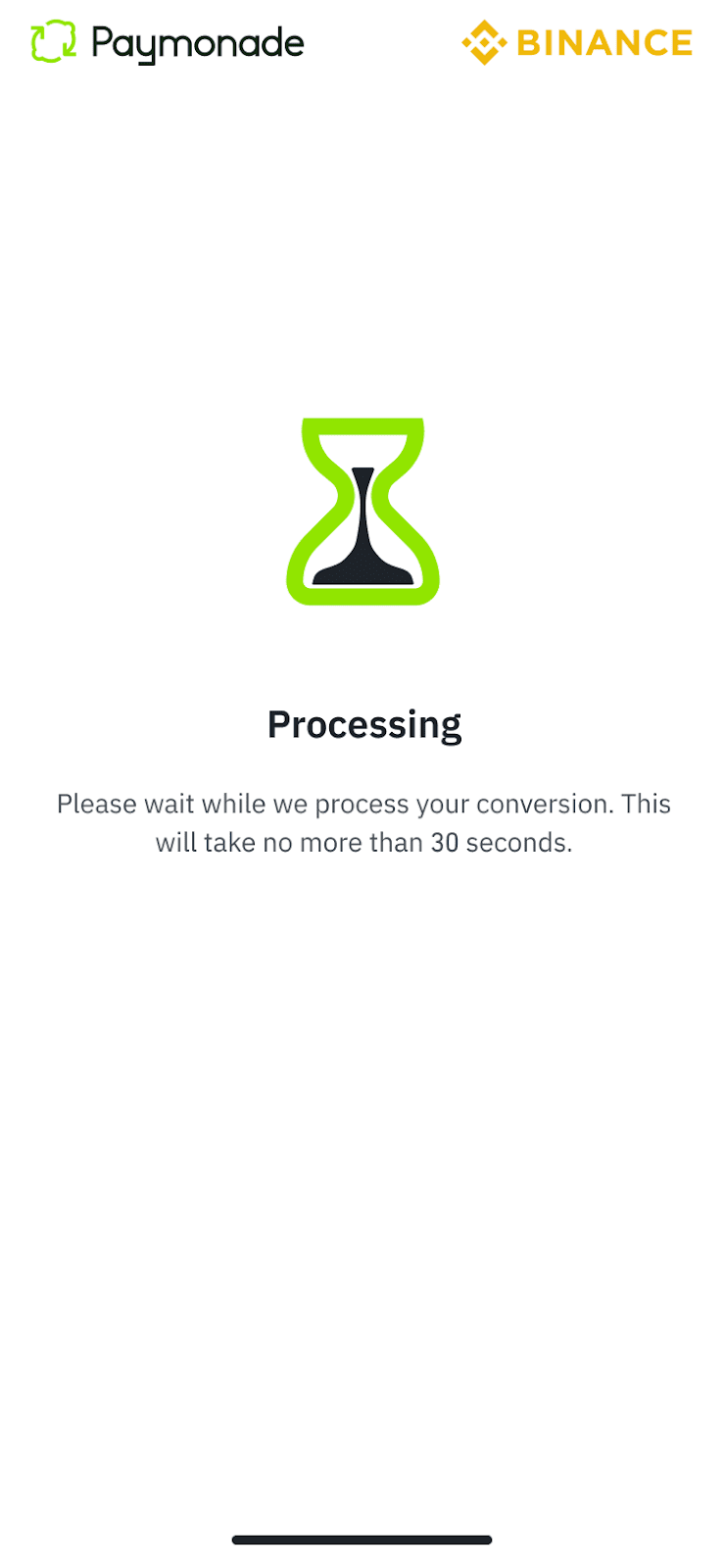
8. You’ll be redirected back to Binance, where you can view the status of the order. Typically, your order will be processed within a few seconds.
You can tap [View History] to check the transaction. If your assets haven’t arrived within 24 hours, please visit how to appeal for the order.
1. Log in to your Binance account and click [Buy Crypto]. Select the currency you prefer to use for payment and the token you wish to purchase. Click [Buy].
2. Under [Payment Method], select [Card/Apple Pay/Google Pay].
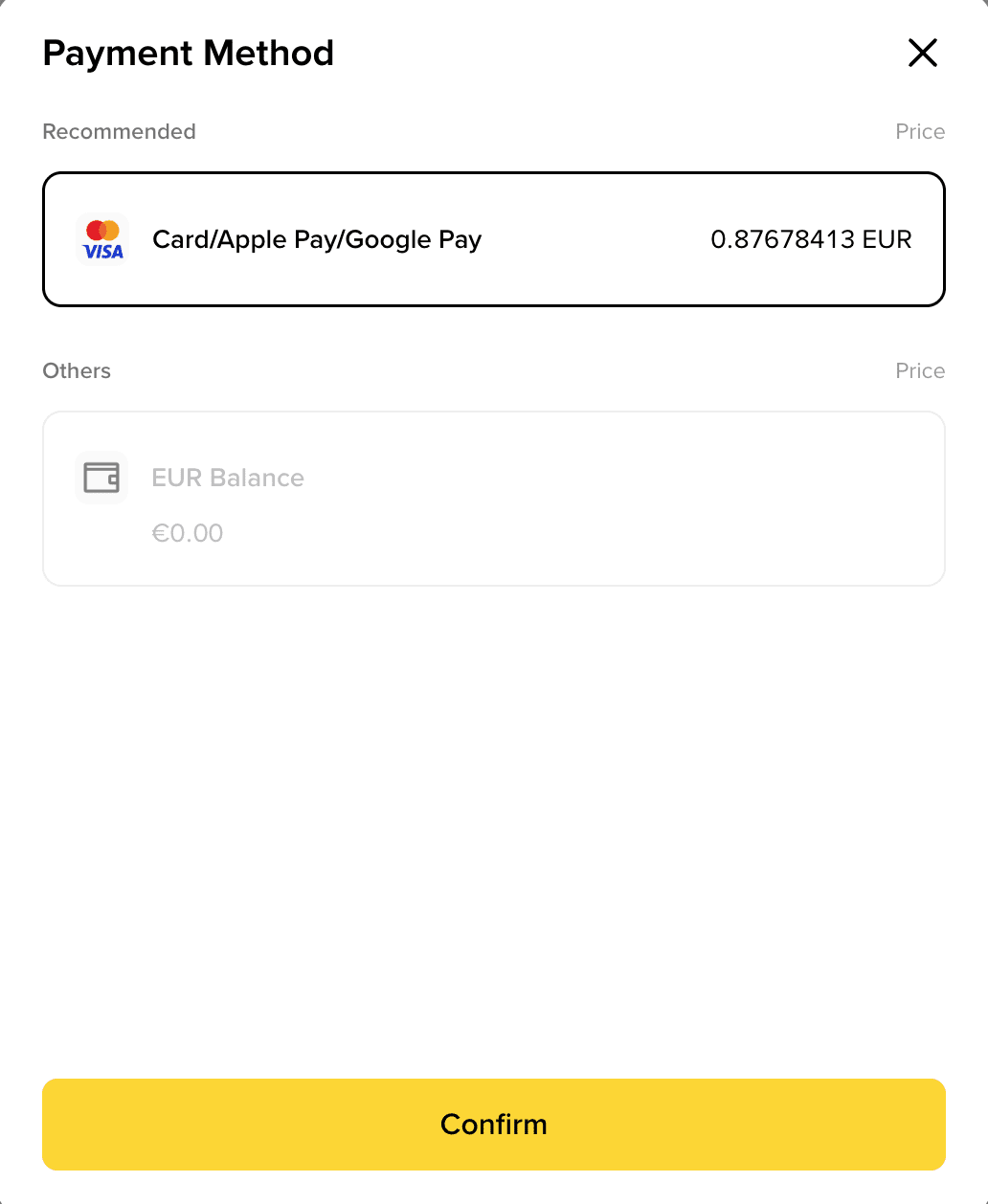
3. If you haven’t completed Identity Verification for your Binance account, you’ll be prompted to do so at this step.
4. Check the amount of crypto you can get and the amount you’ll pay on the ‘Confirm Order’ page, and click [Buy USDC] to proceed.
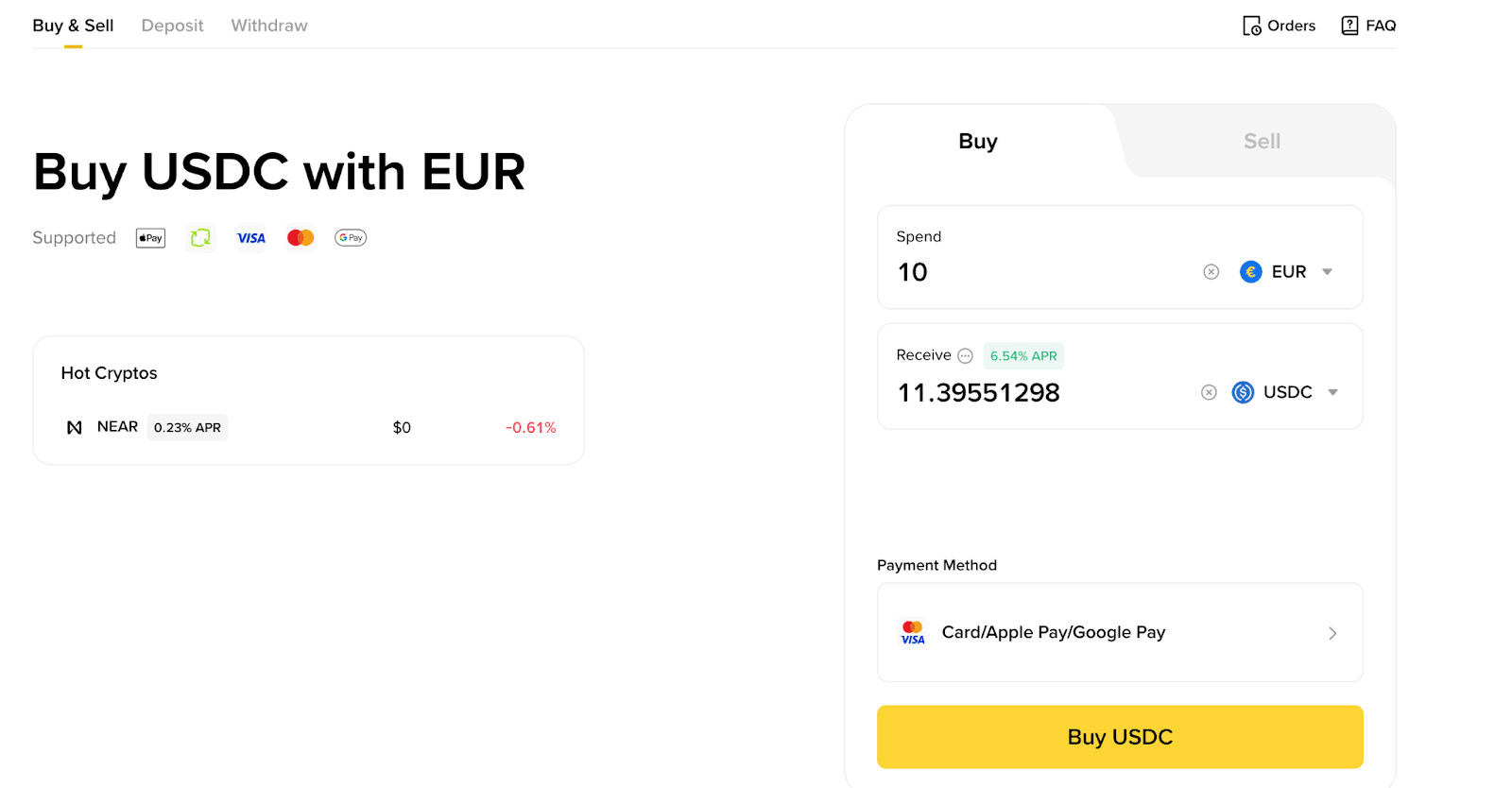
5. Apple Pay or Google Pay will be displayed depending on your browser.
Note: For example, users on Chrome may see Google Pay, while users on Safari may see Apple Pay, subject to device support.
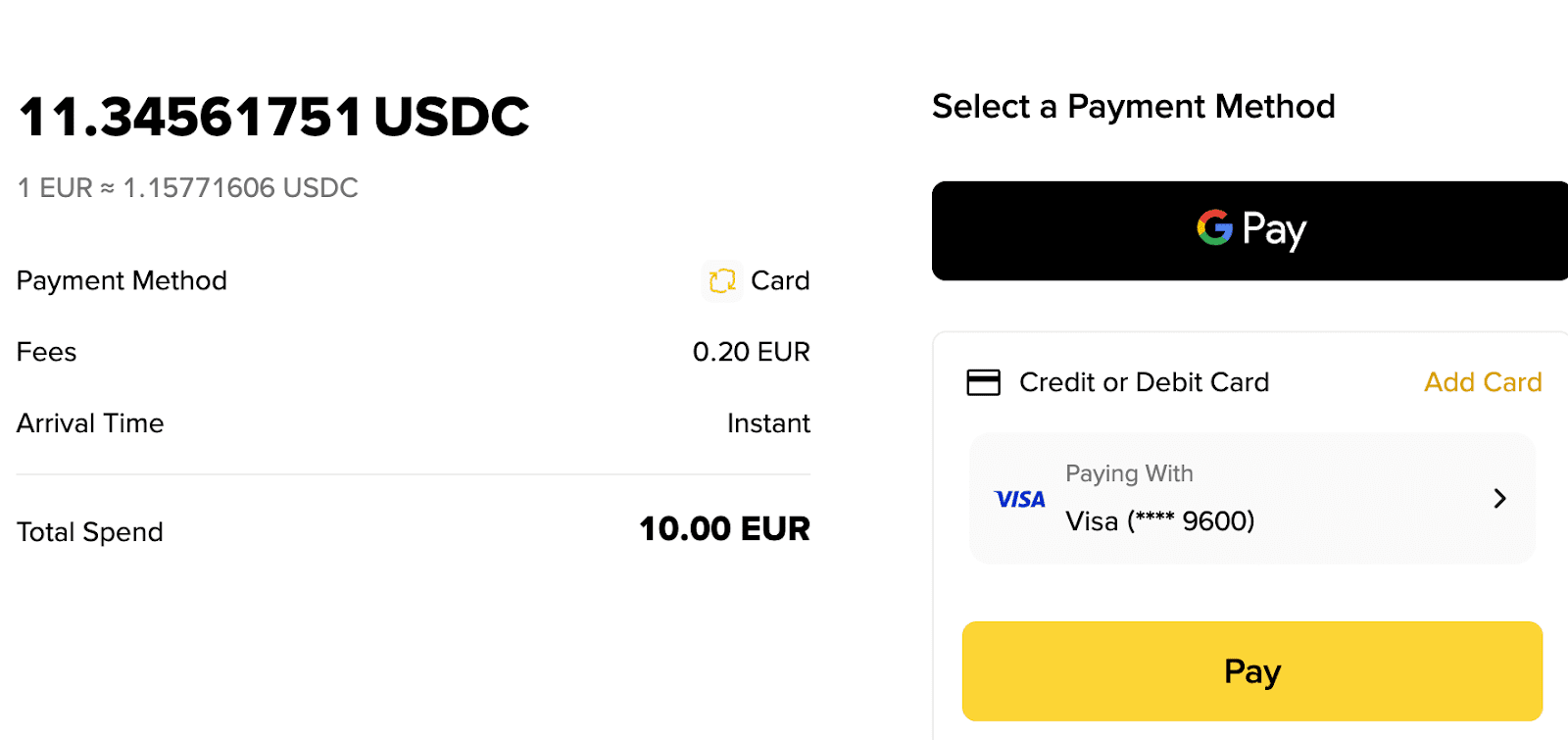
6. Click [Pay] to create the order.
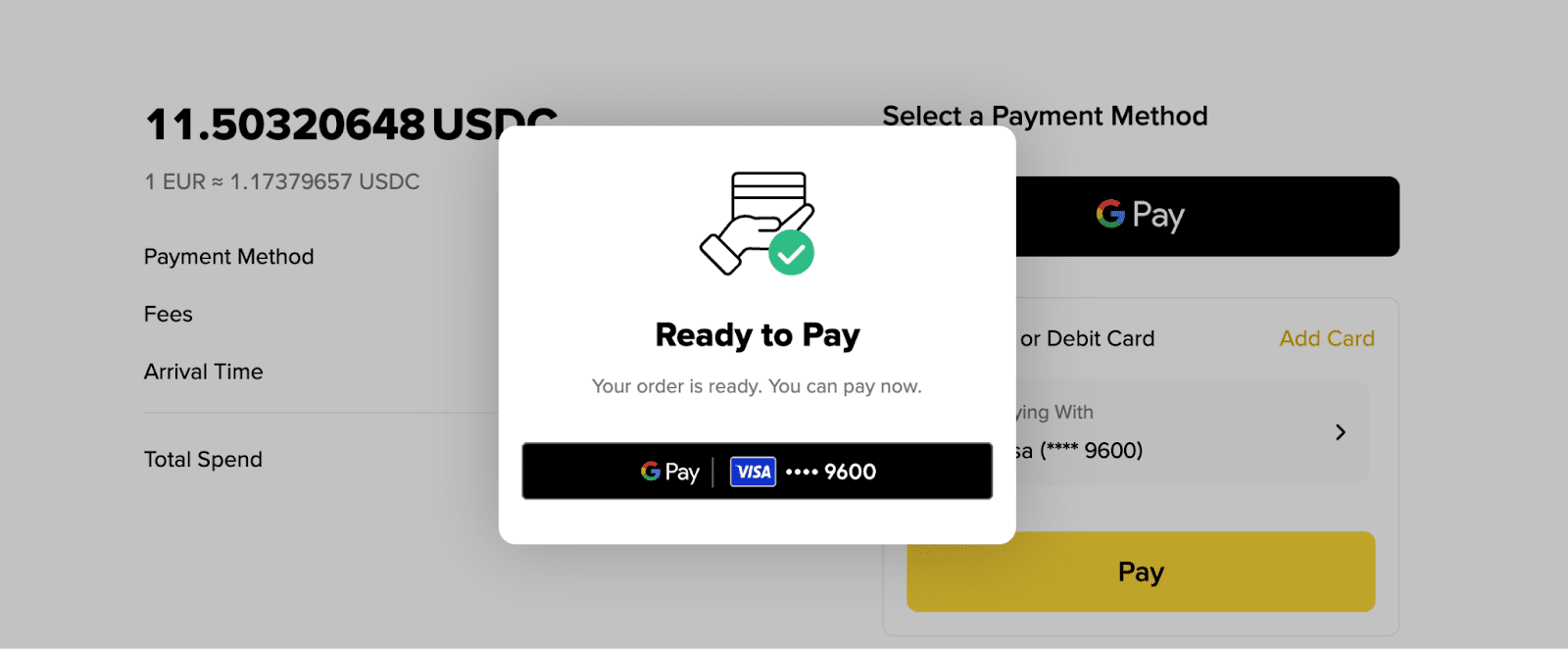
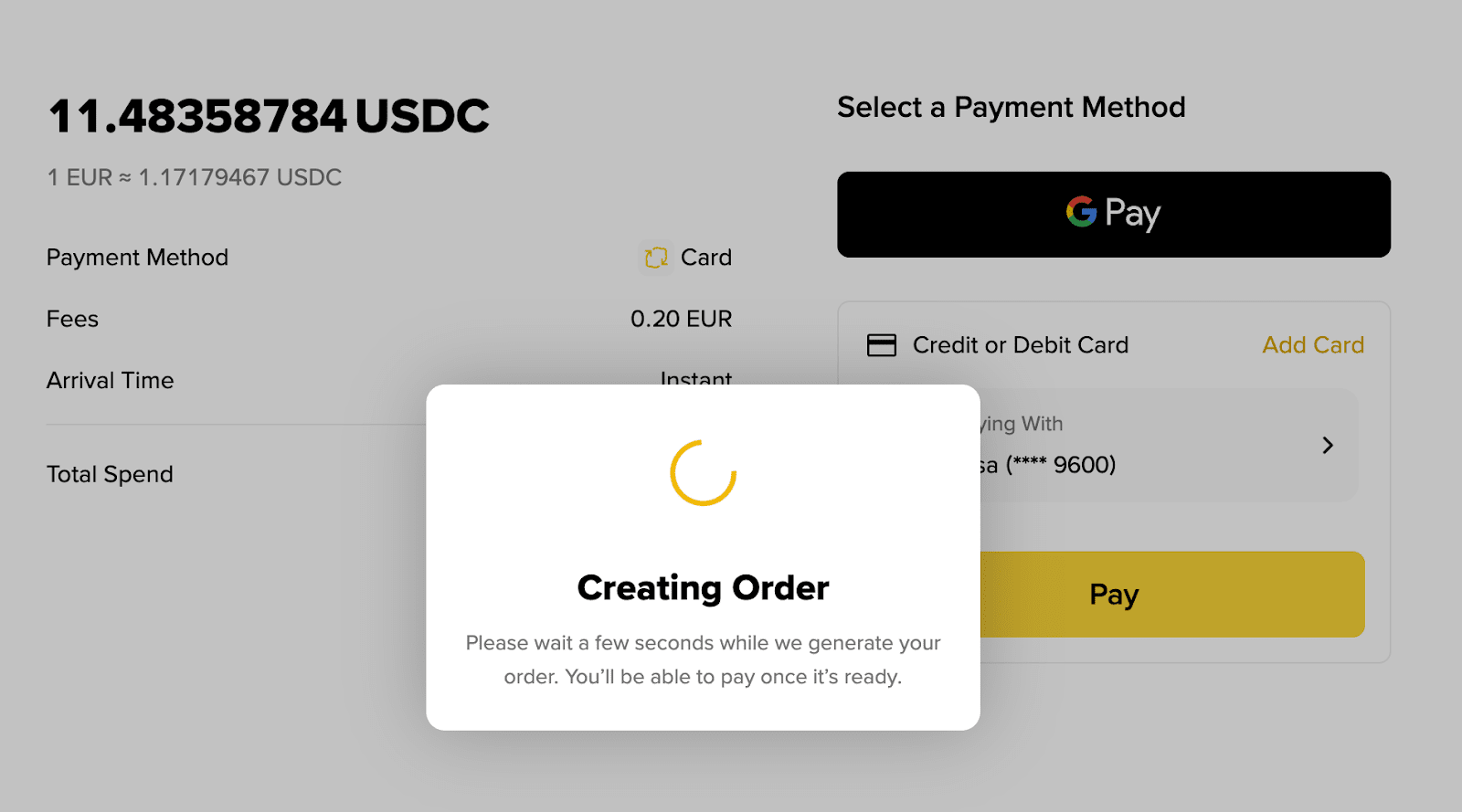
7. Your order is ready for payment, authenticated with Face ID or Touch ID on Google Pay to complete the transaction. Please wait patiently while the process is being completed.
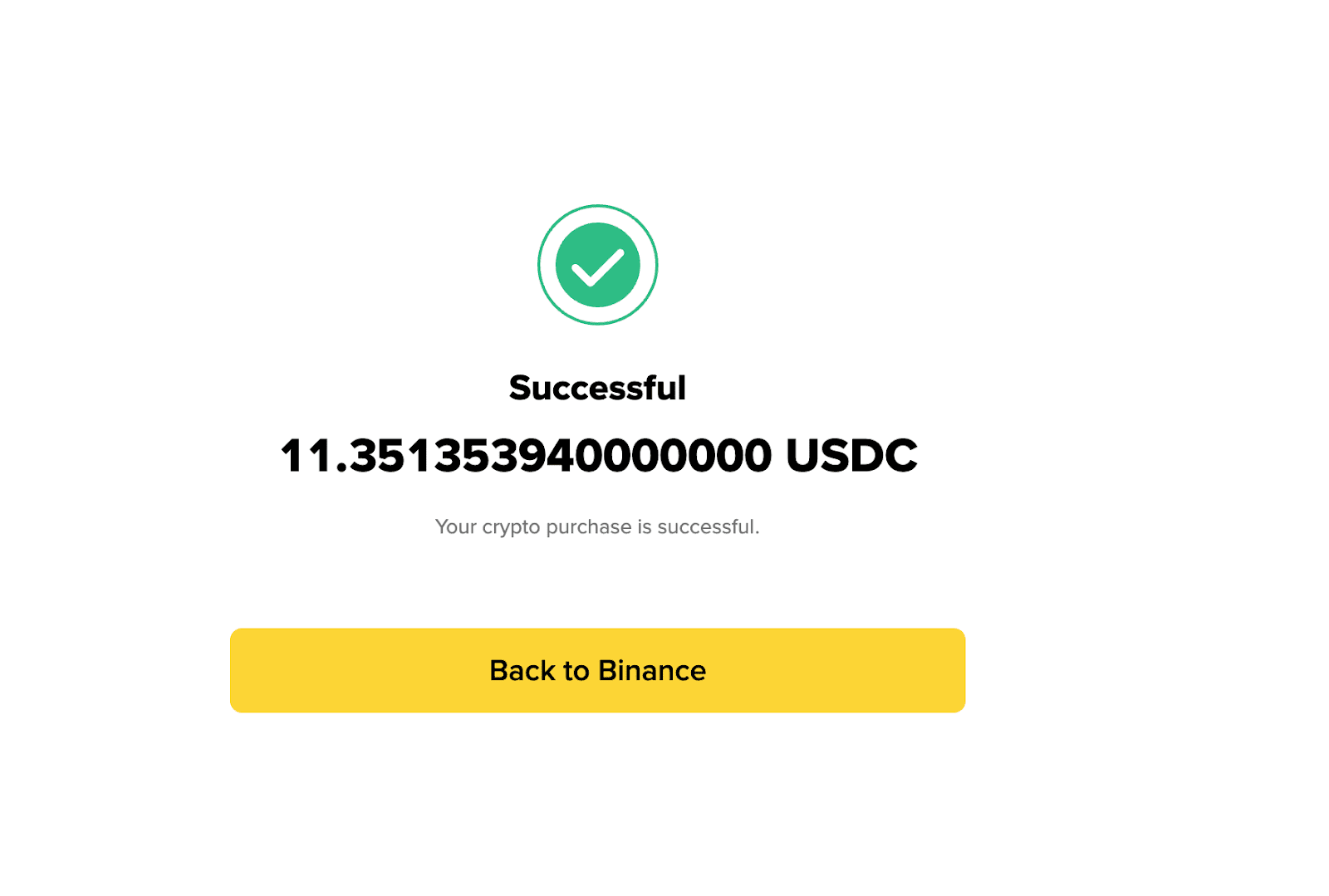
Your order has been completed successfully. You can return to Binance to view your order details.
1. Log in to your Binance account and go to [Buy Crypto] - [Buy & Sell]. Select the [Buy] tab and choose the currency and crypto you wish to purchase. Enter the amount to spend or receive.
If you haven’t completed identity verification for your Binance account, click [Verify and Buy] - [Verify Now] to continue.
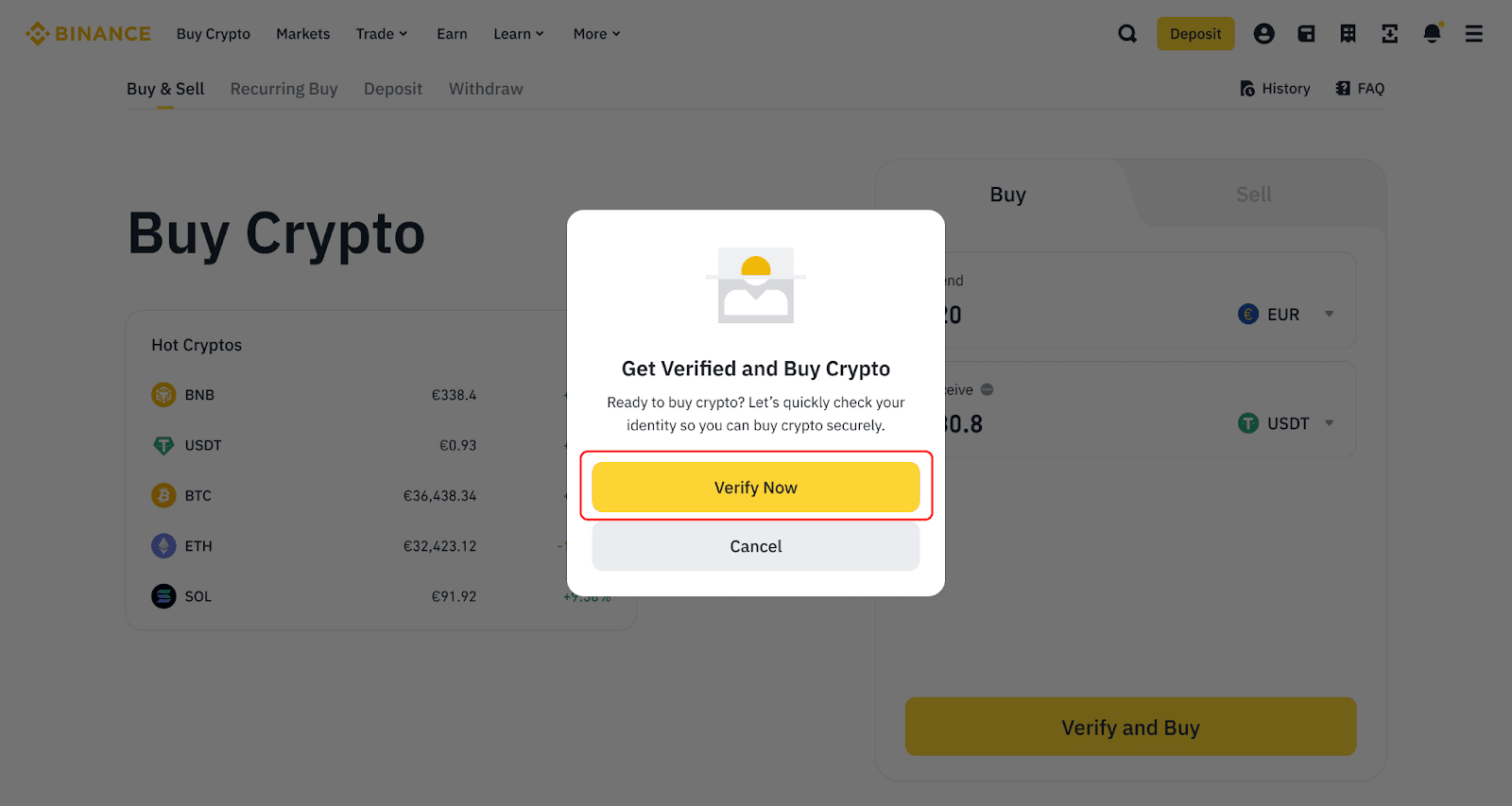
2. After completing the identity verification, select [Card] - [Paymonade (Visa/Mastercard)] under ‘Pay With’.
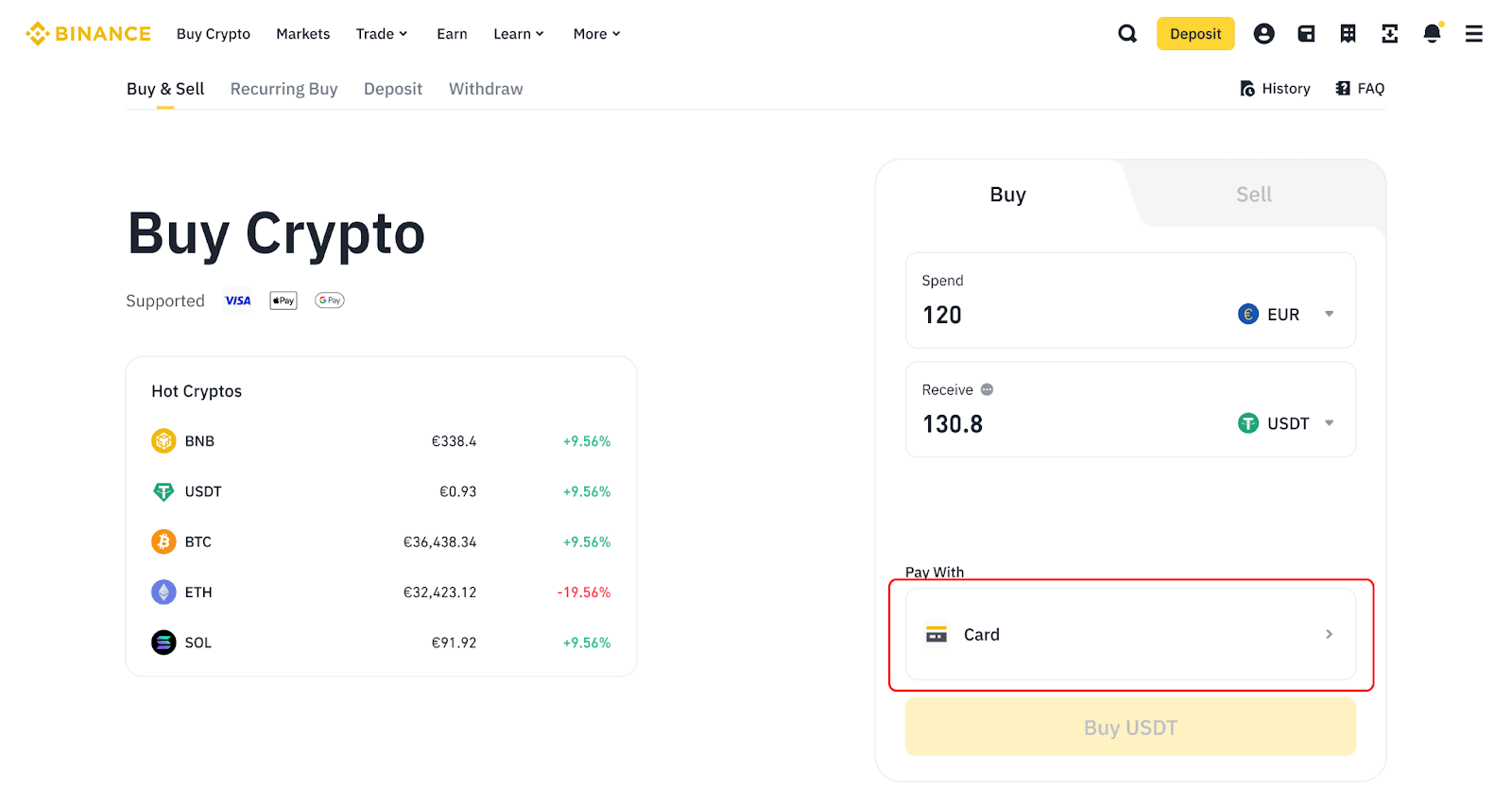
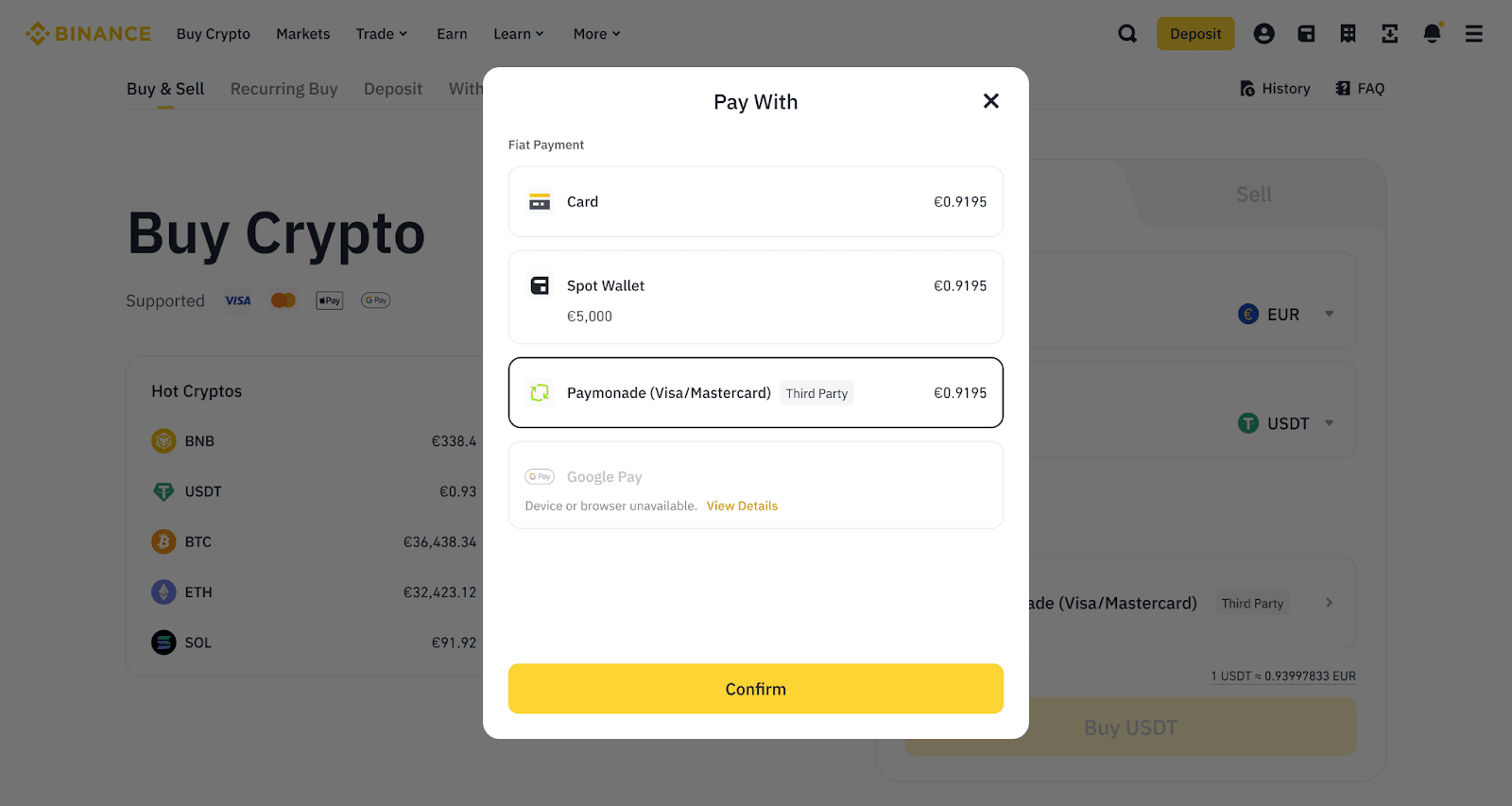
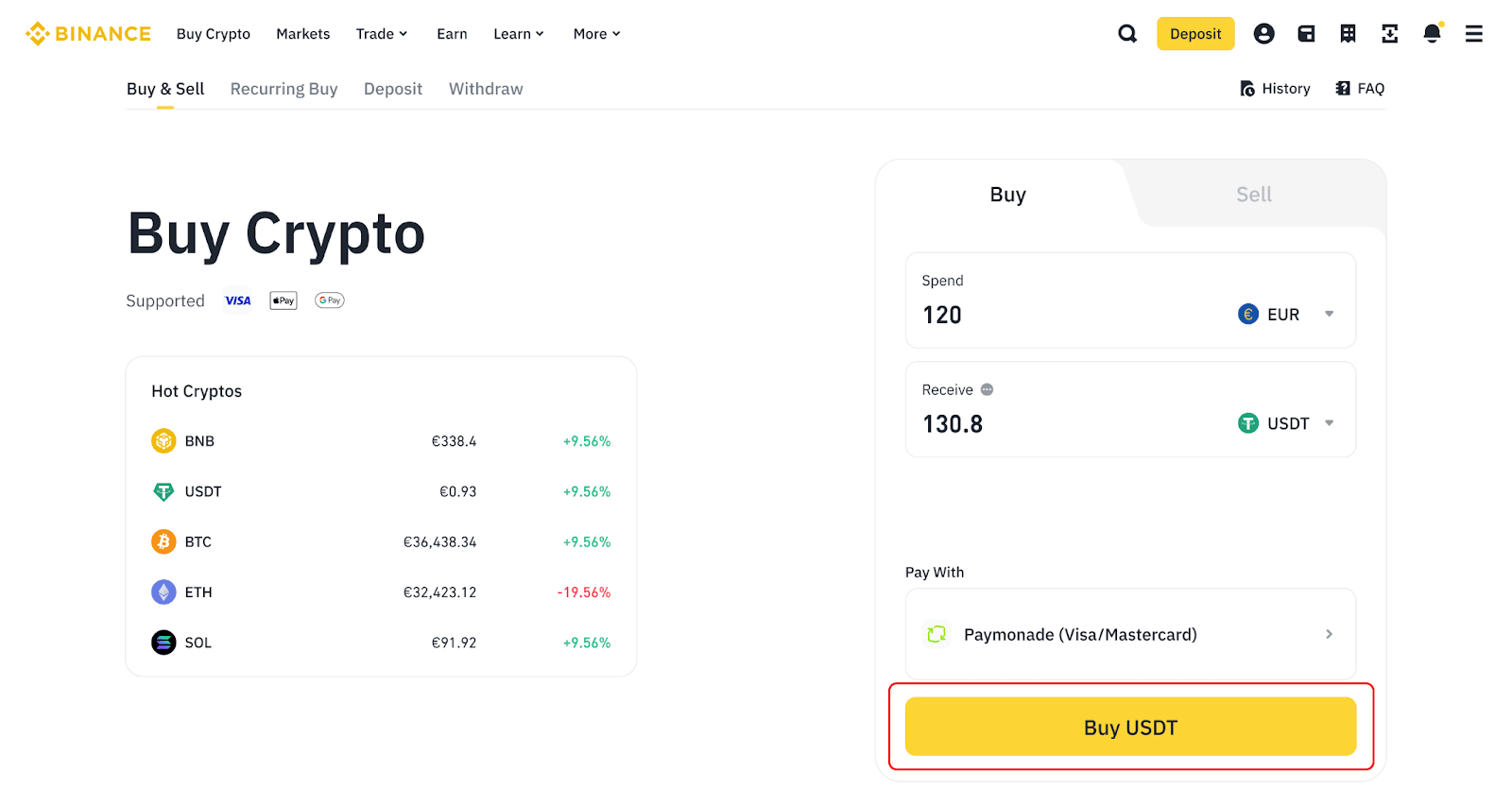
3. The amount of crypto you can receive will be recalculated at this point. Click the [Buy …] button to continue.
4. If this is your first time using Paymonade, you’ll need to agree to share your information. Read and agree to the terms and click [Confirm].
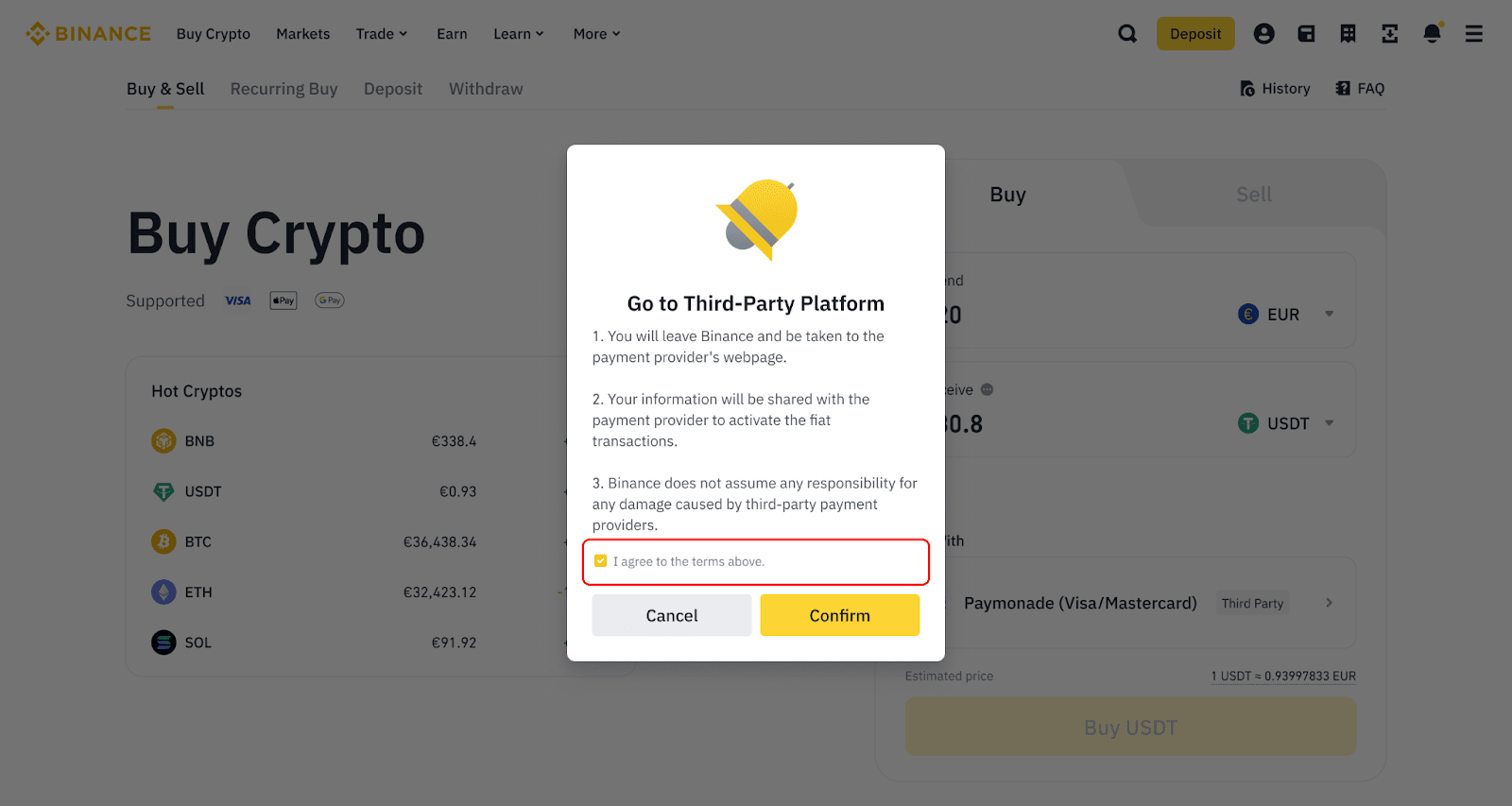
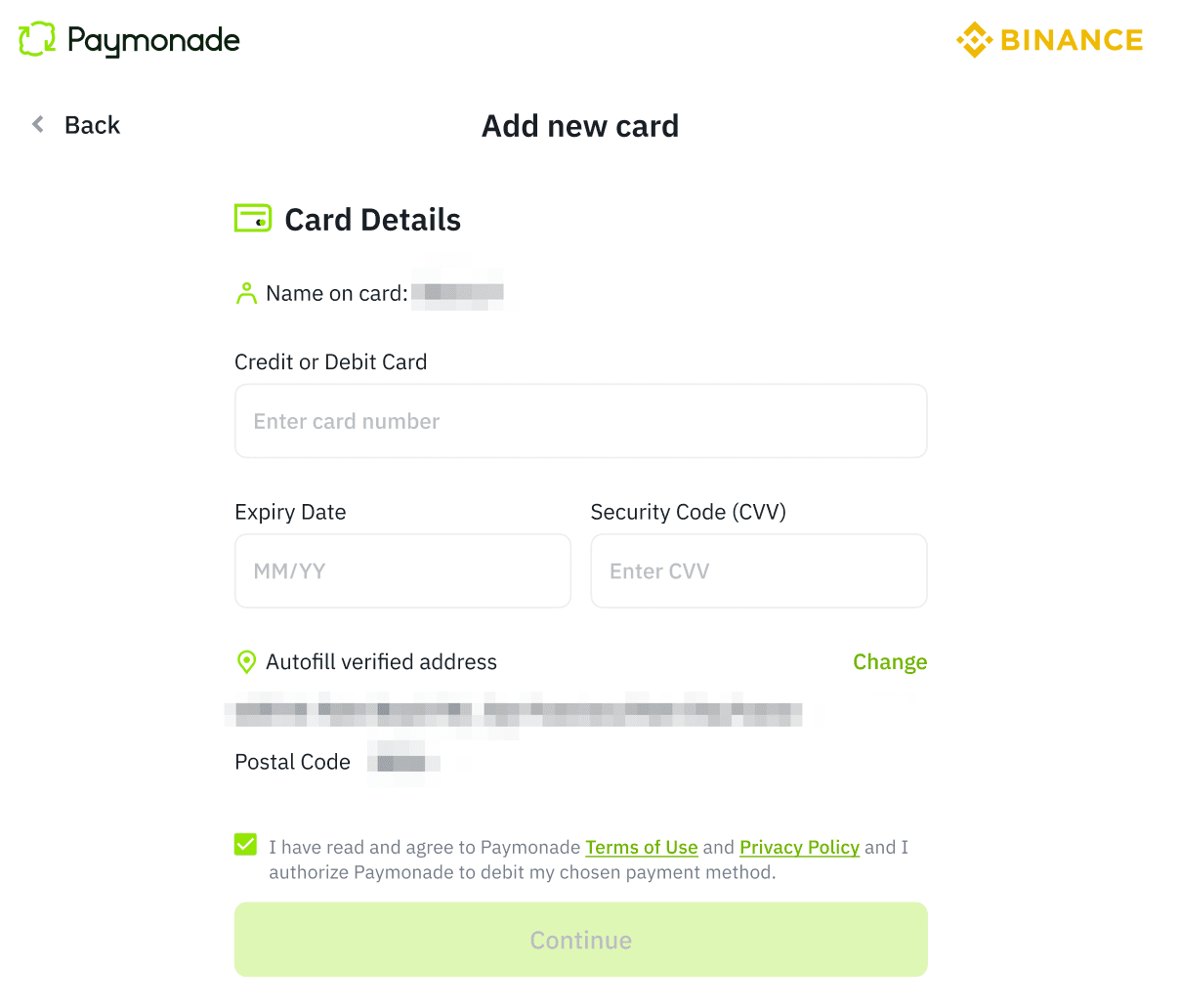
5. You’ll be directed to Paymonade’s website to link a card. Enter the card details to continue.
6. Check the order details carefully. You’ll also see the transaction fee here (if any). Click [Confirm] to place the order.
You’ll be redirected to your bank’s payment verification page. Verify the transaction within the specified time.
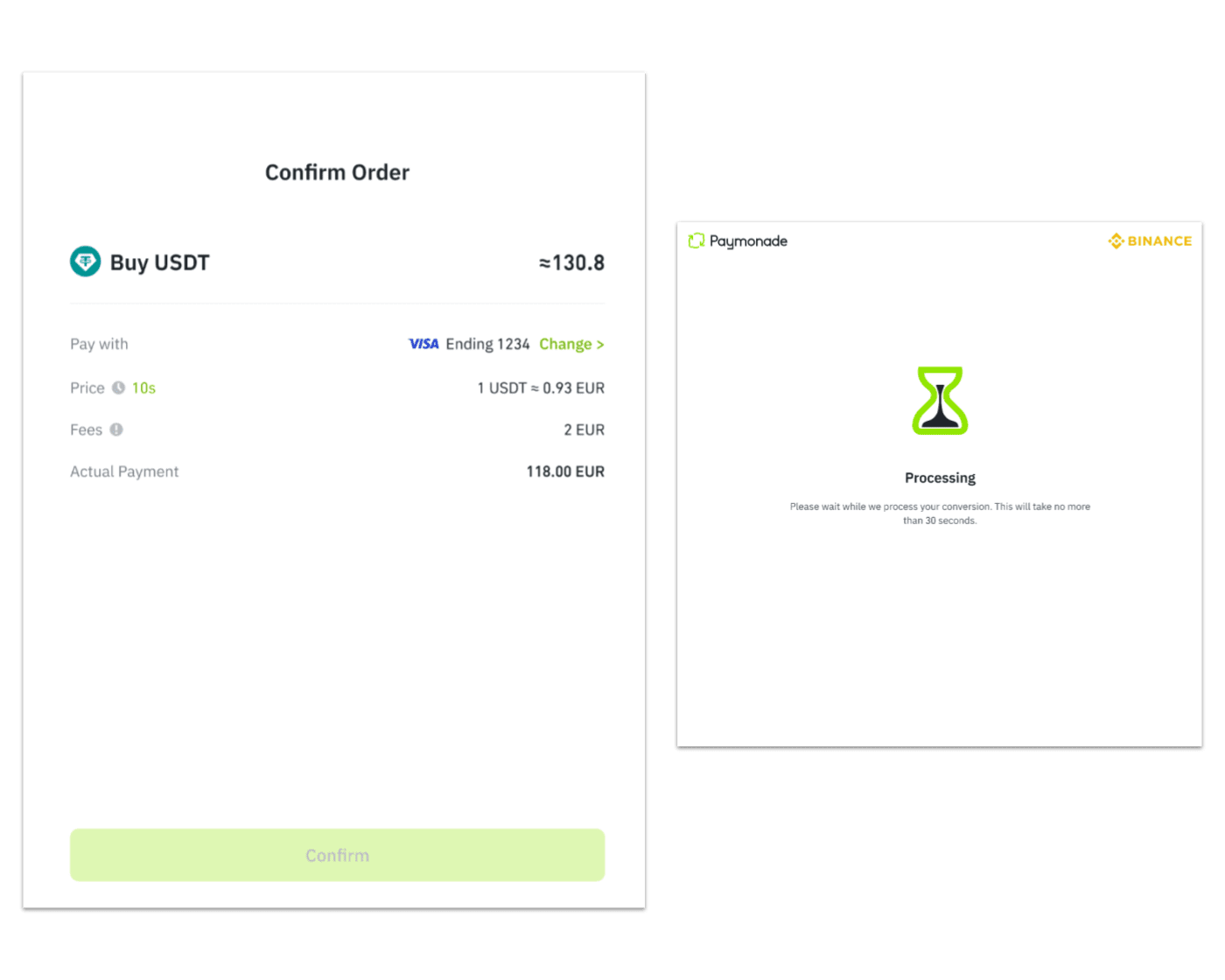
7. You’ll be redirected back to Binance, where you can view the status of the order. Typically, your order will be processed within a few seconds.
If your assets haven’t arrived within 24 hours, click [Appeal].
