
We might be at home every day, but I want the crayfish to help me work. Buying a VPS is too troublesome, with complex configurations and costs.
Later I found out that Tailscale could solve this problem.
Run locally, and the phone can directly remote connect to the machine at home.
Prerequisites: OpenClaw 2026.3.x, basic deployment completed, the computer at home must be kept on.
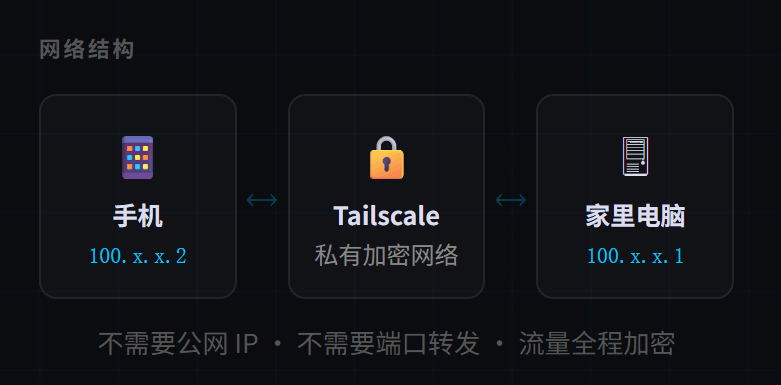
Let's clarify the principles first.
Tailscale is a networking tool based on WireGuard that helps you build a private network between all devices, where each device gets a fixed internal IP.
Your computer is 100.x.x.1, and your phone is 100.x.x.2. No matter where you are, they can directly access each other, just like being on the same local area network.
The crayfish console runs on localhost:18789, and under normal circumstances, only the local machine can access it.
After connecting to Tailscale, your phone can directly access the crayfish on your home computer through Tailscale's internal IP, without needing a public IP, port forwarding, or VPS.
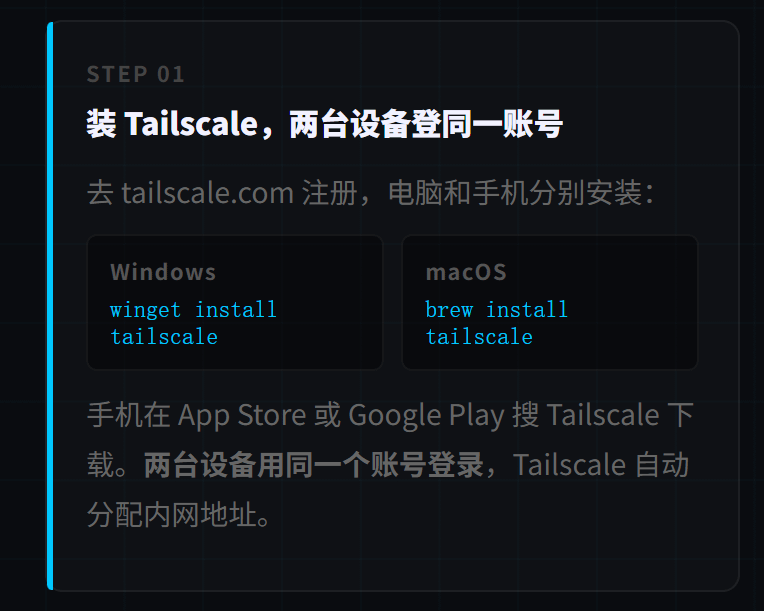
Step 1: Install Tailscale
Go to tailscale.com to register an account, and then install the client on your home computer and phone respectively:
Windows system:
winget install tailscale
macOS system:
brew install tailscale
You can directly search for Tailscale in the App Store or Google Play to download it.
After installation, both devices use the same account to log in. After logging into Tailscale, each device will automatically be assigned a 100.x.x.x internal IP address.
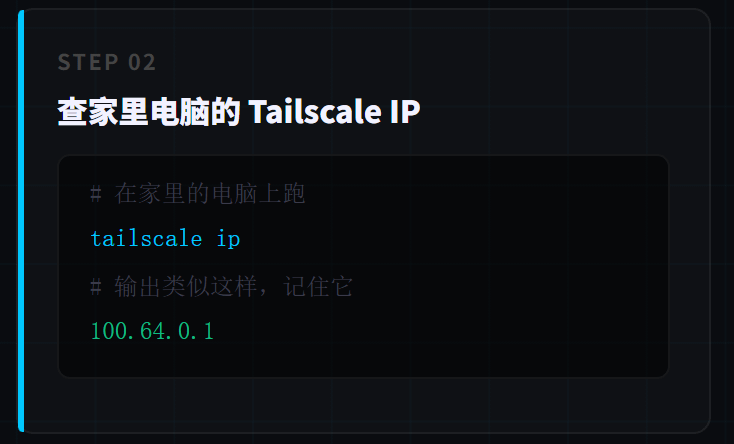
Step 2: Check your home computer's Tailscale IP
Enter in the computer terminal (CMD):
tailscale ip
It will output something like: 100.64.0.1 Remember this address, you'll need it to access the crayfish from your phone.
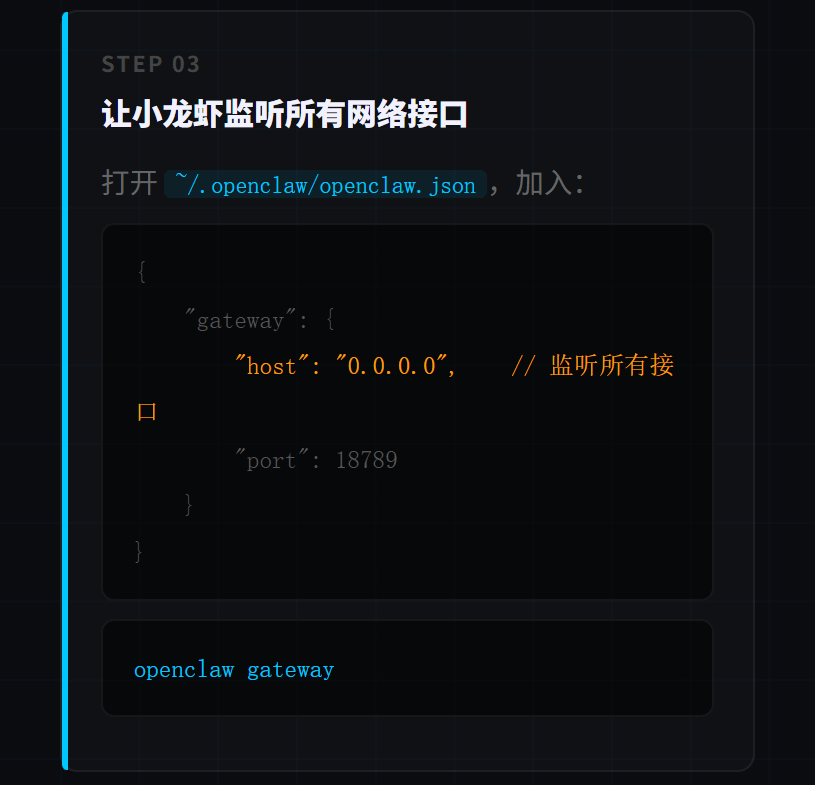
Step 3: Make the crayfish listen on the Tailscale address
By default, the crayfish only listens on 127.0.0.1, meaning only the local machine can access it. You need to change it to listen on all addresses.
Open ~/.openclaw/openclaw.json, find the gateway configuration, and add:
{
"gateway": {
"host": "0.0.0.0",
"port": 18789
}
}
```
`0.0.0.0` means listening on all network interfaces, including Tailscale's virtual network card.
After modification, restart the gateway:
```
openclaw gateway
```
---
Step 4: Test access with phone
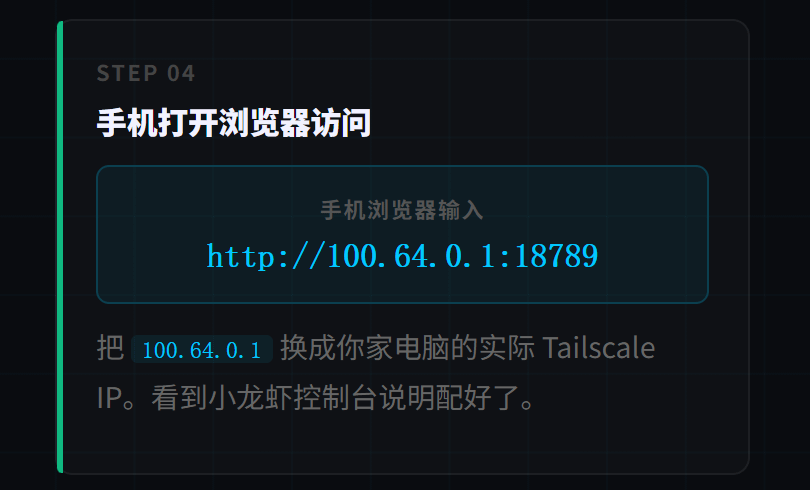
After connecting your phone to Tailscale, open the browser and visit:
```
http://100.64.0.1:18789
Replace 100.64.0.1 with the actual Tailscale IP of your home computer. If you can see the crayfish console, it means it's set up correctly.
No changes are needed for Telegram, as Telegram uses the public network and can be used directly. This configuration is mainly to allow you to open the console interface for operations while outside.
Step 5: Add a layer of security protection
Exposing the crayfish to the network requires attention to security. Tailscale has already encrypted all traffic, but it's recommended to add an access Token:
Open ~/.openclaw/openclaw.json, and add:
{
"gateway": {
"host": "0.0.0.0",
"port": 18789,
"auth": {
"token": "Set a complex string yourself"
}
}
}
```
This way, accessing the console requires verifying the Token, so even if someone enters your Tailscale network, they cannot access the crayfish.
---
Advanced: Share with others using Tailscale Funnel
If you want people not in your Tailscale network to access it, you can open Funnel:
```
tailscale funnel 18789
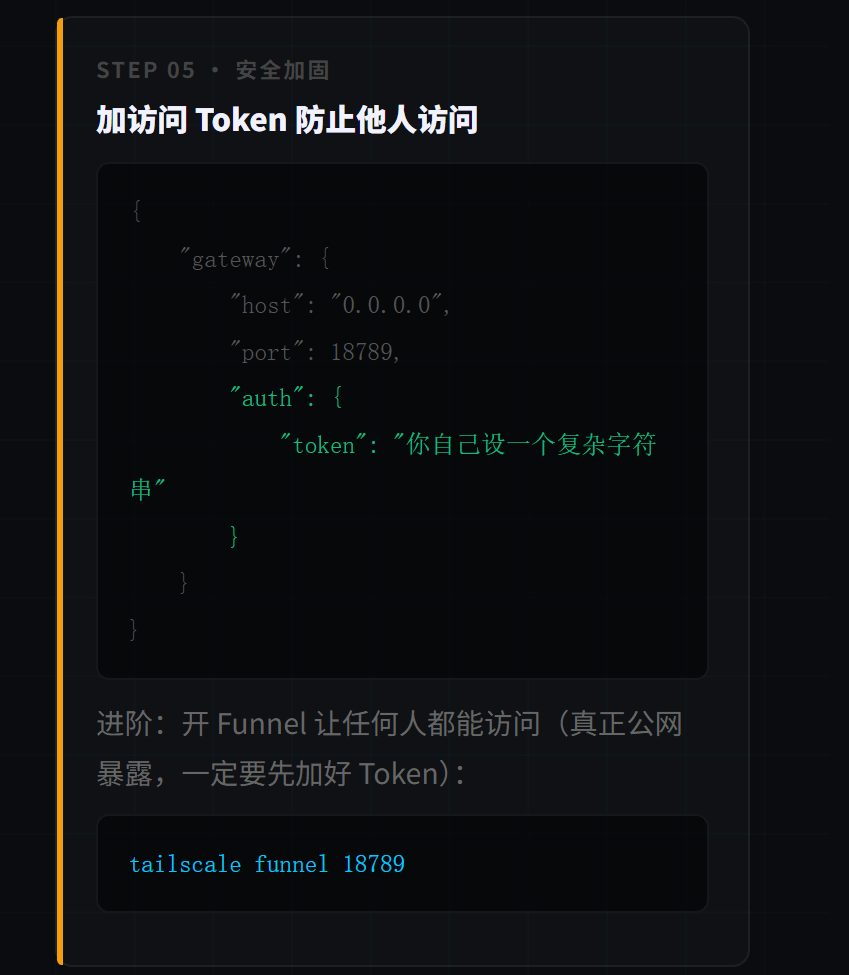
Tailscale will give you a public HTTPS address, which anyone can access. Note that this is a true public exposure, and you must properly configure Token authentication before opening it.
After setting it up, the feeling is that when you're outside, you can take out your phone and directly open the crayfish console, just like sitting in front of the computer. The computer at home is quietly running, and you can issue commands anytime and see results anytime.
Running locally saves the cost of a VPS, and the free version of Tailscale is sufficient for personal users, completely free for up to three devices.
Common Issues
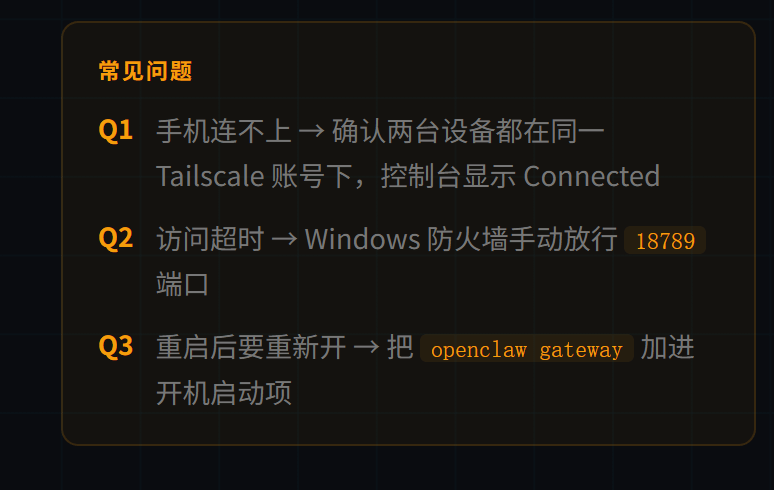
If the phone cannot connect: first confirm that the phone and computer are under the same Tailscale account, and you can see that both devices show Connected in the Tailscale console.
Access timeout: Check if the computer's firewall is blocking port 18789; Windows requires manual allowance in the firewall.
Every time you restart, you need to reopen the gateway: you can add openclaw gateway to the startup items, use Task Scheduler in Windows, and launchd in macOS.#AIBinance