

Want to become an excellent live broadcaster on Binance Square? This tutorial will cover four sections: introduction to live streaming, how to start a broadcast, features of the live room, and tips for optimizing live streams, helping you to fully understand Binance Square live streaming and quickly get started 👇
1. What is Binance Square live streaming?
Binance Square live streaming is a real-time interactive feature for content creators, supporting three forms: voice, video, and streaming. Broadcasters can chat with viewers while broadcasting and share links.
Currently supports three forms of live streaming:

Multilingual subtitles — Real-time translation of live content, reaching global users (only voice live streaming supported)
Diversified monetization — Listed cryptocurrencies with referral commissions (up to 50% of content mining rewards), gift rewards, and multiple revenue streams.
Real-time interaction — Supports distributing red envelopes in the live stream and connecting with viewers to create a lively atmosphere.
II. How to start a live stream?
Broadcasting conditions
When the number of followers on the square reaches ≥ 1000, the system will automatically unlock live streaming permissions.
If you do not yet meet the requirements but have experience in broadcasting or a background in creating high-quality content, you can submit this form to apply for live streaming permission.
*Please note: Some features may not be available in your region.
Live stream begins on the web browser 💻:
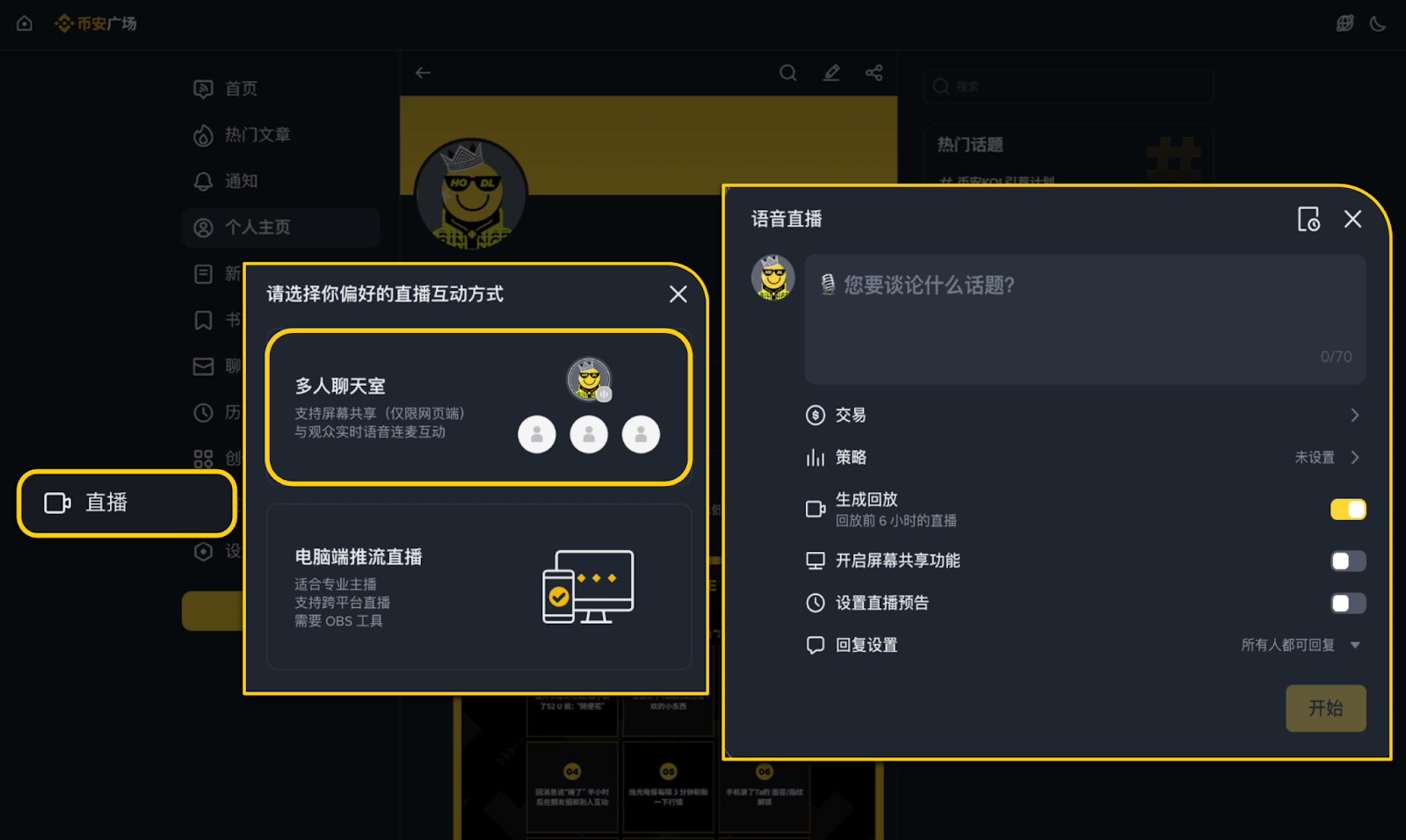
Live Voice Chat - Multi-person Chat Room (Recommended)
Visit the "Live" section on the Binance Square homepage.
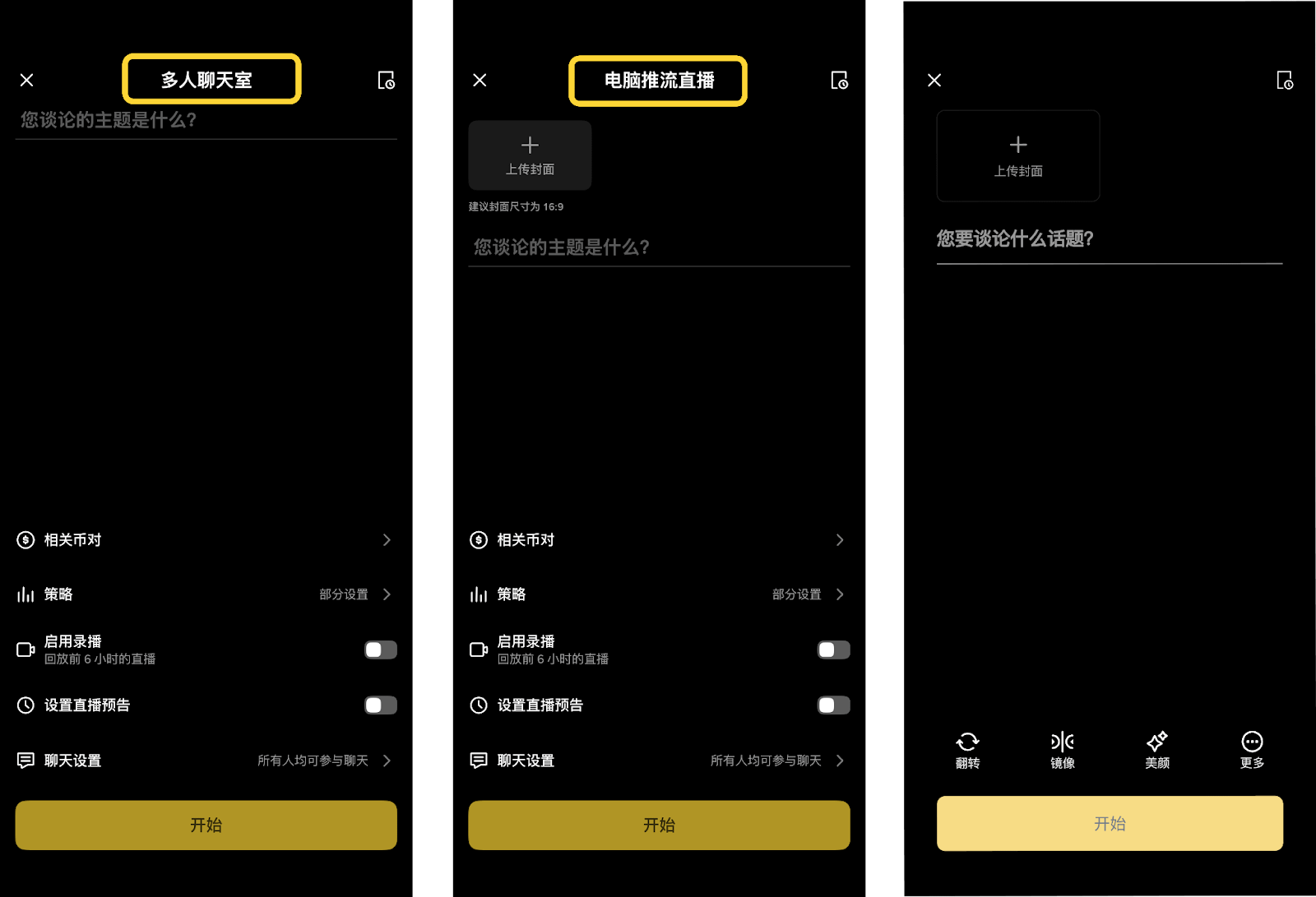
Select "Multi-person Chat Room" and set the live stream title and permissions.
To share your screen, please select the corresponding option before starting the broadcast.
Users can set up live stream announcements, and each user can create one scheduled live stream (within 14 days).
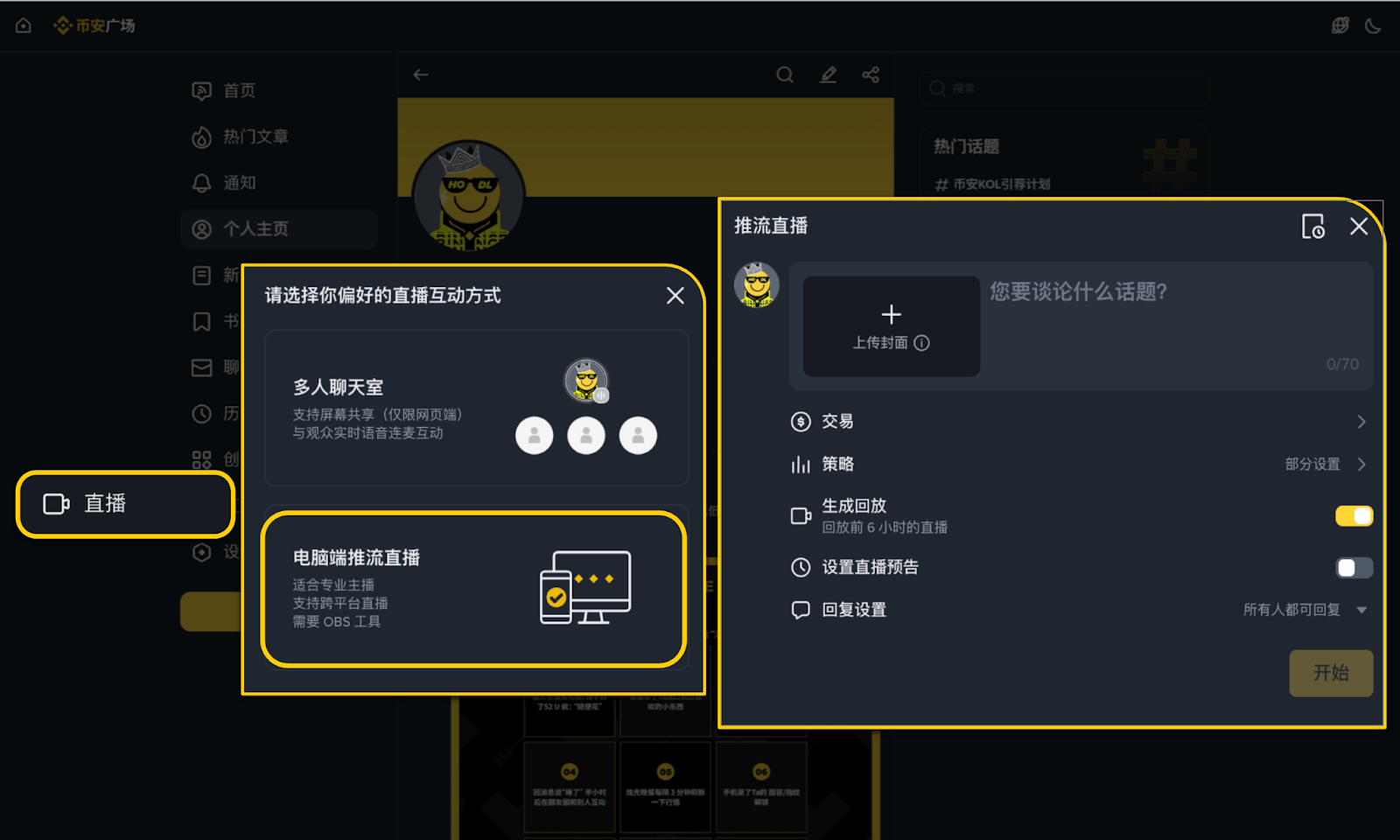
Computer-powered live streaming
Create a live stream room, fill in the title and upload a cover image;
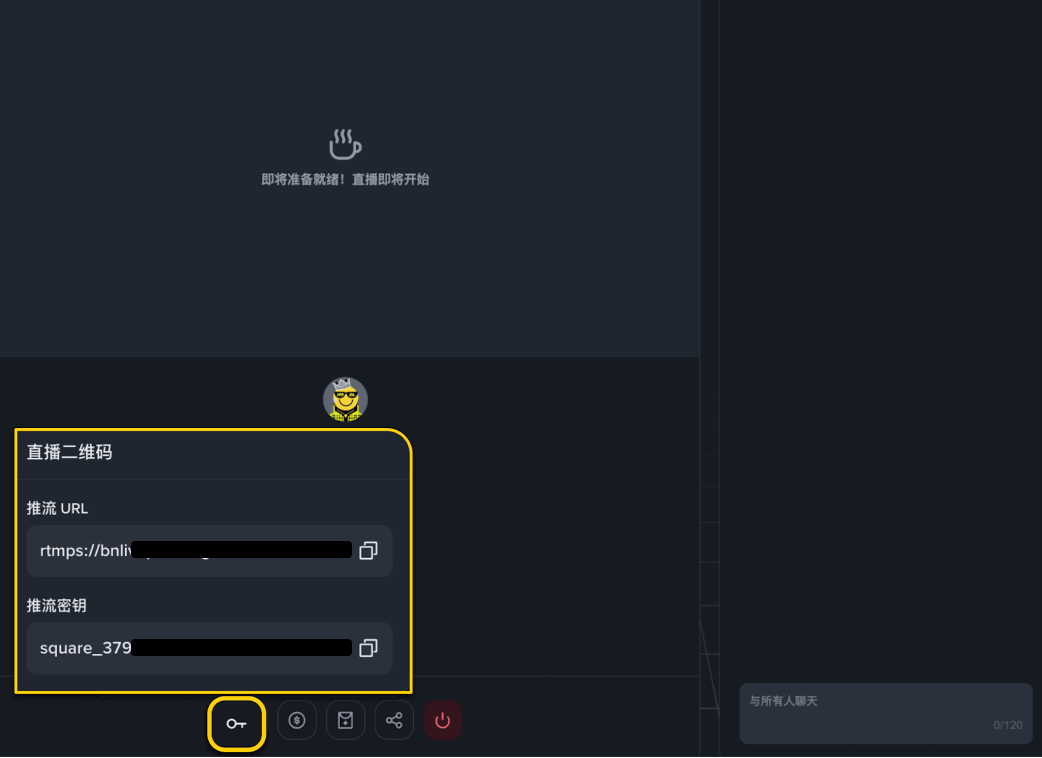
Enter the live stream room and obtain the streaming address and key in the lower left corner of the console.
Paste the information into a streaming tool such as OBS or Streamyard, select "Custom Address," and click "Start" to begin streaming.
📌 Recommended settings: 1080p / 30fps (latency approximately 15–30 seconds). For more OBS tutorials, please search online.
Live streaming on your mobile app 📱:
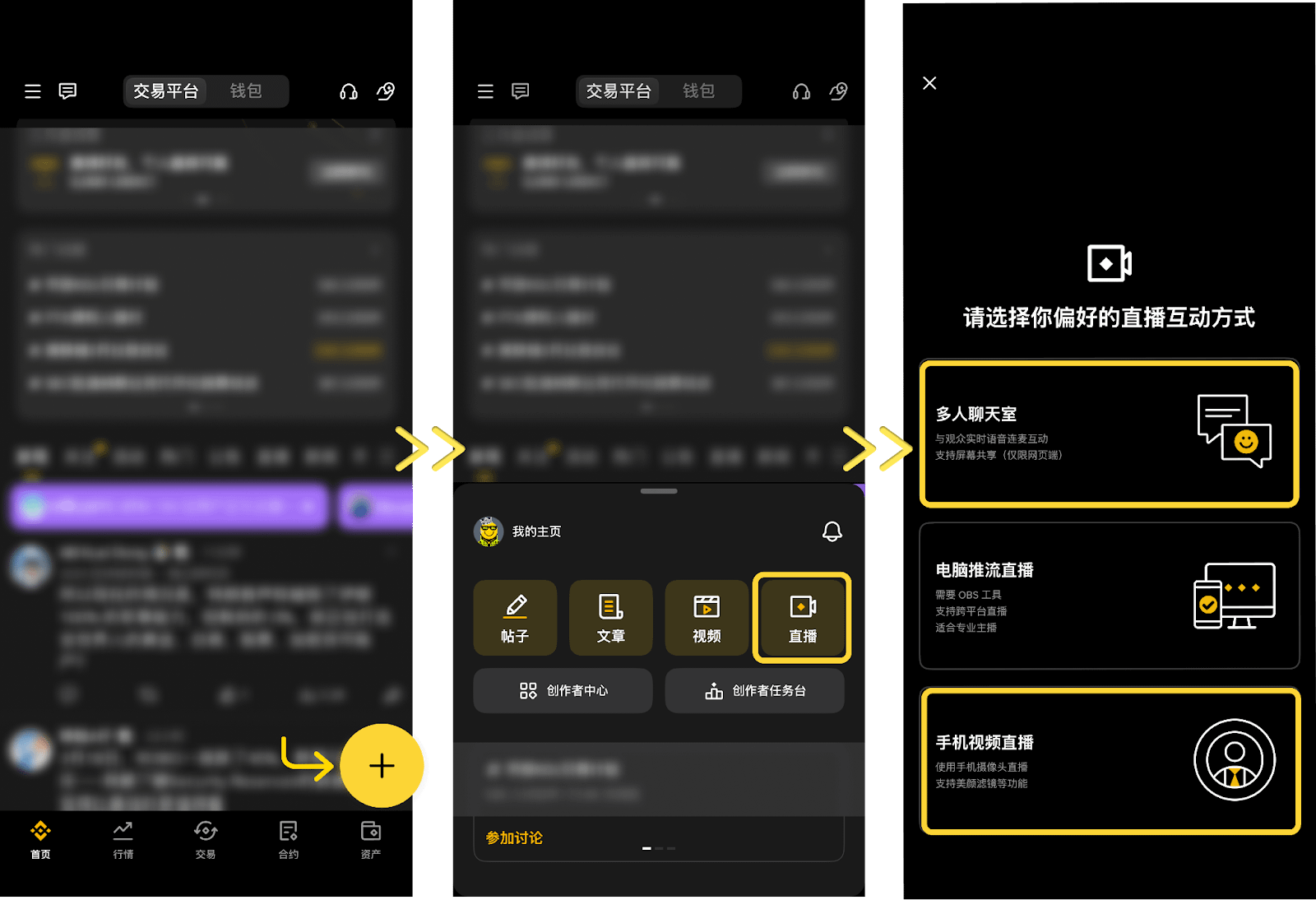
On the App Store homepage, pull down and click the "+", then select "Live".
Choose either "Multi-person chat room" or "Mobile video live streaming" as your live streaming format.
Set the live stream title and permissions, then click "Start Live Stream".
📌 Supports "Schedule Live Stream", which allows you to generate a preview link in advance and share it with the community to increase the exposure of your live stream.
III. Live Streaming Room Functions
Listed currencies and strategies
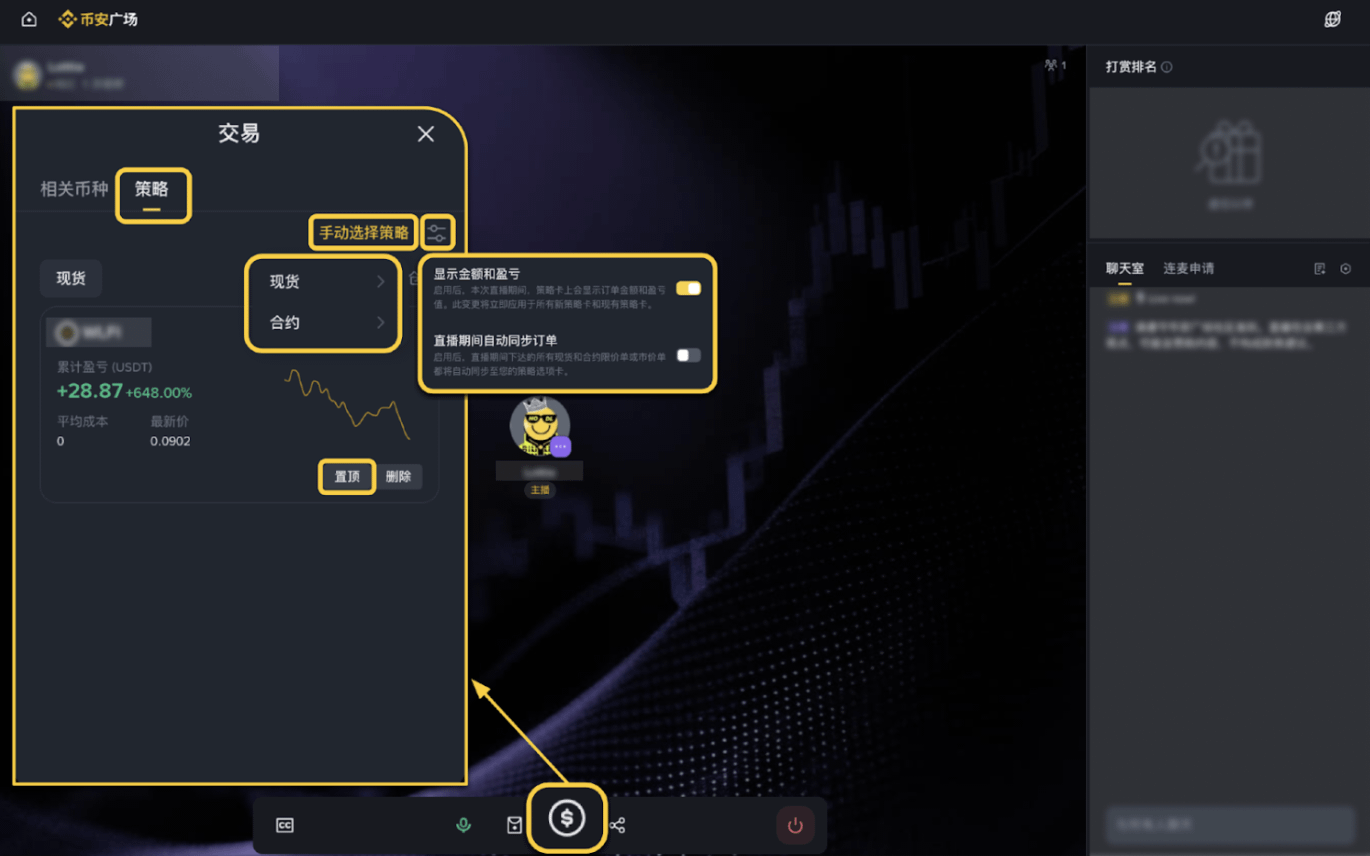
In the live stream, you can list token tags or import live trading strategies. Viewers can click on any trading component in the live stream to be directly redirected to the trading page and place an order. You can earn up to 50% commission on content mining fees!
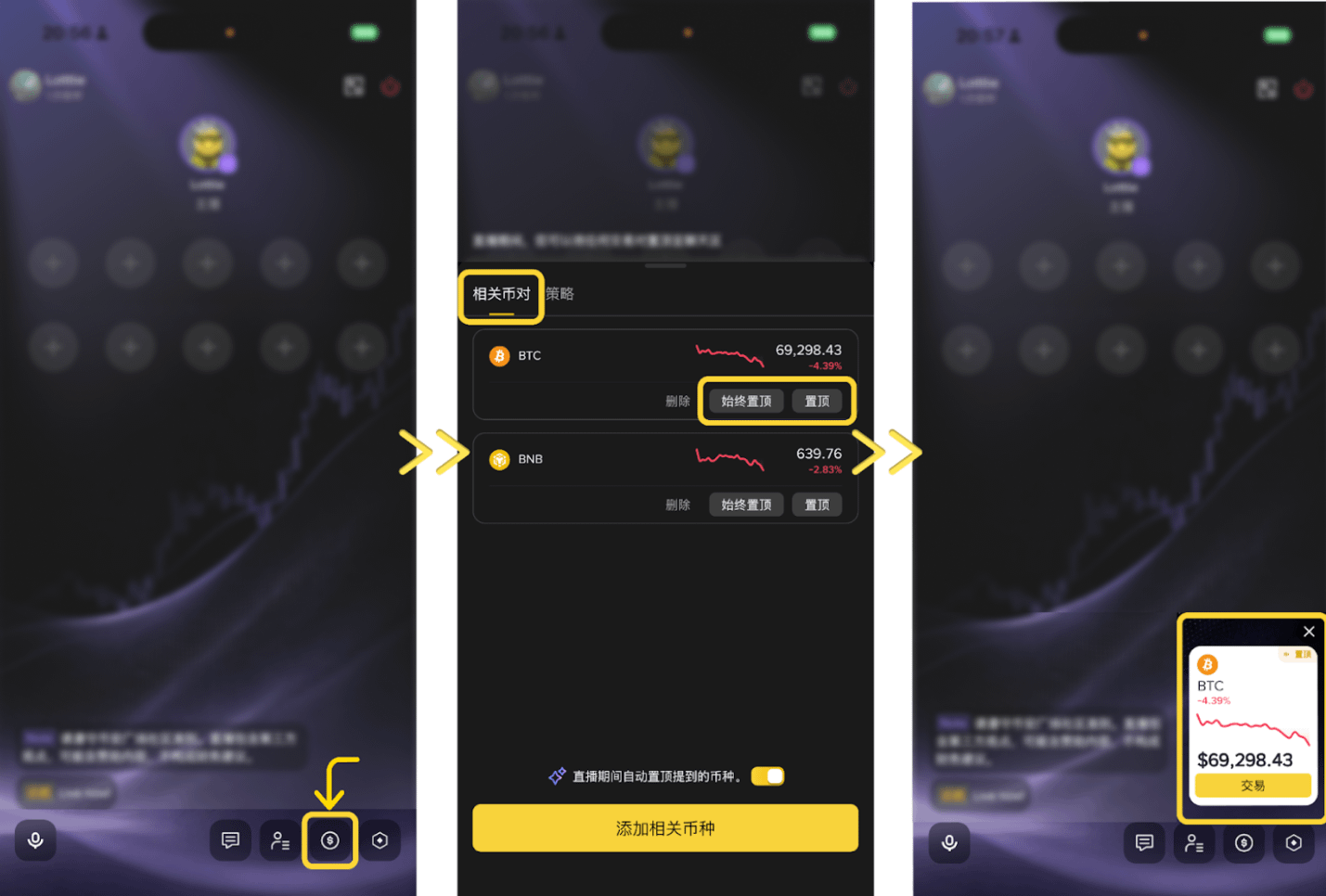
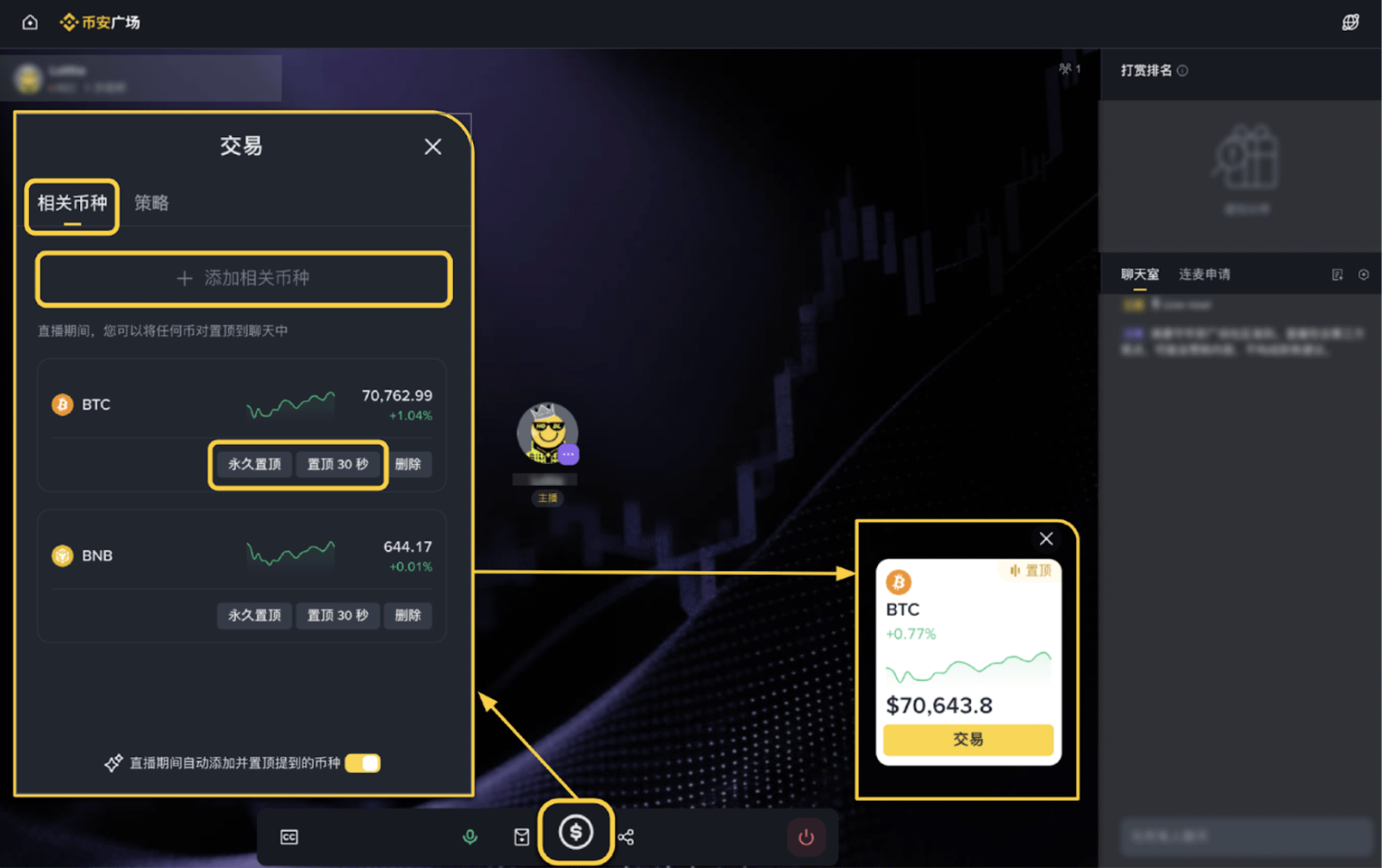
Method 1: Add token tags
Click the "$" entry in the toolbar at the bottom of the live stream room;
Under "Related Tokens", click "Add Related Currencies" to search and select the target token;
Click "Pin to Top" and the token label will be displayed in the live stream;
Once a qualified viewer clicks on a component and a qualified transaction occurs, the transaction is automatically credited to the streamer's content mining commission.
Method 2: Import Trading Strategy
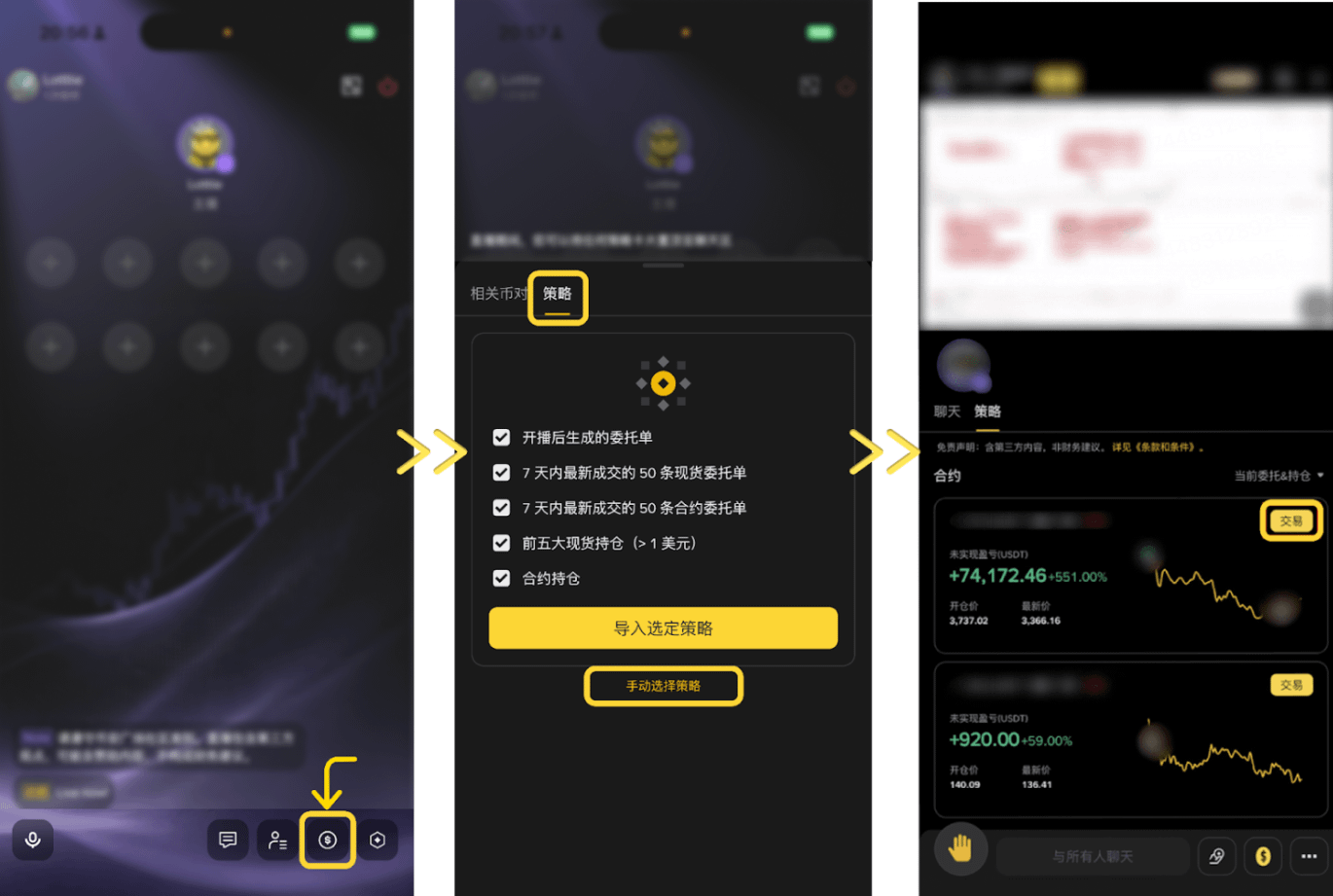
Click the "$" entry in the toolbar at the bottom of the live stream room;
Under "Strategy", select historical orders or current positions, and click "Import Selected Strategies" to import them with one click;
Alternatively, click "Manually Select Strategy" to select and import the target strategy by spot or contract category;
After importing, click "Pin to Top" and the strategy card will be displayed in the live stream room;
Once a qualified viewer clicks on a token component (such as $BTC) and a qualified transaction occurs, the transaction is automatically credited to the streamer's content mining rebate.
⚠️ Once automatic synchronization is enabled, this feature cannot be disabled during this live stream.
Gift-giving function
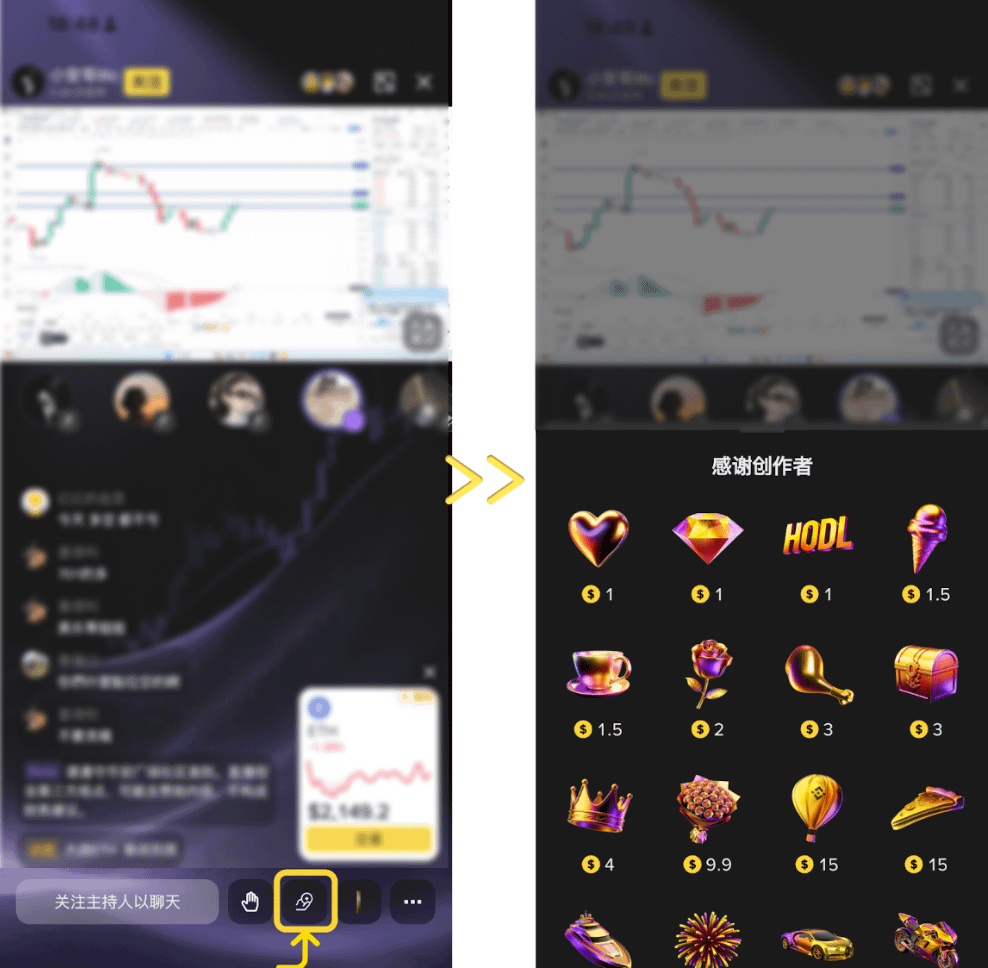
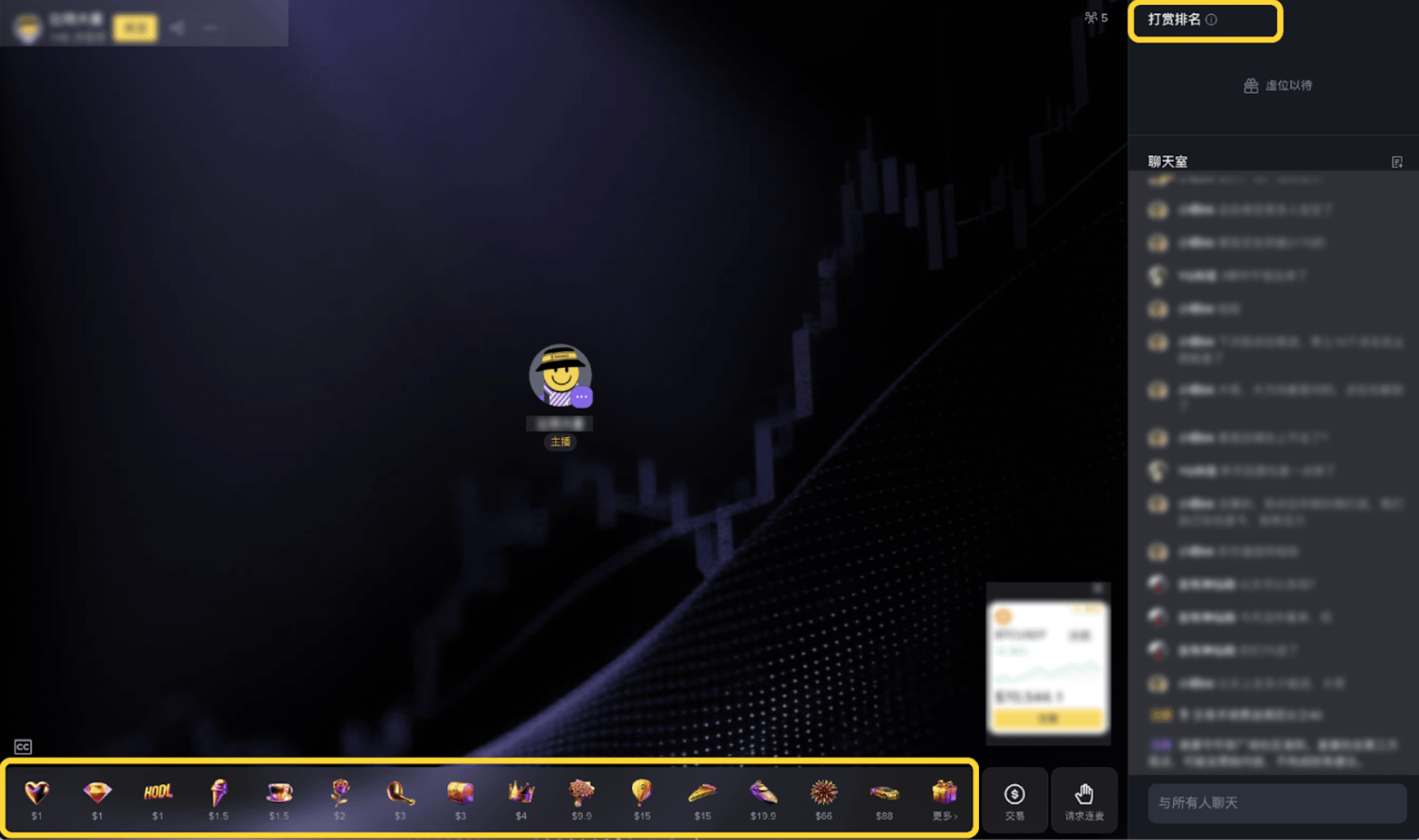
Viewers can send virtual gifts to the streamer in the live stream room. 100% of the revenue belongs to the streamer and is credited to their account in real time. The streamer can view the revenue details in the Creator Center.
How to enable tipping:
Once you have ≥ 1000 followers on the platform, go to the "Creator Center" to find and enable the tipping function;
Once enabled, the donation option will be automatically displayed in your live stream room.
How viewers can tip:
Enter the live stream and click the "Donate" button at the bottom;
Choose a gift and confirm the gifting.
Red envelope distribution and receipt
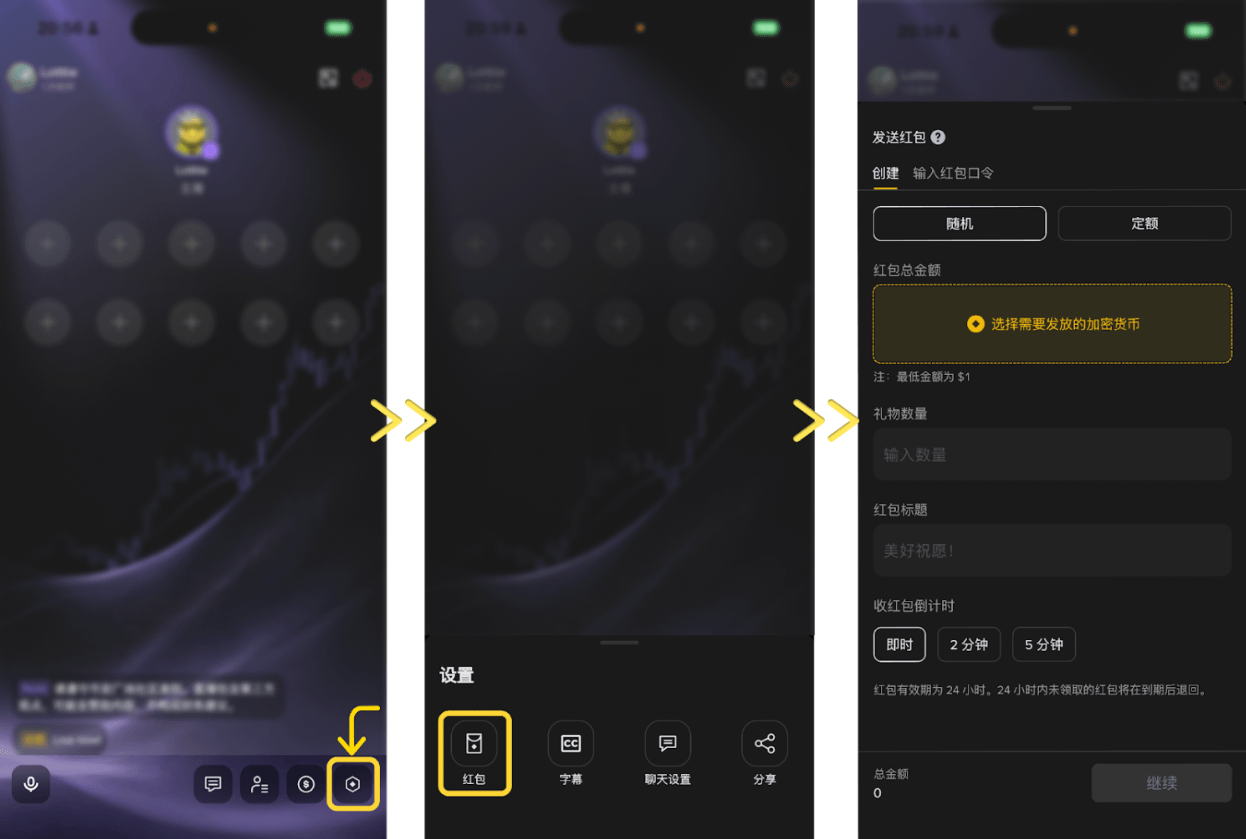
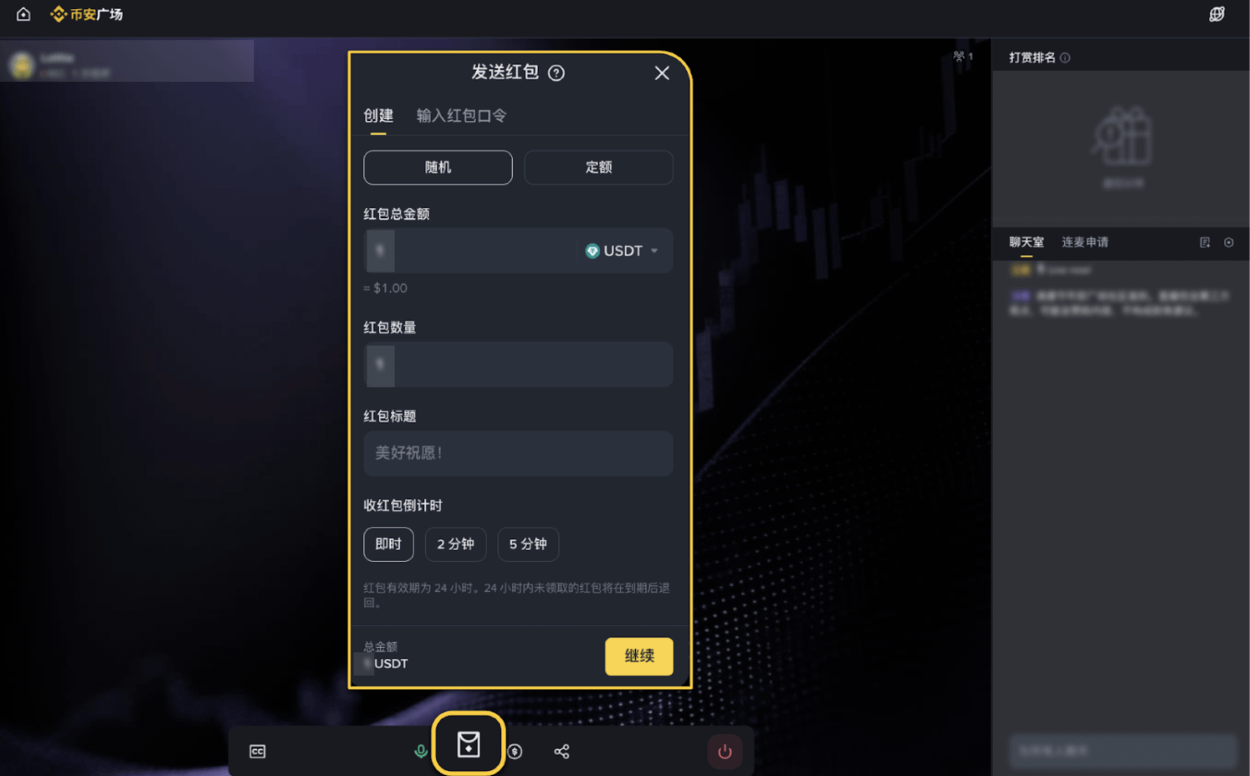
The streamer can distribute red envelopes (digital cash gifts) to viewers during the live stream. Currently, the following three types are supported:
Instant Red Envelope: Viewers can claim it immediately after it is sent.
2-minute countdown red envelope: Available for collection after the countdown ends.
5-minute countdown red envelope: Available for collection after the countdown ends.
Creation method:
Click the "Settings" - "Red Packet" button in the live stream room.
Choose the type of red envelope and set the amount mode (fixed amount or random amount).
Once the red envelope is confirmed, a notification will be displayed in the live stream.
Viewer interaction via live stream
This feature is only available for voice live streaming scenarios. The host can invite viewers to connect and speak in real time, which is suitable for interactive Q&A, multi-person market analysis, and themed AMA scenarios.
How to manage live chat interactions:
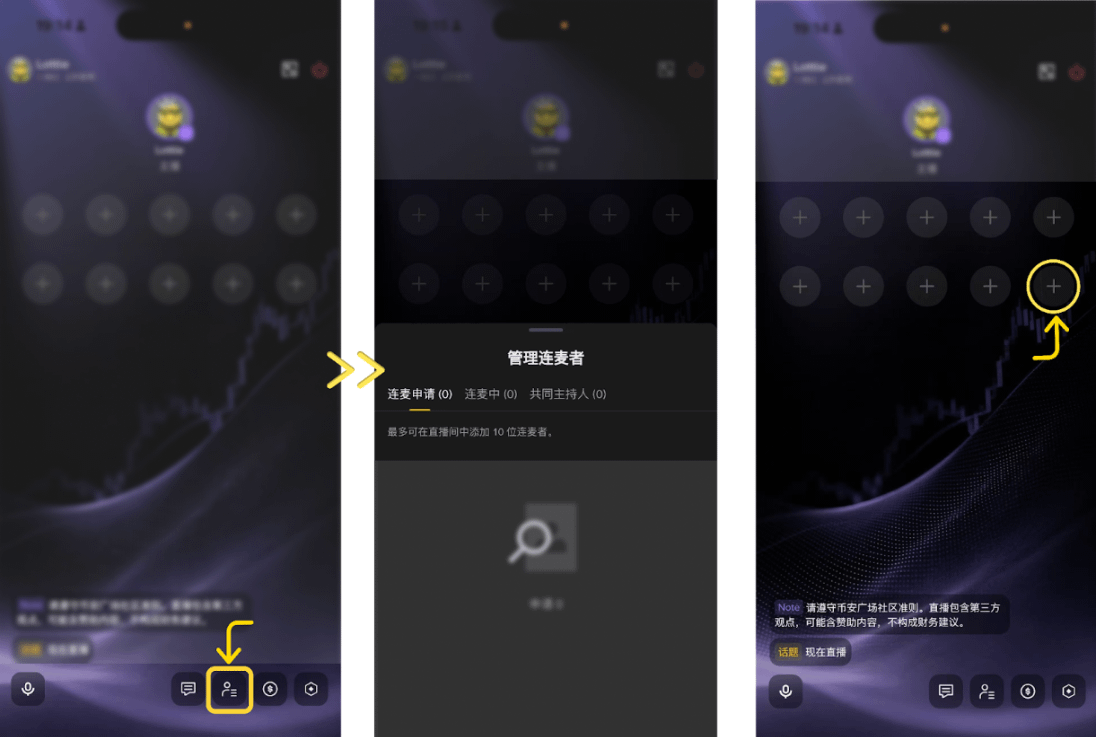
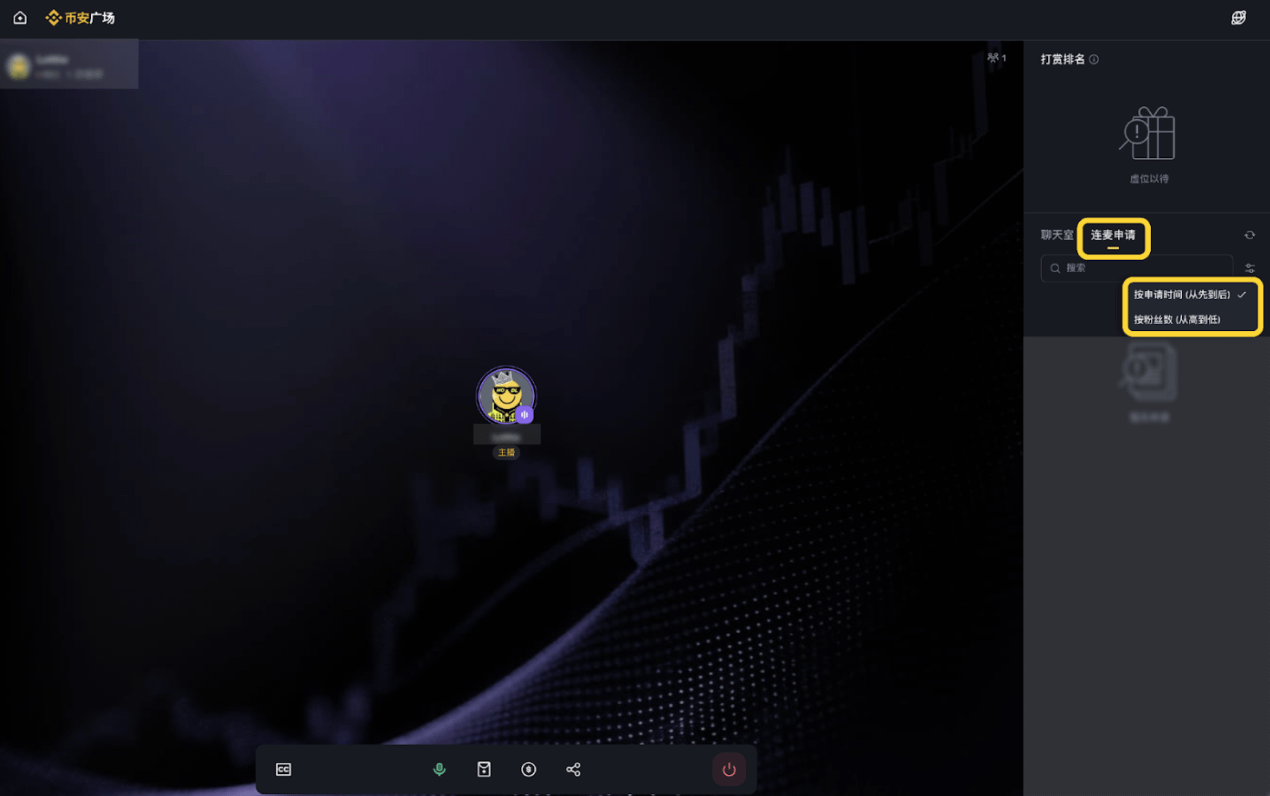
Click "Manage Connectors" in the toolbar at the bottom of the live stream room to view details of connection applications, ongoing connections, and co-hosts;
A maximum of 10 speakers can be online simultaneously in a single session.
How a streamer invites viewers to join a live stream:
Click "Invite to Speak" on the audience member's profile;
Once an invitation is sent, viewers can click "accept/decline";
If a viewer has already requested to join the live stream, the invitation will be automatically accepted.
How a host can invite a co-host:
During a live stream, click "Set as co-host" next to the guest to send an invitation;
If a guest accepts the invitation, they will become a co-host; if they refuse or exceed the allotted time, they can be invited again.
A maximum of two co-hosts can be set for a single session, with screen sharing and review permissions.
How audience members can request to speak:
Click to enter the voice live stream room;
Click the "+" button to request to speak and wait for the host's approval.
IV. Live Streaming Optimization Techniques
Optimization Techniques
Share your screen to display candlestick charts, market data, or news, enhancing the professionalism of your content.
Appearing on camera and turning on the camera to get closer and enhance the audience's sense of trust.
Make good use of red envelopes and live chat to maintain the activity of the live stream and increase audience engagement.
List cryptocurrencies or share trading strategies to guide viewers to trade directly and earn commissions.
Avoiding behavior
Users are redirected to external platforms or asked to add their personal contact information.
There is no substantial output for a long time, only music is played or the system is left running silently.
Adding a large number of co-hosts who make no real contribution
Excessive small talk deviates from the topic and fails to convey effective information.
Titles that pile up emojis or use vague descriptions like "test" are not acceptable.
🙌 It's that simple!
With professional, informative, and engaging live stream content, you'll have a better chance of standing out and becoming a star streamer on Binance Square.
If you have any questions, please feel free to contact us. We look forward to seeing your great content! 🔥